
Introduction
A ChatGPT error occurred message can pop up at the worst possible time, right when someone is mid-task and counting on a quick answer. It’s frustrating, but it’s rarely permanent and almost never a sign that something is broken beyond repair. Most of the time, a ChatGPT error occurred solution is only a few clicks away, whether that means refreshing the page, switching networks, or waiting out a temporary outage on OpenAI’s end. This guide walks through every practical fix, in plain language, starting with the fastest options and moving into deeper troubleshooting for people who need something more thorough. By the end, the goal is simple: get ChatGPT working again without wasting time guessing.
Featured Snippet Answer
To fix a ChatGPT error occurred message, refresh the page, clear the browser cache, check OpenAI’s status page for outages, switch to a stable internet connection, and try a different browser or the mobile app. Most errors resolve within minutes and are caused by temporary server load, not a broken account.
What Does “ChatGPT Error Occurred” Actually Mean?
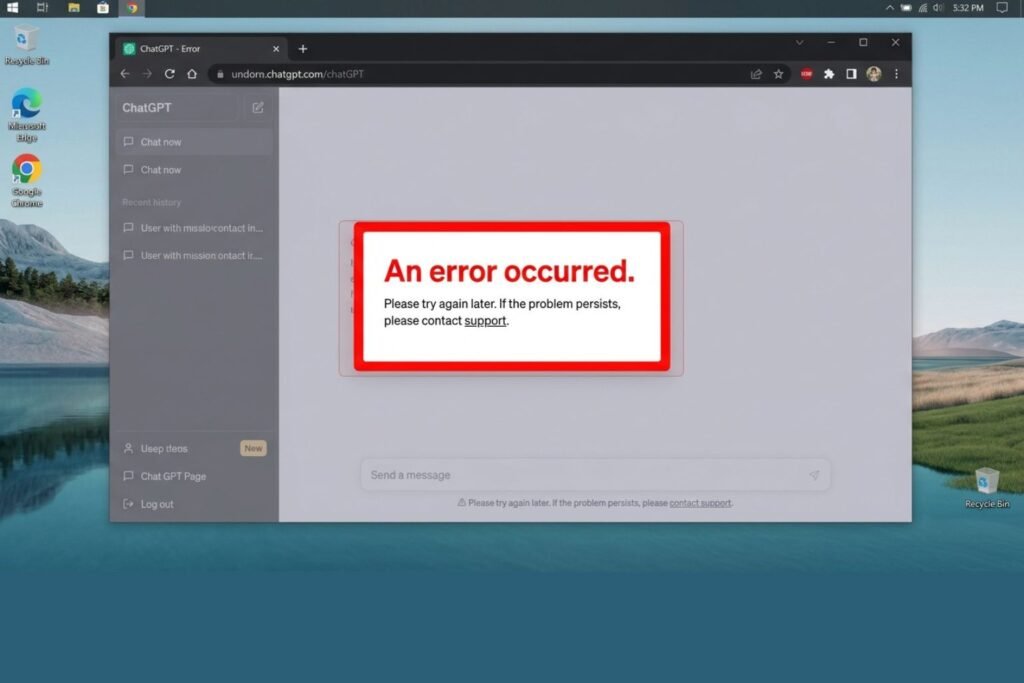
The phrase “an error occurred” is a generic message that ChatGPT shows whenever something interrupts the normal flow between the user’s device and OpenAI’s servers. It doesn’t point to one single problem. Instead, it’s a catch-all warning that something didn’t go through as expected, whether that’s a message that failed to send, a page that didn’t load properly, or a response that got cut off halfway through.
According to official documentation from OpenAI, these interruptions can come from either side: the user’s browser or device, or OpenAI’s own infrastructure. That’s actually good news, because it means there’s usually a simple explanation, and often a simple fix.
Common Causes Behind This Error
Understanding why the error shows up makes it much easier to pick the right fix instead of trying things at random. Here are the most frequent causes reported by users and confirmed through OpenAI’s help resources.
1. High Server Demand
ChatGPT serves an enormous number of requests every minute. During peak hours, especially in the US and UK mornings, the servers can get overloaded, and that often triggers a temporary error message.
2. Unstable Internet Connection
A weak Wi-Fi signal or a spotty mobile data connection can interrupt the request before it fully reaches OpenAI’s servers, which then shows up as an error on the screen.
3. Browser Cache and Cookies Issues
Old cached files or corrupted cookies can conflict with the current version of ChatGPT’s web app, causing pages to fail to load correctly.
4. Outdated App or Browser Version
Running an old version of Chrome, Safari, or the ChatGPT mobile app can create compatibility problems with newer updates OpenAI rolls out.
5. VPN or Firewall Restrictions
Some VPNs and workplace firewalls block or throttle traffic to OpenAI’s domains, which can trigger connection errors.
6. Account or Billing Issues
Occasionally, the error is tied to a subscription problem, such as a failed payment on ChatGPT Plus, rather than a technical glitch.
7. Third-Party Extensions
Ad blockers, privacy extensions, and script blockers sometimes interfere with how ChatGPT loads scripts in the browser.
Quick Fixes You Can Try Right Now
Before diving into a full troubleshooting process, it’s worth trying these fast options first. Most users report that one of these solves the problem within a minute or two.
- Refresh the browser tab or restart the app
- Log out and log back into the ChatGPT account
- Switch from Wi-Fi to mobile data, or the reverse
- Close other open tabs or apps that are eating up bandwidth
- Try asking a shorter or simpler question to see if it goes through
[chatgpt is at capacity solution]
If none of these quick options work, it’s time to move to a more structured approach.
Step-by-Step Guide to Fix ChatGPT Error Occurred
This step-by-step method moves from the simplest checks to the more advanced ones, so nothing gets missed.
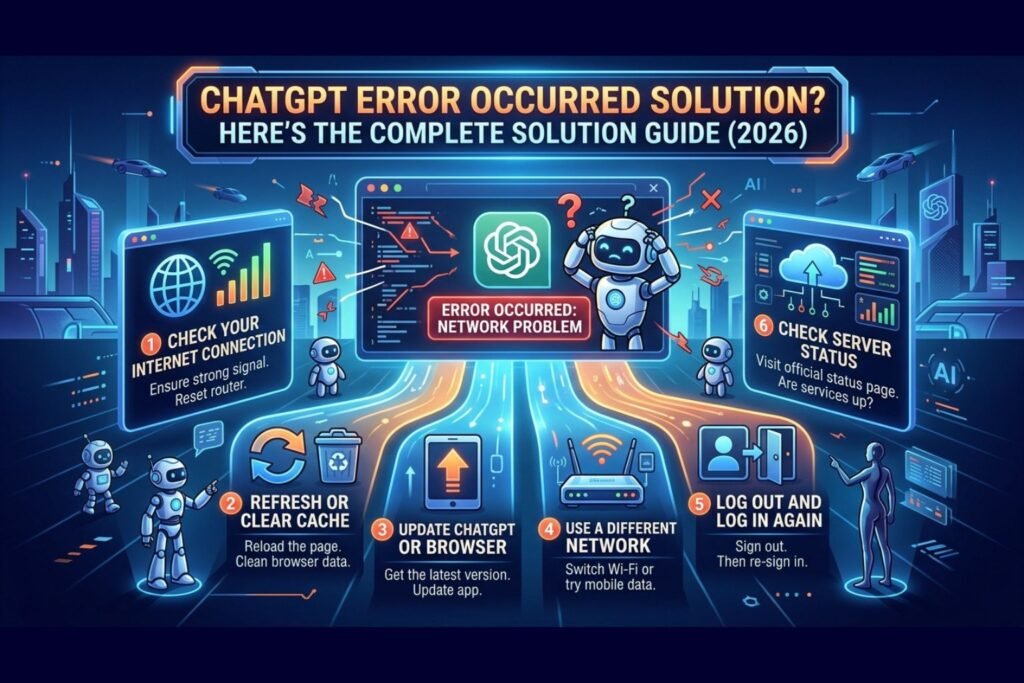
Check OpenAI’s Status Page Visit the OpenAI status page to see if there’s a known outage. If OpenAI itself confirms a service disruption, no local fix will help until it’s resolved on their end.
Refresh and Reload Close the ChatGPT tab completely, then reopen it in a new tab. On mobile, force close the app and reopen it.
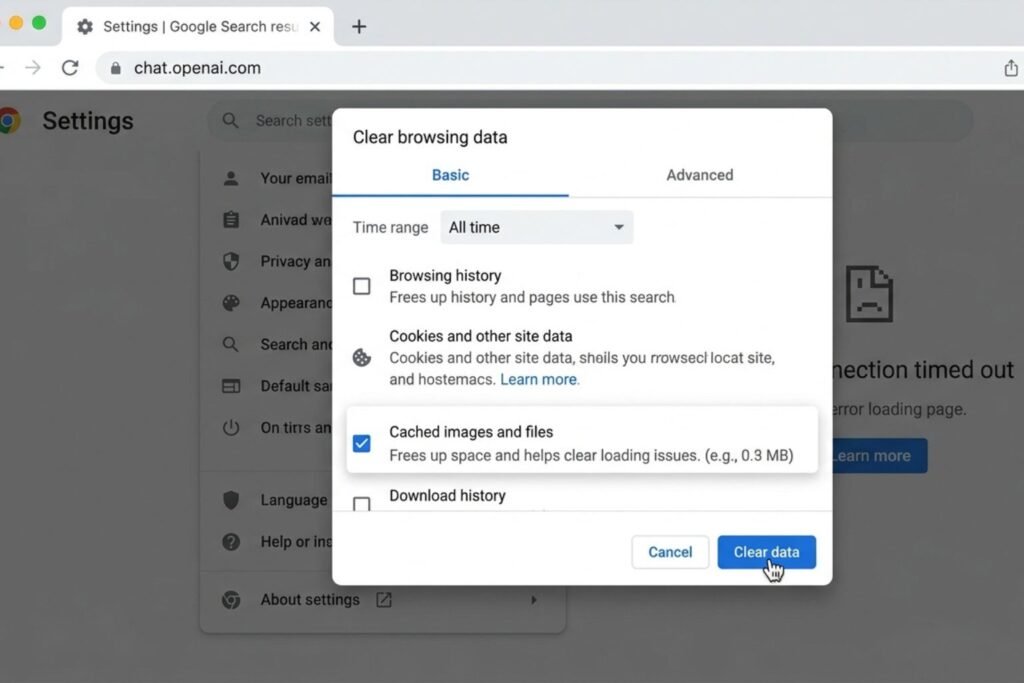
Clear Browser Cache and Cookies Old cached data is one of the most common causes of loading errors. Clearing it forces the browser to pull a fresh copy of the ChatGPT interface.
Test a Different Browser Try switching from Chrome to Firefox, Edge, or Safari to rule out a browser-specific bug.
Disable Browser Extensions Turn off ad blockers, VPN extensions, and privacy tools temporarily, then reload the page.
Switch Networks Move from a public or restricted Wi-Fi network to home Wi-Fi or mobile data to rule out network-level blocking.
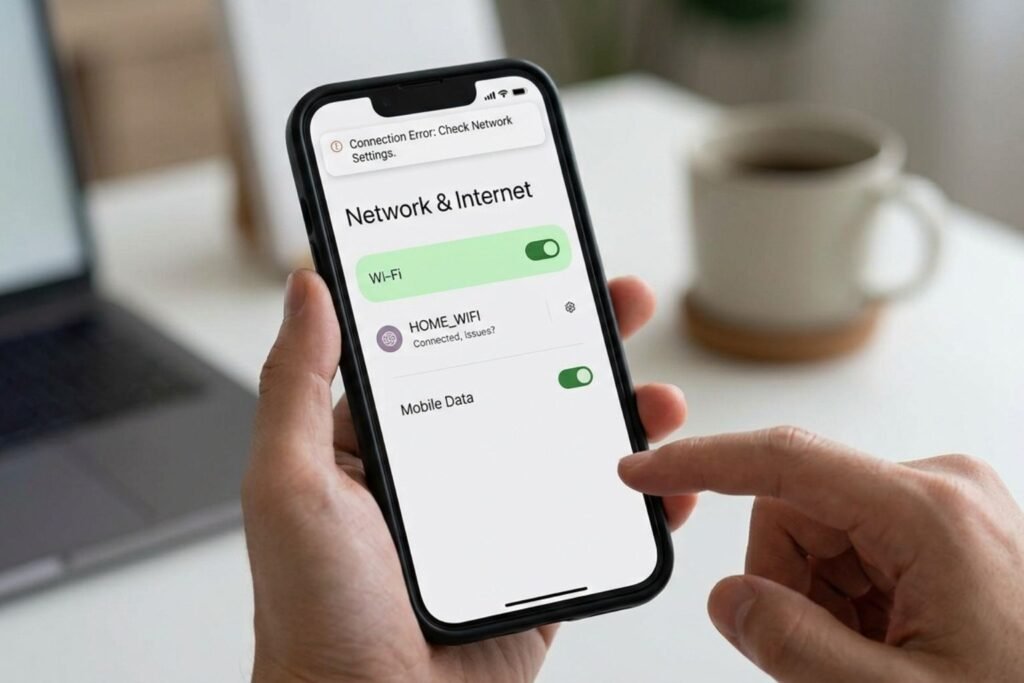
Update the App or Browser Make sure the browser and the ChatGPT mobile app are both running the latest version available.
Log Out and Log Back In Sometimes session tokens expire or get corrupted, and a fresh login resolves the error immediately.
Check Subscription Status For ChatGPT Plus users, confirm that billing is active and the payment method hasn’t expired.
Contact OpenAI Support If the error still shows up after all these steps, it’s time to reach out directly through OpenAI’s help center.
[chatgpt conversation not loading]
Browser vs App: Where the Error Shows Up Most
Some users notice the error mostly in a browser, while others see it only in the mobile app. Knowing the difference helps narrow down the fix faster.
On desktop browsers, the error is usually tied to cache, extensions, or an outdated browser version. On mobile apps, it’s more often linked to a poor connection, an outdated app version, or a device storage issue that prevents the app from loading properly.
[Internal Link: ChatGPT App Not Working]
Cross-checking both platforms, meaning trying the same prompt on the website and the app, can quickly reveal whether the issue is device-specific or tied to the OpenAI servers overall.
Comparison Table: Common ChatGPT Errors and Fixes
| Error Type | Likely Cause | Recommended Fix |
|---|---|---|
| “An error occurred. If this issue persists please contact us.” | Server overload or bug | Wait a few minutes, refresh, check status page |
| “Something went wrong” on login | Session or cookie issue | Clear cookies, log out and back in |
| Network error mid-response | Weak or dropped connection | Switch network, retry the prompt |
| ChatGPT stuck loading | Browser cache or extension conflict | Clear cache, disable extensions |
| Error only in mobile app | Outdated app version | Update app, restart device |
| Error after payment | Billing or subscription issue | Check payment method, contact support |
[chatgpt upload image not working]
Pros and Cons of Each Fix Method
| Fix Method | Pros | Cons |
|---|---|---|
| Refresh/Restart | Fast, works often, no risk | Doesn’t fix deeper issues |
| Clear Cache | Solves loading bugs, improves speed | Logs user out temporarily |
| Switch Browser | Rules out browser bugs quickly | Requires reinstalling extensions or bookmarks |
| Switch Network | Confirms if it’s connection-related | Not always convenient, especially on the go |
| Contact Support | Direct help for account-specific issues | Response time can take a while |
[chatgpt voice mode not working]
Common Mistakes to Avoid
- Refreshing repeatedly without waiting. Hammering the refresh button during a server overload can make load times worse, not better.
- Assuming the account is banned. Most error messages are temporary and unrelated to account standing.
- Skipping the status page. Many users troubleshoot for an hour before realizing OpenAI already confirmed an outage.
- Ignoring browser updates. An outdated browser is one of the most overlooked causes of recurring errors.
- Using too many extensions at once. Stacking multiple ad blockers or privacy tools increases the chance of a script conflict.
Expert Tips to Prevent Future Errors
Google recommends keeping browsers updated automatically to avoid compatibility issues with modern web apps, and the same logic applies well to ChatGPT. A few extra habits can reduce how often this error shows up:
- Keep only one tab of ChatGPT open at a time to avoid session conflicts.
- Bookmark the OpenAI status page for a quick check whenever something feels off.
- Restart the router occasionally if working from home, since long uptimes can cause connection drift.
- Avoid extremely long prompts during peak hours, since longer requests are more likely to time out under heavy server load.
- Keep the ChatGPT app updated through the Apple App Store or Google Play Store rather than relying on old versions.
When to Contact OpenAI Support
If the error keeps happening after trying every fix above, especially across different browsers, devices, and networks, it’s a strong sign the issue sits on OpenAI’s side or is tied specifically to the account. In that case, reaching out through the official OpenAI help center is the right move. Include details like the exact error message, the device used, the browser or app version, and roughly when the error started. This kind of detail helps support teams diagnose the issue much faster than a vague description.
[chatgpt unable to upload files]
FAQs
1. Why does ChatGPT keep saying an error occurred? This usually happens due to high server demand, a weak internet connection, or a browser cache issue. Checking OpenAI’s status page first can confirm whether it’s a widespread outage.
2. Is the ChatGPT error occurred message a sign of a banned account? No, in almost all cases this message is unrelated to account status. It’s a general error indicator, not a ban notice.
3. How long do ChatGPT errors usually last? Most server-related errors clear up within a few minutes to an hour. Longer outages are usually confirmed on OpenAI’s status page.
4. Does clearing cache delete ChatGPT chat history? No, clearing browser cache does not delete saved conversations, since chat history is stored on OpenAI’s servers, not locally.
5. Why does the error only happen on my phone? This is often linked to an outdated app version or a weak mobile connection. Updating the app and restarting the device usually helps.
6. Can a VPN cause the ChatGPT error occurred message? Yes, some VPNs route traffic through regions where access is restricted or throttled, which can trigger connection errors.
7. What should someone do if nothing fixes the error? If every troubleshooting step fails, contacting OpenAI support directly with specific error details is the best next step.
Conclusion
A ChatGPT error occurred message feels annoying in the moment, but the solution is usually within reach. Starting with quick fixes like refreshing the page or switching networks solves most cases right away. For anything more stubborn, working through the step-by-step guide above, checking the status page, clearing cache, and confirming subscription status, covers nearly every scenario. If the error still won’t go away, reaching out to OpenAI support with clear details will get things sorted out. The next time this message pops up, there’s no need to panic. Just work through these steps in order, and ChatGPT should be back up and running in no time.