
Introduction
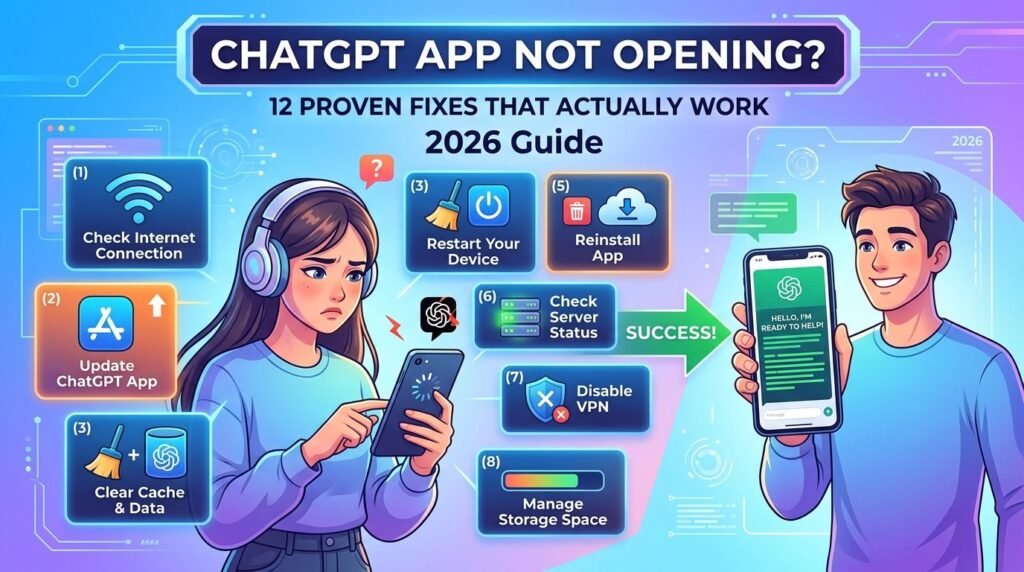
If you are facing a chatgpt app not opening issue, it can happen due to internet problems, outdated versions, or device settings. This guide explains simple ways to fix the problem and restore access quickly. From checking app updates to solving login issues, cache problems, and connection errors, users can follow these steps to make ChatGPT work smoothly again. Whether the app crashes or stays stuck on the loading screen, these solutions can help you get back to using ChatGPT without trouble.
Featured Snippet Answer
If the ChatGPT app not opening issue happens to you, first restart your phone or computer, then check OpenAI’s status page for outages. If the app is up to date, force-close it, clear its cache, and reinstall it. Most launch failures come from a stuck update, a full storage drive, or a temporary server outage.
ChatGPT App Not Opening: Why This Keeps Happening to So Many People
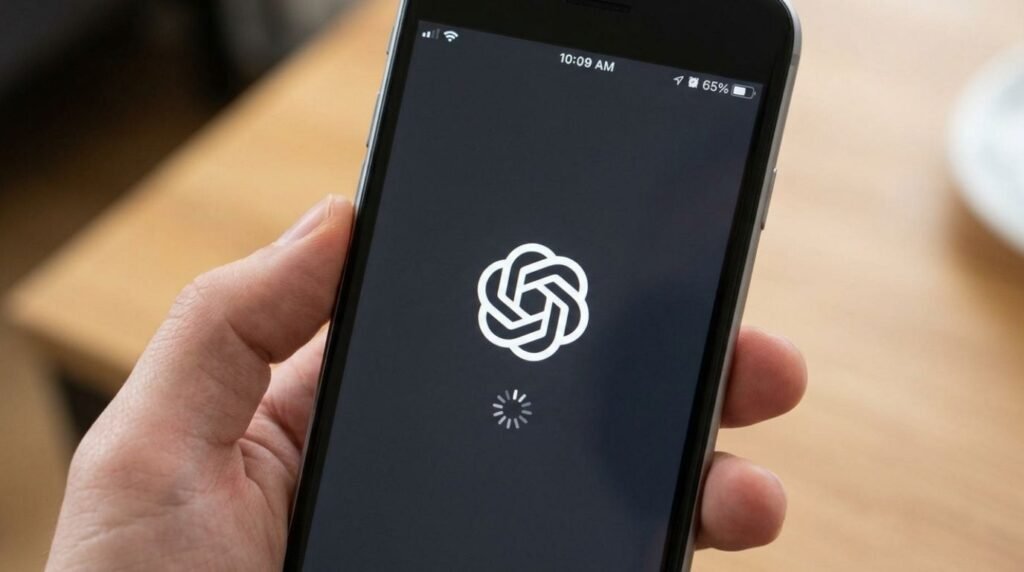
A frozen loading screen. A blank white square where the chat window should be. An app icon that bounces once and then does nothing at all. If the ChatGPT app not opening is what brought you here, you’re clearly not alone, and the good news is that this problem is almost always fixable without any technical background.
ChatGPT has grown into one of the most-used apps on the planet, and with that kind of scale, small hiccups on OpenAI’s servers or on a phone’s operating system can turn into a wave of people typing the exact same complaint into Google. Sometimes it’s a bad app update. Sometimes it’s a background server issue. Sometimes, honestly, it’s just a phone that needs a restart.
This guide walks through every realistic cause of the ChatGPT app not opening, in the order you should actually try them, whether you’re on an iPhone, an Android device, a Windows laptop, or a Mac. No filler, no guesswork — just a clear path from “this app is broken” to “okay, it’s working again.”
Why the ChatGPT App Won’t Open in the First Place
Before jumping into fixes, it helps to understand what’s actually going on behind that frozen screen. There isn’t one single cause here — there are usually five or six, and figuring out which one applies to you saves a lot of wasted time.
Server-side outages. OpenAI’s infrastructure handles an enormous number of requests every minute. When something goes wrong on their end — a database hiccup, a deployment gone sideways, a spike in traffic — the app can fail to load even though there’s nothing wrong with your device at all.
A broken or incomplete app update. Mobile and desktop apps push updates constantly. Occasionally an update doesn’t finish downloading, or it conflicts with an older cached version still sitting on your device, and the app refuses to open as a result.
Local storage or memory issues. If your phone or laptop is nearly out of storage, apps — especially ones that cache a lot of conversation data — can fail to launch properly.
Network and firewall interference. Corporate networks, school Wi-Fi, aggressive VPNs, and some antivirus tools block or throttle traffic to OpenAI’s servers, which can look identical to the app “not opening.”
Operating system incompatibility. An app built for the newest iOS or Android release may behave unpredictably on an older operating system version that hasn’t been updated in a while.
Account or authentication hiccups. Occasionally the app opens fine but appears stuck because it’s silently failing to verify your login session in the background.
Quick Checks Before You Do Anything Else
These take less than two minutes combined, and they solve the issue more often than people expect.
Check OpenAI’s status page. Head to OpenAI’s official status page to see if there’s a known, ongoing incident. If thousands of people are affected right now, no amount of troubleshooting on your end will help — you’ll just need to wait.
Restart the device. It sounds too simple to matter, but a full restart clears out stuck background processes that quietly block apps from launching.
Check your internet connection. Open a browser and load any website. If nothing loads, the problem isn’t ChatGPT at all — it’s the network.
Confirm the app is updated. Open the App Store, Google Play Store, or Microsoft Store and check for a pending ChatGPT update.
If none of these quick checks fix things, move on to the full step-by-step process below.
Step-by-Step Guide: Fixing ChatGPT App Not Opening on Mobile (iPhone & Android)
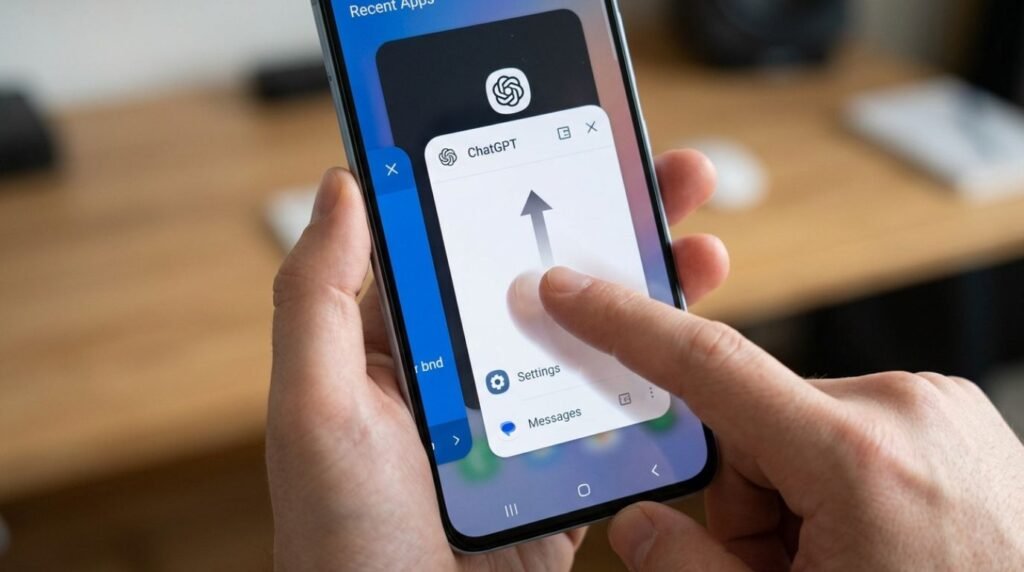
Force close the app completely. On iPhone, swipe up from the bottom and hold, then swipe the ChatGPT card away. On Android, open recent apps and swipe it off the screen. Reopen it fresh.
Check for available storage space. Go to Settings > General > iPhone Storage (or Settings > Storage on Android) and confirm you have at least 1-2 GB free. Apps behave unpredictably when a device is nearly full.
Update the app manually. Open the App Store or Google Play Store, search ChatGPT, and tap Update if one is available. Don’t rely on automatic updates alone.
Update your phone’s operating system. Go to Settings > General > Software Update (iPhone) or Settings > System > System Update (Android).
Offload or reinstall the app. On iPhone, use Settings > General > iPhone Storage > ChatGPT > Offload App, which clears cache but keeps your login. On Android, go to Settings > Apps > ChatGPT > Storage > Clear Cache.
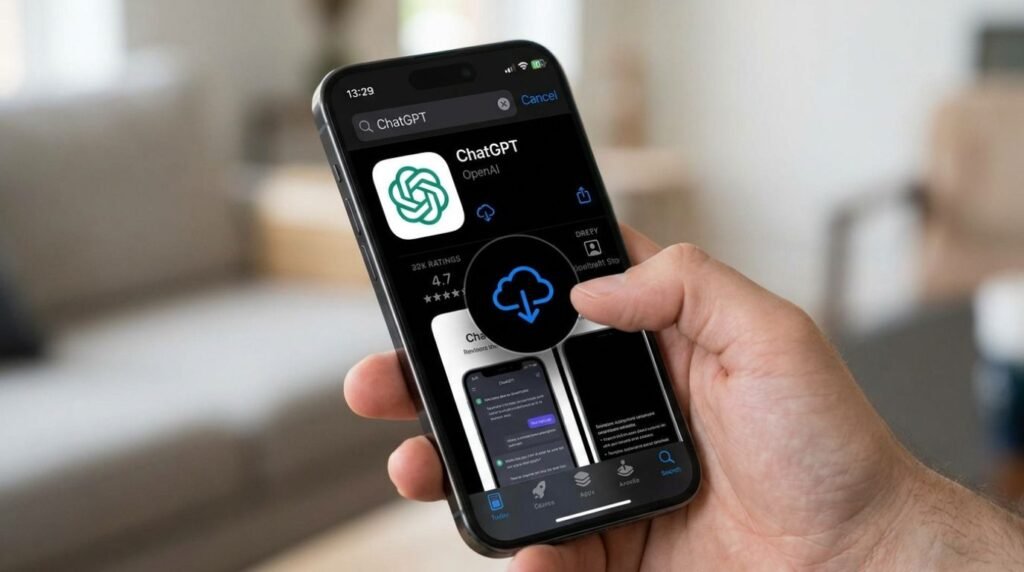
Full uninstall and reinstall. If offloading doesn’t help, delete the app entirely and reinstall it fresh from the store. This resolves the majority of stubborn cases.
Check for a VPN or restrictive network. Turn off any active VPN and try switching from Wi-Fi to mobile data (or vice versa) to rule out network-level blocking.
Log out and back in, if the app does open partway. Sometimes the app loads but hangs on a splash screen because of an authentication issue. Logging out and back in resets that session.
[chatgpt is at capacity solution]
Step-by-Step Guide: Fixing ChatGPT App Not Opening on Desktop (Windows & Mac)
Force quit the process. On Windows, open Task Manager (Ctrl+Shift+Esc), find ChatGPT, and click End Task. On Mac, open Activity Monitor, search ChatGPT, and force quit it.
Check for a pending update. Reopen the app if it launches at all, and look for a “Check for Updates” option in the menu. If the app won’t open even to check, download the latest installer directly from OpenAI’s official website.
Restart your computer. This clears out any stuck background services tied to the previous session.
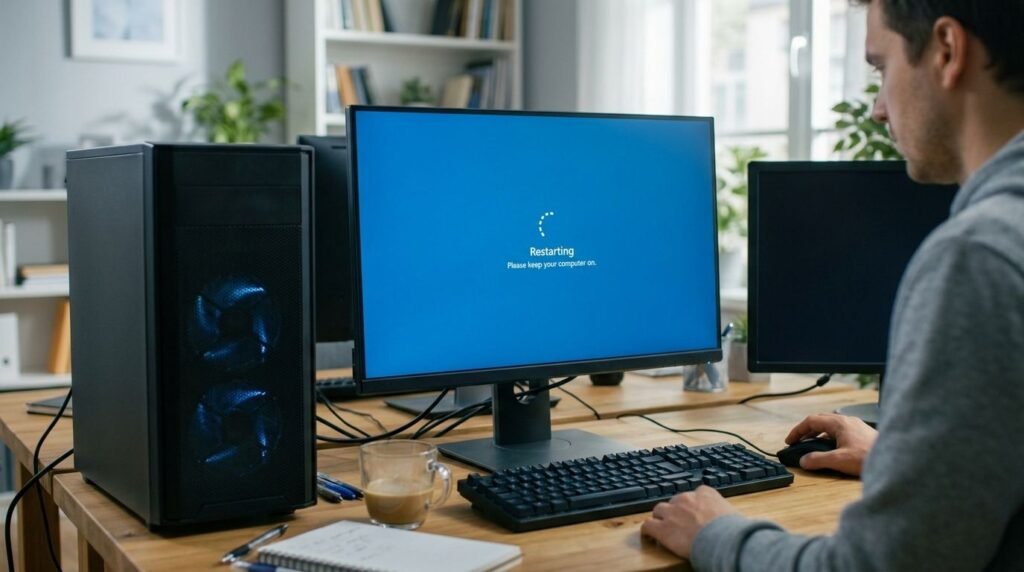
Clear the app’s local cache. On Windows, this is typically stored under the user’s AppData folder; on Mac, under the Application Support folder. Deleting the ChatGPT-specific cache folder (not the whole system folder) often resolves launch failures.
Reinstall the desktop app. Uninstall it through Windows’ “Apps & Features” or by dragging it to the Trash on Mac, then download a fresh copy from OpenAI’s official site.
Check antivirus or firewall settings. Some security software blocks apps it doesn’t recognize after an update. Temporarily whitelist ChatGPT and see if that resolves the freeze.
Try the web version instead. While troubleshooting the desktop app, use ChatGPT directly in a browser to confirm your account and internet connection are both working fine.
[chatgpt conversation not loading]
Mobile vs Desktop: Which Fixes Apply Where
| Issue | Mobile Fix | Desktop Fix |
|---|---|---|
| App won’t launch at all | Force close, reinstall | Force quit process, reinstall |
| Stuck on splash/loading screen | Clear cache, log out/in | Clear local cache folder |
| Works on browser but not app | Update app, check OS version | Use web version temporarily |
| Blocked by network | Toggle Wi-Fi/mobile data, disable VPN | Check firewall/antivirus |
| Storage related | Free up phone storage | Free up disk space |
[chatgpt not generating answers]
Pros and Cons of Each Fix Method
| Method | Pros | Cons |
|---|---|---|
| Restarting the device | Fast, zero risk, fixes many minor glitches | Doesn’t help with server outages |
| Clearing cache | Keeps your login, quick to do | May not fix deeper app corruption |
| Reinstalling the app | Fixes almost all local issues | You may need to log in again |
| Switching to the web version | Instant workaround, no app needed | Not ideal for users who prefer the native app |
| Waiting out a server outage | Requires no effort | Frustrating if you need ChatGPT urgently |
Common Mistakes to Avoid
Most people make the problem last longer than it needs to simply by skipping a step or repeating one that clearly isn’t working.
- Repeatedly tapping the app icon. This doesn’t force it to open faster — it usually just spawns multiple stuck processes that make things worse.
- Ignoring the status page. People often spend twenty minutes reinstalling an app when the real issue was a server outage the whole time.
- Updating the app but not the operating system. Both matter. An outdated OS can cause a perfectly updated app to misbehave.
- Deleting the app without checking storage first. A full phone can make even a freshly reinstalled app fail to open properly.
- Assuming a VPN is harmless. Some VPN servers are blocked or throttled by AI platforms, which can look exactly like a broken app.
- Not checking Wi-Fi vs. mobile data. Sticking with one connection type when it’s clearly the problem wastes time other fixes could have solved.
[chatgpt upload image not working]
Expert Tips
According to OpenAI’s own help documentation, most access issues fall into either a connectivity problem, an authentication problem, or a temporary service disruption — rarely anything more serious. A few habits make future headaches far less likely:
- Keep automatic updates turned on for the ChatGPT app so you’re never several versions behind.
- Bookmark OpenAI’s status page so checking for outages takes five seconds, not five minutes of searching.
- Keep at least a few gigabytes of free storage on any device you use ChatGPT on regularly.
- If you rely on ChatGPT for work, keep the web version as a backup tab so a local app issue never fully blocks you.
- Avoid installing ChatGPT from anywhere other than the official App Store, Google Play Store, Microsoft Store, or OpenAI’s own website — unofficial copies are a common source of instability and security risk.
[chatgpt voice mode not working]
FAQs
1. Why does the ChatGPT app not open on my iPhone? This is usually caused by a pending update, low storage space, or a temporary OpenAI server issue. Force closing the app and checking for updates solves it in most cases.
2. Is ChatGPT down right now, or is it just my device? Check OpenAI’s official status page first. If it shows a live incident, the issue is server-side and unrelated to your phone or computer.
3. Will reinstalling the ChatGPT app delete my chat history? No. Your conversations are stored on OpenAI’s servers, not on your device, so reinstalling the app and logging back in restores your full history.
4. Does using a VPN cause the ChatGPT app to not open? It can. Some VPN servers are blocked or slowed by OpenAI’s systems, which can make the app appear frozen or unresponsive. Try disabling it temporarily.
5. Why does ChatGPT open on the browser but not the desktop app? This usually points to a local app issue rather than an account problem — try clearing the app’s cache or reinstalling it while using the browser version in the meantime.
6. How do I know if it’s a ChatGPT server outage and not my internet? Try loading a few other websites or apps. If everything else works fine, the problem is likely on OpenAI’s end rather than your connection.
7. What should I do if none of these fixes work? Contact OpenAI’s official support through their help center, since a small number of cases involve account-specific issues that need direct assistance.
Conclusion
Dealing with the ChatGPT app not opening is frustrating, especially when it happens right in the middle of something important. The good news is that the fix is almost always simple: restart the device, check for updates, clear the cache, or reinstall the app — and if none of that works, it’s likely a short-lived server issue that resolves on its own. Work through the steps above in order, and in most cases the app will be back up and running within a few minutes. If it keeps happening, bookmark this guide and check back the next time it does.