

Introduction
Few things are more frustrating than opening ChatGPT for an urgent task and watching it freeze, spin, or throw an error message instead of answering. This ChatGPT not working fix guide walks through the exact steps that get the chatbot back online, whether the person is on a laptop, an iPhone, or an Android phone. The issue could be something as small as a slow internet connection or as specific as a server outage on OpenAI’s end. Either way, most problems can be solved in a few minutes without any technical background. This guide breaks the process down into simple, numbered steps so nobody has to guess what to try next.
Featured Snippet Answer
ChatGPT not working fix: Refresh the browser or app, clear cache and cookies, check OpenAI’s status page for outages, switch networks, log out and back in, and update the app. Most ChatGPT errors are temporary and resolve within minutes once the connection or cache issue is cleared.
Why Is ChatGPT Not Working? Common Causes
Before jumping into fixes, it helps to understand what’s actually going on behind the scenes. ChatGPT can act up for several reasons, and pinpointing the cause makes the fix much faster.
Server-side outages. OpenAI occasionally experiences high traffic or maintenance windows that cause slowdowns or downtime across the platform. This isn’t something users can control, but it’s easy to check.
Browser or app cache issues. Old cached files can conflict with new updates, causing pages to load incorrectly or buttons to stop responding.
Network problems. A weak Wi-Fi signal, VPN conflict, or firewall restriction can block ChatGPT from connecting properly.
Account or login glitches. Session tokens sometimes expire unexpectedly, which triggers login loops or blank screens.
Outdated app versions. Both the iOS and Android apps require regular updates, and skipping them can lead to crashes.
Browser extensions. Ad blockers and privacy extensions sometimes interfere with ChatGPT’s scripts, causing the chat window to freeze.
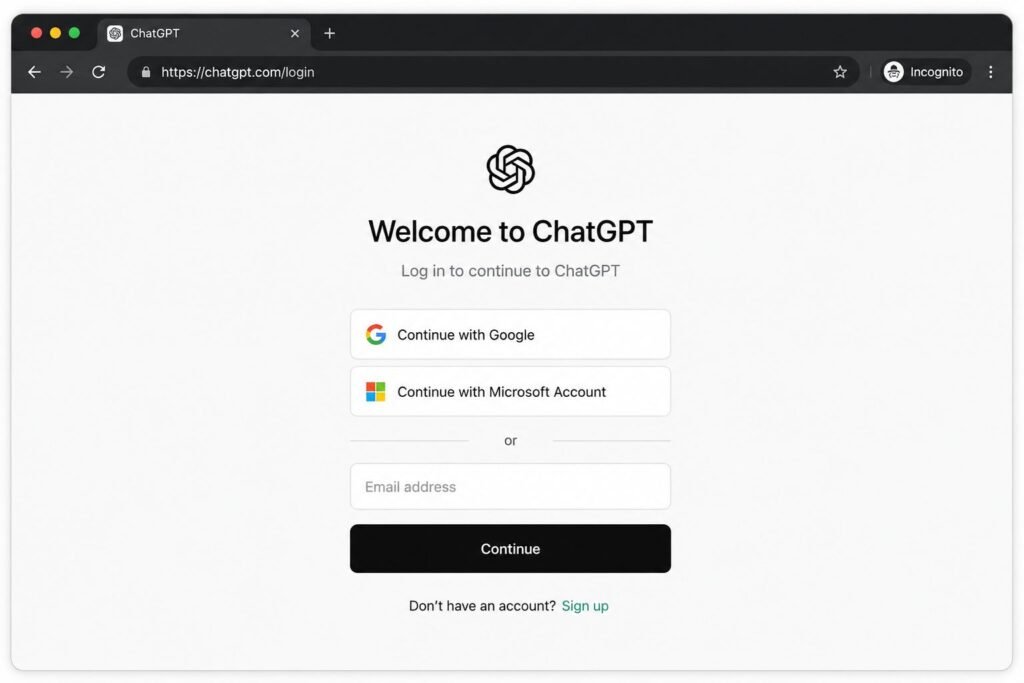
Quick Checklist Before You Start
Sometimes the fastest ChatGPT not working fix is also the simplest. Try these five things first:
- Refresh the page or restart the app
- Check internet connection on another site
- Confirm OpenAI’s system status shows no outage
- Log out and log back in
- Restart the device
If none of these work, move on to the detailed steps below.
[ChatGPT Down Today]
Step-by-Step: ChatGPT Not Working Fix (Desktop & Browser)
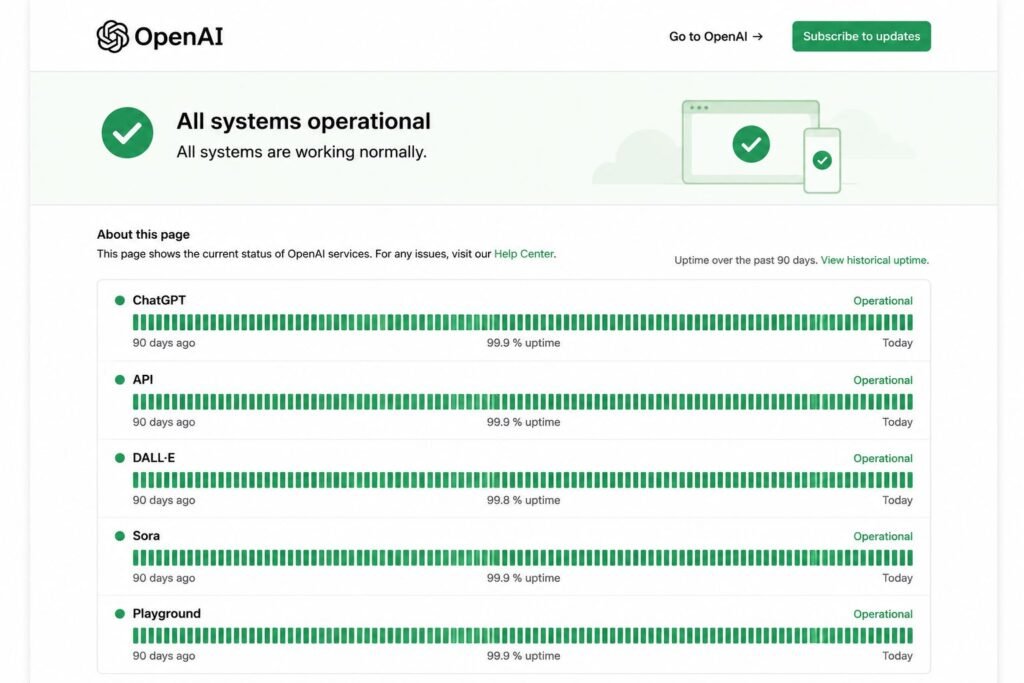
Step 1: Check OpenAI’s Status Page
The very first move should always be checking whether the problem is on OpenAI’s side. OpenAI maintains a live status page that reports ongoing incidents. If there’s a widespread outage, no amount of troubleshooting on a personal device will help — the fix is simply to wait.
Step 2: Clear Browser Cache and Cookies
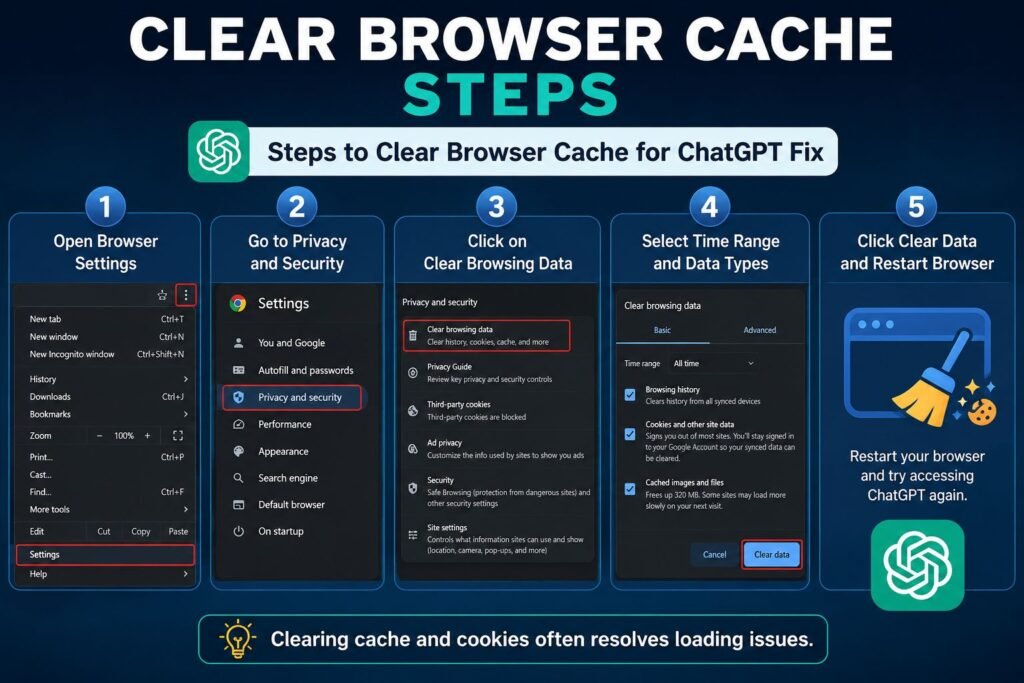
Cached data can quietly break how ChatGPT loads. Clearing it forces the browser to pull a fresh version of the site.
- Open browser settings
- Go to Privacy and Security
- Select “Clear browsing data”
- Choose cache and cookies
- Restart the browser and reload ChatGPT
[ChatGPT Not Loading]
Step 3: Disable Browser Extensions
Ad blockers, script blockers, and privacy tools can prevent ChatGPT’s interface from rendering correctly. Turning them off one at a time helps identify the culprit.
Step 4: Try a Different Browser
If Chrome isn’t cooperating, testing ChatGPT in Firefox, Safari, or Edge can confirm whether the issue is browser-specific.
Step 5: Switch Networks
A quick swap from Wi-Fi to mobile data (or vice versa) often resolves connection-based errors, especially “network error” messages.
Step 6: Log Out and Log Back In
Expired session tokens are a common cause of ChatGPT not working properly. Logging out clears the token, and logging back in generates a fresh one.
[ChatGPT Session Expired]
Step 7: Disable VPN Temporarily
VPNs can sometimes route traffic through regions where ChatGPT access is restricted or rate-limited. Turning it off briefly can confirm if that’s the issue.
ChatGPT Not Working Fix on iPhone and Android
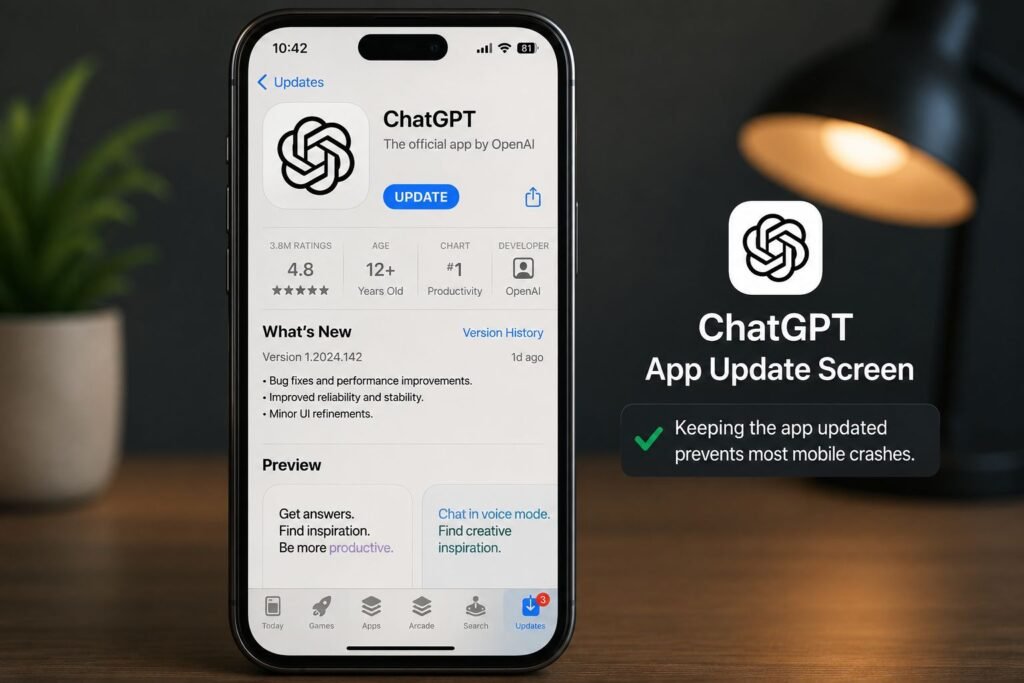
Mobile users face a slightly different set of issues, usually tied to app updates and device storage.
- Force close the ChatGPT app
- Check for app updates in the App Store or Google Play
- Restart the phone
- Clear app cache (Android: Settings > Apps > ChatGPT > Storage > Clear Cache)
- Reinstall the app if the problem persists
- Confirm the phone’s operating system is up to date
Apple and Android both publish detailed troubleshooting guides for app-related issues, which can help if the ChatGPT app specifically continues to misbehave. For device-level troubleshooting, Apple Support and Android Help are reliable official resources.
[ChatGPT App Crashing]
ChatGPT Network Error: What It Means and How to Fix It
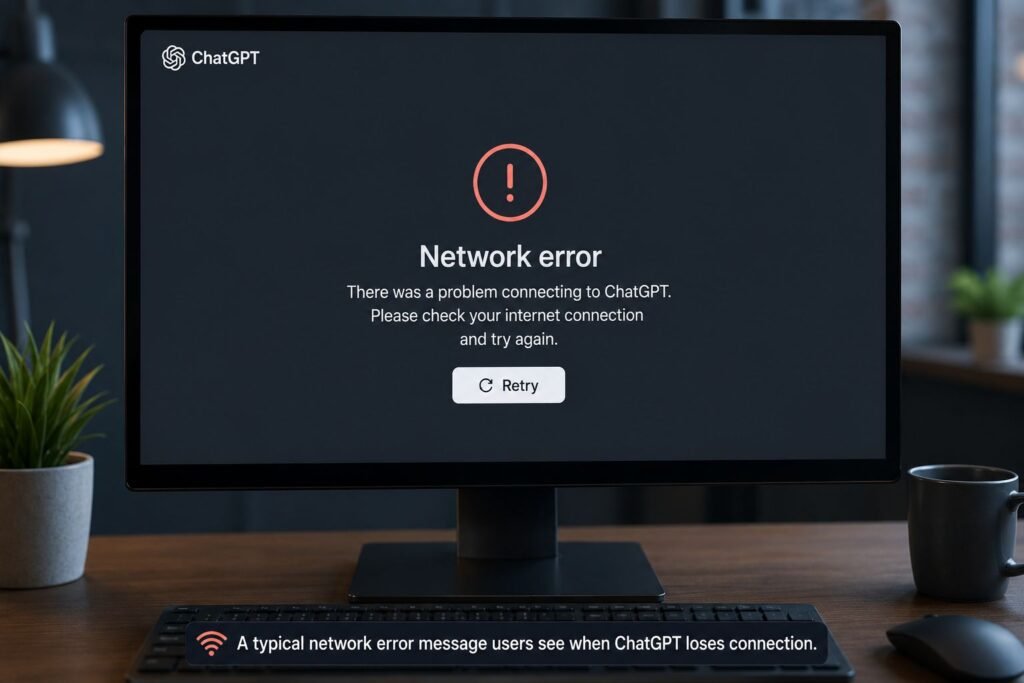
A “network error” message usually points to a broken connection between the device and OpenAI’s servers, not necessarily a problem with the internet itself. Most users report that this happens during long conversations or when uploading large files.
To resolve it:
- Shorten the conversation or start a new chat
- Avoid uploading oversized files
- Check firewall or antivirus settings that might be blocking the connection
- Confirm the device’s date and time settings are accurate, since incorrect settings can break secure connections
[ChatGPT File Upload Error]
ChatGPT Not Working Fix vs Other Common Errors (Comparison Table)
| Issue | Likely Cause | Fastest Fix |
|---|---|---|
| ChatGPT won’t load | Cache or browser conflict | Clear cache, try new browser |
| Network error message | Connection instability | Switch networks, shorten chat |
| Login loop | Expired session token | Log out and back in |
| App keeps crashing | Outdated app version | Update or reinstall app |
| Blank chat screen | Extension conflict | Disable extensions |
| “Something went wrong” error | Server-side issue | Check OpenAI status page |
Pros and Cons of Each Fix
| Fix | Pros | Cons |
|---|---|---|
| Clearing cache | Fast, no data loss | May log user out temporarily |
| Switching networks | Solves most connection errors | Not always convenient |
| Reinstalling app | Fixes deep app bugs | Takes a few extra minutes |
| Waiting out an outage | Requires zero effort | No control over timing |
| Disabling extensions | Pinpoints the exact issue | Slightly tedious if many are installed |
Common Mistakes to Avoid
Many users make the problem worse without realizing it. Here’s what to avoid:
- Repeatedly refreshing during an outage. This won’t speed anything up and can sometimes trigger rate-limit warnings.
- Ignoring app updates. Skipping updates is one of the top reasons mobile users see crashes.
- Assuming it’s always a personal device issue. Sometimes the fault sits entirely with OpenAI’s servers.
- Clearing all browser data instead of just cache. This can accidentally log the user out of unrelated accounts.
- Using multiple VPNs at once. This creates routing conflicts that block secure connections.
[ChatGPT Rate Limit Error]
Expert Tips to Prevent Future ChatGPT Errors
According to official documentation from OpenAI, keeping software updated and maintaining a stable connection are the two biggest factors in avoiding recurring issues. A few extra habits can help:
- Bookmark OpenAI’s status page for quick checks
- Keep browsers and apps updated automatically
- Avoid running too many tabs or apps in the background while using ChatGPT
- Use a wired connection for long or important sessions when possible
- Restart devices weekly to clear background processes
[ChatGPT Plus Worth It]
FAQs
1. Why is ChatGPT not working right now?
It’s usually either a temporary server issue on OpenAI’s end or a local cache and connection problem. Checking the status page is the quickest way to tell which one it is.
2. How long do ChatGPT outages usually last?
Most outages resolve within 30 minutes to a few hours, depending on the scale of the issue. OpenAI typically posts updates during major incidents.
3. Why does ChatGPT keep saying “network error”?
This usually means the connection between the device and OpenAI’s servers dropped mid-request, often during long chats or large uploads.
4. Does clearing cache delete ChatGPT conversation history?
No, clearing browser cache does not delete saved chat history since that’s stored on OpenAI’s servers, not locally.
5. Why does the ChatGPT app crash on my phone?
This is often caused by an outdated app version or low device storage. Updating the app usually resolves it.
6. Is there a way to check if ChatGPT is down for everyone?
Yes, OpenAI’s official status page shows real-time system health and any ongoing incidents.
7. Should I contact support if none of these fixes work?
Yes, reaching out to OpenAI’s help center is the right next step if the problem continues after trying the basic fixes.
[ChatGPT Customer Support Contact]
Conclusion
Dealing with ChatGPT not working can be annoying, especially in the middle of an important task, but the fix is rarely complicated. Starting with the basics — refreshing, checking the status page, and clearing cache — solves the majority of cases. For anyone still stuck, working through the network, login, and app-specific steps above should clear up almost every remaining issue. Bookmark this ChatGPT not working fix guide for next time, and don’t hesitate to check OpenAI’s support resources if the problem sticks around longer than expected.
[ChatGPT vs Google Bard] [Best ChatGPT Alternatives]