
Introduction
Nothing is more frustrating than opening ChatGPT, clicking on an old chat, and watching the screen just… sit there. If a ChatGPT conversation not loading issue has been driving anyone crazy lately, they are far from alone. This has become one of the most searched ChatGPT problems worldwide, especially among users in the USA, UK, and Canada who rely on their chat history for work, school, or daily tasks.
The good news is that this problem is almost never permanent, and it rarely means lost data. In most cases, it comes down to a handful of predictable causes: a shaky internet connection, a browser cache acting up, a temporary OpenAI server hiccup, or an outdated app version. This guide walks through exactly why this happens and, more importantly, how to fix it step by step, whether the issue is happening on a laptop, phone, or tablet.
Featured Snippet Answer
A ChatGPT conversation not loading is usually caused by a slow internet connection, a full browser cache, an outdated app, or a temporary OpenAI server outage. Refreshing the page, clearing cache, switching networks, or updating the app fixes the issue in most cases within a few minutes.
Why ChatGPT Conversations Fail to Load
Before jumping into fixes, it helps to understand what’s actually happening behind the scenes. When someone clicks on a saved chat, ChatGPT needs to pull that conversation history from OpenAI’s servers and render it in the browser or app. If any part of that chain breaks, the chat spins forever or shows a blank screen.
Here are the most common reasons this happens:
- Server-side issues at OpenAI. During high-traffic periods, ChatGPT servers can slow down or briefly go offline. OpenAI’s status page tracks the health of ChatGPT services and past incidents.
- Browser cache and cookies overload. Over time, cached data can conflict with newer site updates, causing pages to hang.
- Weak or unstable Wi-Fi. A conversation with lots of images, code blocks, or long text needs a steady connection to fully render.
- Outdated app version. Mobile apps that haven’t been updated in a while sometimes struggle to sync with the latest backend changes.
- Browser extensions interfering. Ad blockers and privacy extensions occasionally block scripts that ChatGPT needs to load chats properly.
- Account or session errors. A session token that has expired can cause a conversation to load endlessly without ever finishing.
- Too many open tabs or memory issues. Heavy browser usage can slow down rendering, especially on older devices.
Quick Fixes You Can Try Right Now
Before diving into the full step-by-step guide, try these fast fixes. They solve the problem more often than people expect.
- Refresh the page (or pull down to refresh on mobile).
- Log out and log back in.
- Switch from Wi-Fi to mobile data, or vice versa.
- Close and reopen the app completely.
- Try a different browser like Chrome, Safari, or Firefox.
If none of these work, move on to the full guide below.
[Internal Link: ChatGPT App Not Opening]
Step-by-Step Guide to Fix ChatGPT Conversation Not Loading
Step 1: Check OpenAI’s Server Status
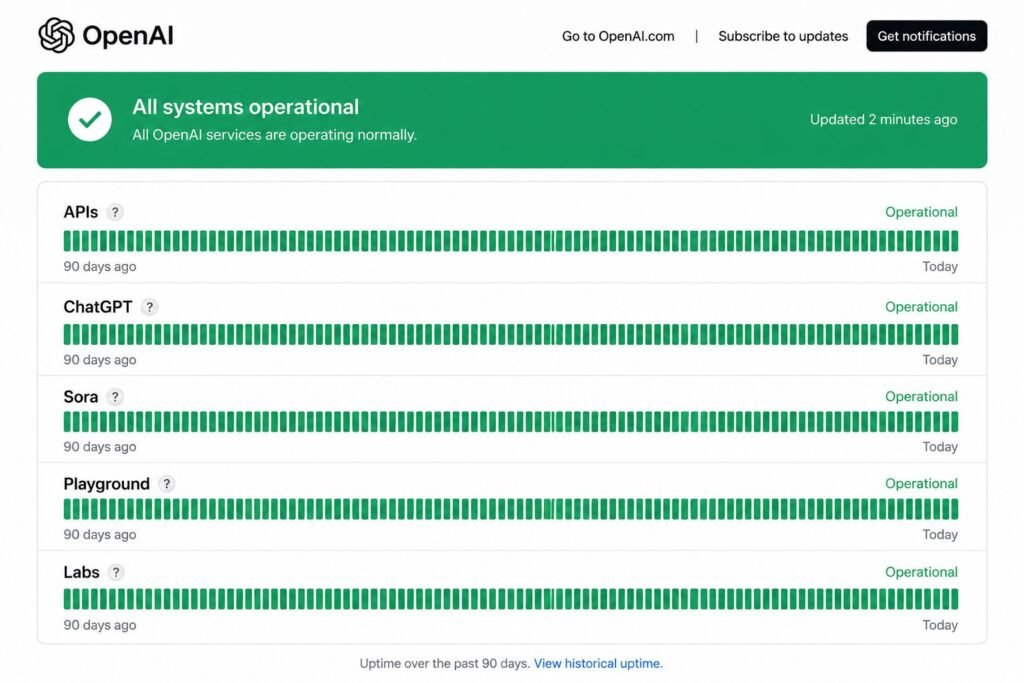
Sometimes the problem isn’t on the user’s end at all. Before troubleshooting anything locally, it’s worth checking whether OpenAI is experiencing an outage. Visiting the official OpenAI status page shows real-time updates on any ongoing issues with ChatGPT.
Step 2: Refresh and Reload
This sounds simple, but a full page reload (not just clicking back) often clears whatever temporary glitch caused the chat to freeze. On desktop, pressing Ctrl+R (Windows) or Cmd+R (Mac) forces a clean reload.
Step 3: Clear Browser Cache and Cookies
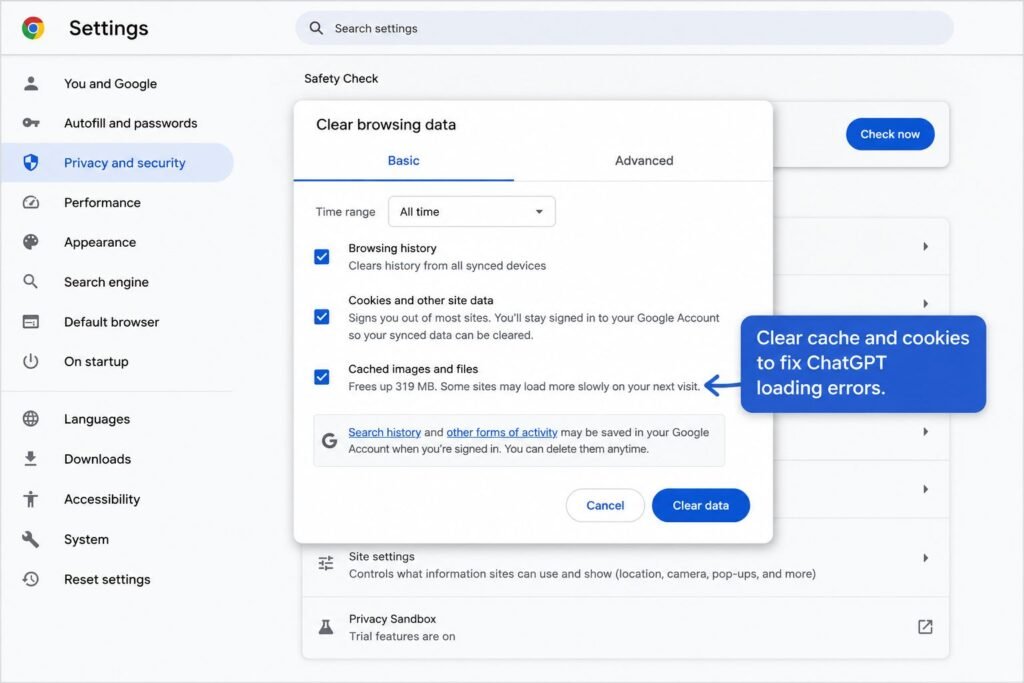
A cluttered cache is one of the most common culprits behind loading problems.
- Open browser settings.
- Go to Privacy and Security.
- Select “Clear browsing data.”
- Choose “Cached images and files” and “Cookies.”
- Restart the browser and try again.
[ChatGPT Clear Cache Guide]
Step 4: Disable Browser Extensions Temporarily
Ad blockers, VPN extensions, and script blockers can sometimes prevent ChatGPT’s interface from fully loading a conversation. Disabling them one at a time helps identify the culprit.
Step 5: Switch Networks
If the conversation still won’t load, try switching from Wi-Fi to cellular data or connecting to a different Wi-Fi network entirely. A weak or congested connection is a frequent cause of stuck chats, especially for longer conversations with lots of content.
Step 6: Update the ChatGPT App
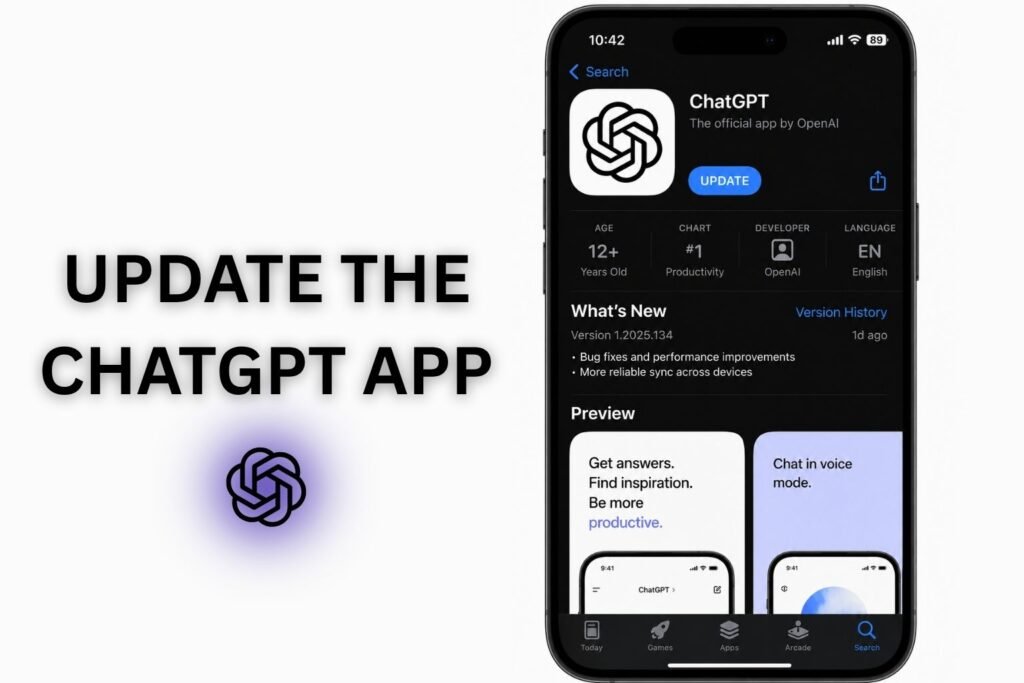
For mobile users, an outdated app version can cause sync issues. Checking the Apple App Store or Google Play Store for pending updates is a quick way to rule this out.
[ChatGPT Mobile App Issues]
Step 7: Log Out and Log Back In
Session errors can silently break the connection between the browser and OpenAI’s servers. Logging out completely, clearing cookies, and logging back in resets that connection.
Step 8: Try Incognito or Private Mode
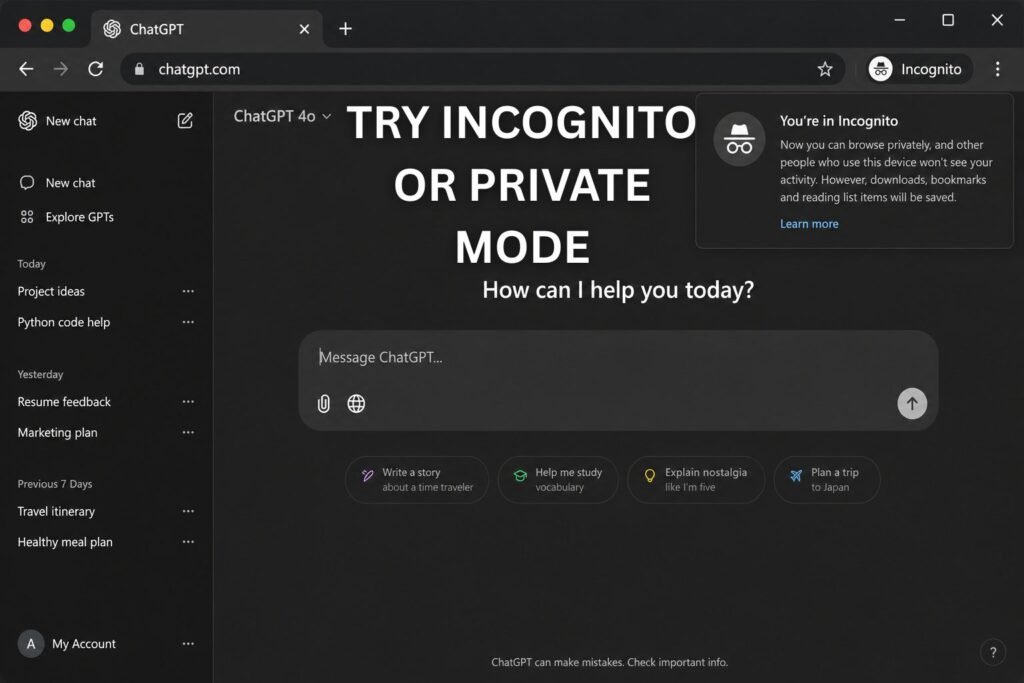
Opening ChatGPT in an incognito or private window removes cache, cookies, and most extensions from the equation. If the conversation loads fine here, the issue is almost certainly related to browser data.
Step 9: Restart the Device
It sounds basic, but restarting a phone, tablet, or computer clears temporary memory issues that can quietly interfere with how web apps render content.
Step 10: Check for Very Long Conversations
Extremely long chats, especially ones filled with images, code, or lengthy documents, sometimes take longer to render or fail on lower-end devices. Trying the same chat on a different device can confirm whether length is the issue.
Step 11: Contact OpenAI Support
If none of the steps above resolve the issue, reaching out to OpenAI’s official help center is the safest next step. This is especially important if conversations are disappearing entirely rather than just failing to load.
Browser vs App: Where the Problem Happens Most
Many users notice that ChatGPT conversation loading issues show up differently depending on whether they’re using a browser or the mobile app.
On browsers, the issue is often tied to cache, cookies, or extensions. On mobile apps, it’s more frequently linked to outdated versions, poor cellular signal, or background app restrictions that limit how much data the app can process at once.
[chatgpt is at capacity solution]
Comparison Table: Common Causes and Fixes
| Cause | How to Identify It | Recommended Fix |
|---|---|---|
| Server outage | Multiple users report the same issue | Check OpenAI status page and wait |
| Full browser cache | Only happens on one browser | Clear cache and cookies |
| Weak internet connection | Other websites also load slowly | Switch networks or restart router |
| Outdated app | Problem only on mobile | Update app from store |
| Extension conflict | Works fine in incognito mode | Disable extensions one by one |
| Expired session | Login screen appears randomly | Log out and log back in |
Pros and Cons of Each Fix
| Fix | Pros | Cons |
|---|---|---|
| Refresh/Reload | Instant, no setup needed | Doesn’t fix deeper issues |
| Clear cache | Solves most browser-related bugs | Signs out saved sessions temporarily |
| Switch network | Rules out connectivity problems | Not always practical on the go |
| Update app | Fixes sync bugs permanently | Requires app store access |
| Contact support | Resolves account-specific issues | Can take time to get a response |
Common Mistakes to Avoid
- Assuming the conversation is permanently deleted. In most cases, it’s a loading issue, not a data loss issue.
- Repeatedly refreshing without waiting. This can sometimes worsen server load during outages.
- Ignoring the status page. Many users troubleshoot for an hour before realizing OpenAI itself was having issues.
- Not updating the app for months. Outdated versions are a common but overlooked cause.
- Using too many extensions at once. This makes it harder to isolate the real problem.
[ChatGPT Data Loss Explained]
Expert Tips to Prevent This in the Future
According to official documentation from OpenAI, keeping the app and browser updated reduces most sync-related errors significantly. Most users report fewer loading issues after switching to a stable Wi-Fi connection and periodically clearing browser cache, even when no problems are present yet.
Google recommends keeping browsers updated to their latest stable version for both security and performance reasons, which also applies directly to how smoothly web apps like ChatGPT load.
[ChatGPT Plus Worth It] [ChatGPT vs Gemini]
FAQs
1. Why is my ChatGPT conversation stuck on loading?
This usually happens due to a slow connection, full browser cache, or a temporary OpenAI server issue. Refreshing the page or clearing cache resolves it in most cases.
2. Did I lose my ChatGPT chat history?
Not likely. A loading error is different from data loss, and conversations typically reappear once the underlying issue is fixed.
3. Why does ChatGPT work on browser but not on the app?
This often points to an outdated app version or a weak cellular connection rather than an account-wide problem.
4. Is this a common ChatGPT issue?
Yes, loading errors are among the most frequently reported ChatGPT problems, especially during high-traffic hours.
5. How long do ChatGPT outages usually last?
Most outages resolve within minutes to a few hours, and checking the official status page gives the most accurate timeline.
6. Does clearing cache delete my ChatGPT conversations?
No, clearing browser cache does not delete conversations stored on OpenAI’s servers; it only clears local browser data.
7. What should I do if nothing fixes the loading issue?
Contacting OpenAI support directly is the best next step, especially if the problem persists across multiple devices and networks.
[ChatGPT Error Codes Explained]
Conclusion
A ChatGPT conversation not loading is almost always a fixable, temporary problem rather than a sign of lost data. Starting with quick fixes like refreshing the page or checking the OpenAI status page, then moving through cache clearing, network switches, and app updates, solves the issue for the vast majority of users. For anyone who continues to run into this after trying every step above, reaching out to OpenAI support directly is the most reliable way to get a lasting fix.