

Introduction
Nothing kills momentum like typing out the perfect prompt and watching ChatGPT throw back a red “network error” instead of an answer. If you’ve landed here searching for a ChatGPT network error fix, you’re definitely not alone — this is one of the most common complaints from ChatGPT users on both desktop and mobile.
The good news is that most of the time, this error has nothing to do with your account being broken or your subscription being cancelled. It’s usually a small hiccup between your device and OpenAI’s servers, and it’s fixable in a few minutes. This guide walks through exactly why the error shows up, what to try first, and a full troubleshooting checklist for when the simple stuff doesn’t work.
Featured Snippet Answer
The fastest ChatGPT network error fix: refresh the page, check your internet connection, then clear your browser cache and disable browser extensions. If the problem continues, try incognito mode, switch browsers, or restart the ChatGPT app. Most network errors clear up within a few minutes once local browser or connection issues are ruled out.
What Causes a ChatGPT Network Error
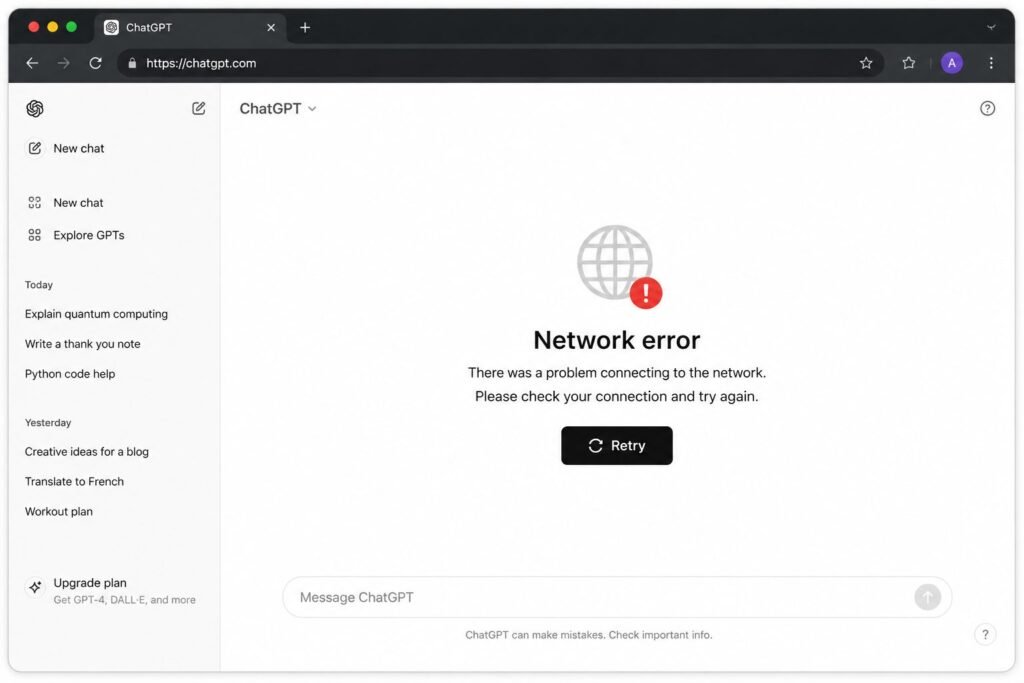
Before jumping into fixes, it helps to know what’s actually going wrong behind the scenes. A network error basically means your browser or app sent a request to ChatGPT’s servers, and something interrupted the round trip before a response could come back. There are a handful of usual suspects behind this.
Server-side congestion. During peak hours, especially weekday mornings and afternoons in the US, OpenAI’s servers handle an enormous volume of requests. When traffic spikes, some connections can time out or get dropped.
Local internet instability. A weak Wi-Fi signal, a spotty mobile data connection, or a router that needs a reboot can all interrupt the steady stream of data ChatGPT needs to keep a conversation going.
Browser cache and cookie buildup. Over time, stored site data can conflict with new requests, which is one of the most frequent causes of this exact error.
Extensions and security software. Ad blockers, VPNs, and some antivirus tools can quietly block or interfere with the connections ChatGPT relies on.
Long or heavy responses. Very long prompts, huge pasted blocks of text, or responses that take a long time to generate can sometimes exceed connection timeouts, which is a lesser-known cause worth remembering.
Quick ChatGPT Network Error Fix (Try These First)
If you just want to get back to work, start here before doing anything more involved:
- Refresh the page (or force-close and reopen the app).
- Check that your Wi-Fi or mobile data is actually working by loading another site.
- Wait 30 to 60 seconds — sometimes the response is still trying to complete.
- Turn off any VPN you’re currently using.
- Try a shorter prompt if you were asking for a long or complex response.
If none of these solve it right away, move on to the full step-by-step guide below.
Step-by-Step Guide: Full ChatGPT Network Error Fix
Step 1: Check OpenAI’s Status Page
Before touching any settings, confirm the problem isn’t on OpenAI’s end. Visit the official OpenAI status page — if it shows an active incident, the fix is simply to wait it out rather than troubleshoot your own device.
[ChatGPT Down Status]
Step 2: Test Your Internet Connection
Switch from Wi-Fi to mobile data (or vice versa) to see if the issue follows you. If ChatGPT works fine on a different network, the problem was your original connection, not ChatGPT itself.
Step 3: Clear Your Browser Cache and Cookies
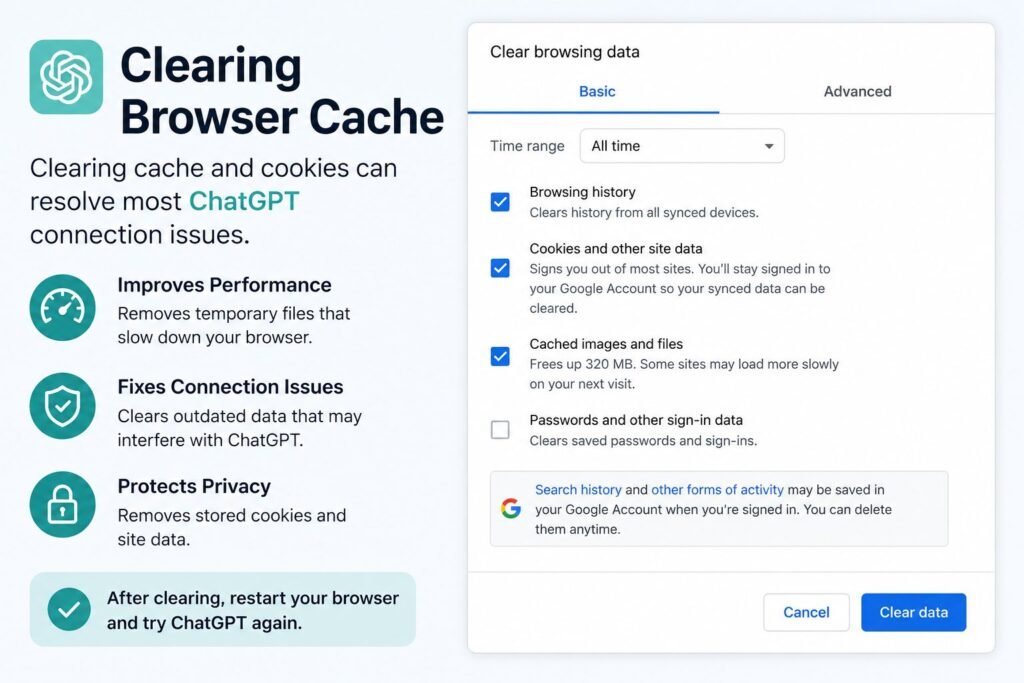
Corrupted or outdated cached data is a leading cause of this error. Clearing it forces your browser to load a completely fresh version of ChatGPT.
- Chrome: Settings > Privacy and Security > Clear Browsing Data
- Safari: Settings > Safari > Clear History and Website Data
- Edge: Settings > Privacy, Search, and Services > Clear Browsing Data
[ChatGPT Browser Cache Guide]
Step 4: Try Incognito or Private Mode
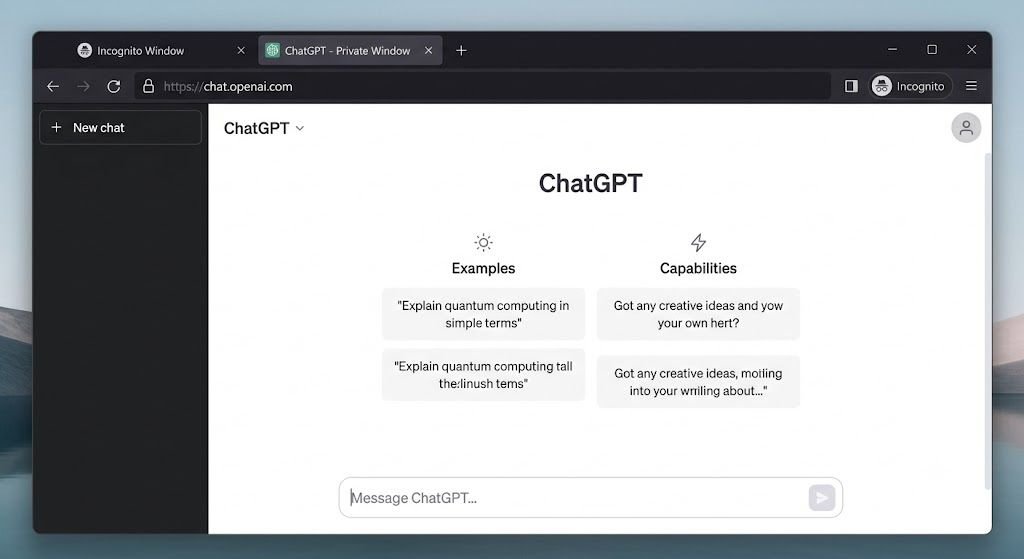
Open ChatGPT in a private browsing window. If it loads without errors, an extension or stored site data on your regular profile is likely the culprit.
Step 5: Disable Extensions One by One
Ad blockers and privacy extensions are notorious for interrupting the data streams that ChatGPT needs to send responses back in real time. Turn them off individually and reload the page after each one to isolate the problem.
[ChatGPT Extension Conflicts]
Step 6: Turn Off Your VPN
VPN traffic sometimes gets flagged or throttled by security systems designed to catch unusual activity, which can trigger a network error even when your underlying connection is fine.
Step 7: Restart Your Router
A simple router reboot clears out temporary network glitches. Unplug it for about 30 seconds, then plug it back in and wait for a full reconnect before retrying.
Step 8: Update or Reinstall the App
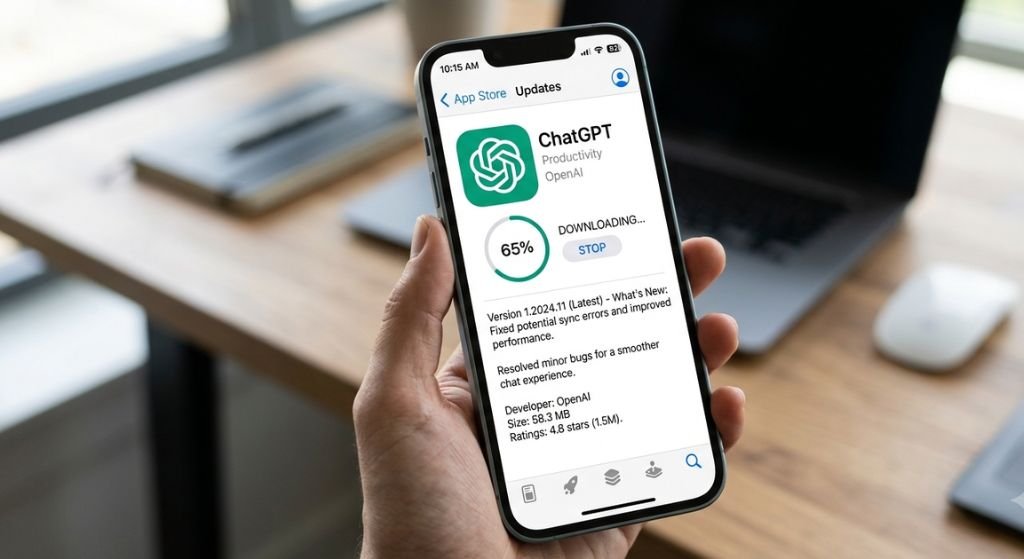
On mobile, an outdated version of the ChatGPT app can cause sync failures. Update through the Apple App Store or Google Play, or uninstall and reinstall if updating alone doesn’t help.
Step 9: Switch Browsers
If you’ve been using an older or less common browser, try Chrome, Edge, or Safari instead. Compatibility issues with outdated browsers can quietly cause repeated errors.
[ChatGPT Plus Worth It]
Step 10: Contact OpenAI Support
If every step above fails and the issue persists across devices and networks, it’s time to reach out to OpenAI Help Center with details like your browser, device, and screenshots of the error.
[ChatGPT Customer Support Guide]
Browser vs. App: Which One Fixes the Error Faster?
| Feature | ChatGPT Web (Browser) | ChatGPT Mobile App |
|---|---|---|
| Common error cause | Cache, extensions, VPN | Outdated app, background restrictions |
| Fastest fix | Clear cache / incognito mode | Reinstall the app |
| Works during browser issues | No | Often yes |
| Best for long sessions | Yes, more stable for long chats | Can be less stable in background |
| Setup needed | None | Occasional updates required |
Pros and Cons of Each Fix
| Fix | Pros | Cons |
|---|---|---|
| Refresh / restart | Instant, no setup | Doesn’t fix deeper issues |
| Clear cache | Solves most recurring errors | You’ll need to log back in |
| Incognito mode | Great for diagnosing the cause | Not a permanent solution |
| Disable VPN | Quick and reversible | Loses VPN privacy temporarily |
| Reinstall app | Fixes corrupted app files | Takes a few extra minutes |
| Contact support | Solves account-specific issues | Slower response time |
Common Mistakes to Avoid
- Assuming it’s always OpenAI’s fault. Many users skip checking their own connection first, when local issues are actually more common.
- Ignoring the status page. Troubleshooting your device is pointless if there’s a known outage happening.
- Running too many tabs at once. Multiple open ChatGPT tabs during an error can make the connection less stable.
- Sending huge prompts without breaking them up. Extremely long requests are more likely to hit a timeout mid-response.
- Forgetting to update the app. An outdated mobile app is an easy fix that’s often overlooked.
[ChatGPT Rate Limit Explained]
Expert Tips
According to OpenAI’s own troubleshooting documentation, many network-related errors trace back to local network configuration, browser extensions, or temporary server-side hiccups rather than account problems. Most users report that a simple cache clear combined with disabling a VPN resolves the issue without needing to contact support at all. For anyone on a company or school network, IT teams may need to allowlist OpenAI’s domains, since corporate firewalls and web filters are a frequent hidden cause of persistent errors.
[ChatGPT for Business Setup]
FAQs
Q1: Why does ChatGPT keep giving me a network error?
It’s usually caused by browser cache issues, an unstable internet connection, or a VPN interfering with the connection. Server congestion during peak hours can also be a factor.
Q2: Is the ChatGPT network error the same as ChatGPT being down?
Not always. A true outage affects everyone and shows up on OpenAI’s status page, while a network error can be a local issue affecting only you.
Q3: Does clearing my cache delete my chat history?
No, your conversation history is saved to your account on OpenAI’s servers, not stored locally in your browser cache.
Q4: Can a VPN really cause this error?
Yes. VPN traffic is sometimes flagged by security systems, which can interrupt the connection needed for ChatGPT to respond properly.
Q5: Why does the error happen more on long responses?
Long or complex responses take more time to generate and stream back, which increases the chance of hitting a connection timeout.
Q6: Should I switch to the mobile app if the website keeps failing?
It’s worth trying, since the app sometimes uses different server endpoints and can work even when the website is having trouble.
Q7: When should I contact OpenAI support directly?
If you’ve tried refreshing, clearing your cache, disabling extensions, and switching networks, and the error still won’t go away, it’s time to reach out with details of the issue.
[ChatGPT Error Messages Guide]
Conclusion
A ChatGPT network error is annoying, but it’s rarely permanent, and in most cases the fix takes less time than reading about it. Start with the basics — refresh, check your connection, and rule out a full outage — then work through the deeper fixes like clearing your cache, disabling extensions, or reinstalling the app if the problem sticks around. Bookmark this ChatGPT network error fix guide so you’ve got a quick checklist ready the next time the red error box shows up, and if you’re still stuck after trying everything here, OpenAI’s support team is the next best step.