
Introduction
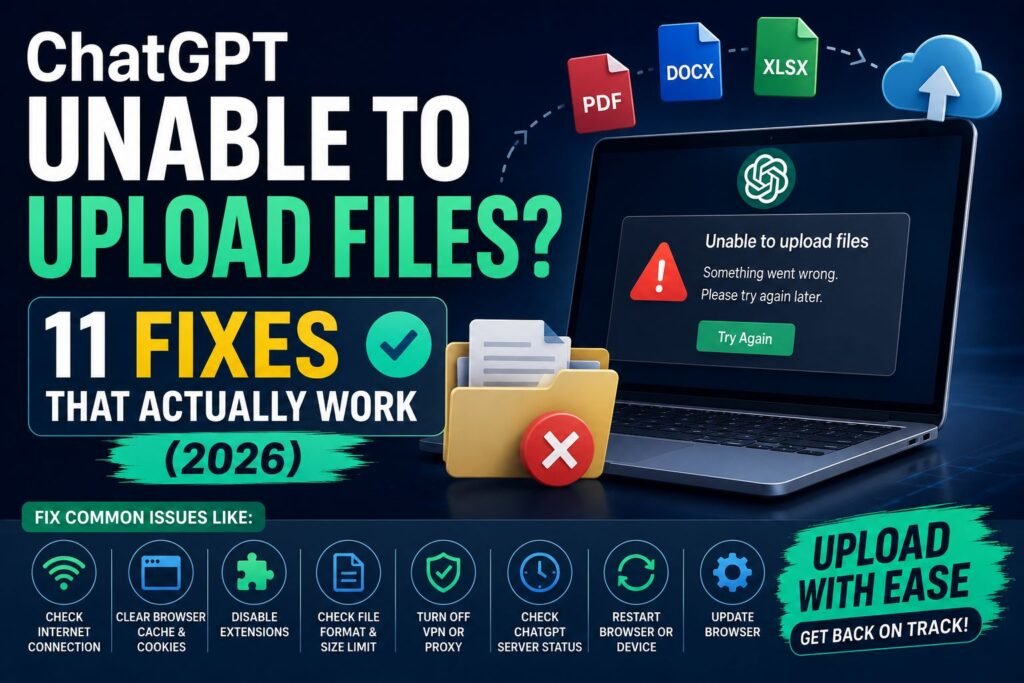
ChatGPT Unable to Upload Files. Few things are more frustrating than typing out a perfect prompt, attaching a file, and watching ChatGPT refuse to upload it. Maybe the paperclip icon does nothing. Maybe the file spins and spins before failing. Maybe there’s a vague error message that doesn’t explain anything at all. If ChatGPT is unable to upload files right now, the good news is that this is almost always fixable, and it rarely means something is broken on your end for good.
Most of the time, the cause is a plan restriction, a file size issue, a browser conflict, or a temporary server hiccup on OpenAI’s side. This guide walks through every known cause of ChatGPT upload failures in 2026, along with clear, tested steps to get file uploads working again on desktop, mobile, and in the browser.
Quick Answer
ChatGPT is usually unable to upload files due to file size limits, daily upload caps on the Free plan, an unsupported file type, a slow or unstable internet connection, or a browser extension blocking the upload. Clearing your cache, switching to a supported model, compressing the file, or trying a different browser resolves most upload errors within minutes.
Why Is ChatGPT Unable to Upload Files?
Before jumping into fixes, it helps to understand what’s actually happening behind the scenes. ChatGPT doesn’t simply store an uploaded file the way a cloud drive does. It has to read, index, and prepare the content so the underlying model can actually reference it during a conversation. That process takes computing power, and OpenAI puts several guardrails in place to manage it. When any one of those guardrails is tripped, the upload fails.
Here are the most common reasons behind the issue.
1. The File Exceeds the Size Limit
This is the single most common cause. Large PDFs, dense spreadsheets, and high-resolution images are frequent culprits.
2. Daily or Hourly Upload Caps Have Been Reached
Free accounts have a noticeably tighter cap than paid tiers, and many users assume uploads are “broken” when they’ve simply hit their daily quota.
3. Unsupported File Format
Not every file type is accepted. Certain proprietary or encrypted formats will be rejected outright.
4. Browser Cache or Extension Conflicts
Ad blockers, VPN extensions, and privacy tools can silently interfere with the upload request.
5. Weak or Unstable Internet Connection
Large files need a stable connection from start to finish. A dropped connection mid-upload often produces a generic “upload failed” message.
6. Wrong Model Selected
Some legacy or reasoning-focused model variants inside ChatGPT do not support file or image attachments. If the paperclip icon looks greyed out or disappears entirely, the selected model is often the reason.
7. Server-Side Issues During Peak Hours
During high-traffic periods, uploads can time out even when the file and connection are both fine.
8. Corrupted or Password-Protected Files
A file with a broken header, missing metadata, or active password protection will typically fail to process.
ChatGPT File Upload Limits by Plan (2026)
Upload limits vary noticeably depending on the subscription tier. Here’s a breakdown of what most users report and what OpenAI’s help documentation outlines.
| Plan | File Size Limit | Daily/Rolling Upload Cap | Files Per Message |
|---|---|---|---|
| Free | Up to 512MB (best under 25MB) | Roughly 3 files per day | 1–3 files |
| Go | Up to 512MB (best under 25MB) | Higher than Free, exact cap not published | Several files |
| Plus | Up to 512MB (best under 20–50MB) | Roughly 80 files per rolling 3-hour window | Up to 10 files |
| Pro | Up to 512MB | Effectively unlimited for normal use | Multiple files |
| Team/Enterprise | Up to 512MB | Higher shared limits, managed by admin | Multiple files |
A quick note worth remembering: even though 512MB is the technical ceiling on every plan, that number rarely works cleanly in real-world use. Text-heavy files like PDFs and Word documents are also bound by a token limit, meaning a file well under 512MB can still get truncated or rejected if it contains too much readable text. Images typically top out around 20MB, and spreadsheets tend to process best under 50MB regardless of plan.
Step-by-Step: How to Fix ChatGPT File Upload Errors
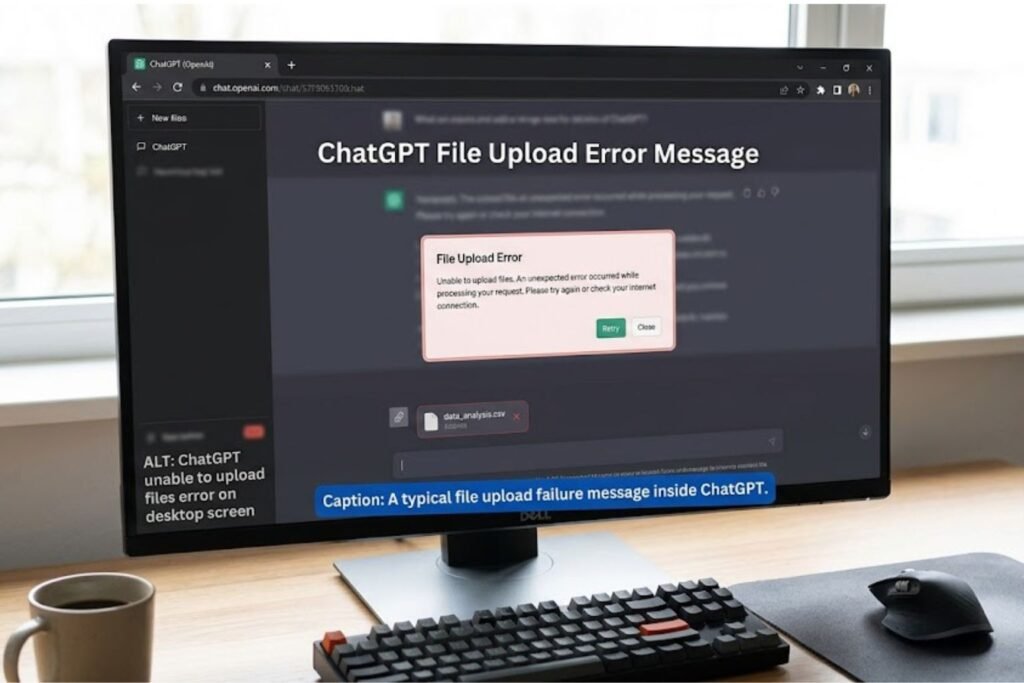
Work through these steps in order. Most people find their fix within the first four steps.
Check the file size first. Right-click the file, view its properties, and confirm it’s within your plan’s practical limit (ideally under 25MB for the smoothest experience).
Confirm the file format is supported. Stick to common types like PDF, DOCX, TXT, CSV, XLSX, PNG, and JPG.
Switch to a vision- and file-capable model. Open the model picker and select a current flagship model rather than a legacy or reasoning-only variant.

Start a brand-new chat. Long conversations sometimes accumulate session errors that block new attachments.
Clear your browser cache and cookies, then reload ChatGPT completely.
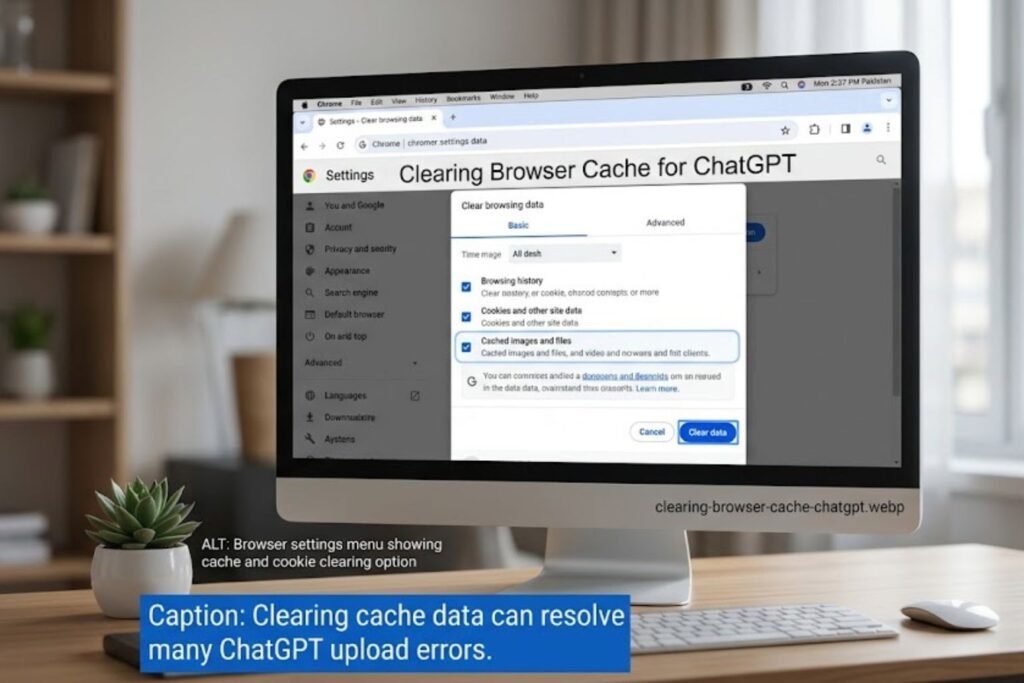
Disable browser extensions temporarily, especially ad blockers, VPNs, and privacy-focused add-ons.
Try an incognito or private browsing window to rule out extension interference entirely.
Test your internet connection with a quick speed check, and switch from Wi-Fi to a wired connection if possible.
Remove any password protection or encryption from the file before uploading.
Compress large files using a zip tool, or reduce image resolution before attaching.
Wait 15–20 minutes and retry if the issue seems to be a temporary server-side hiccup during peak hours.
Fixing Upload Issues on Mobile
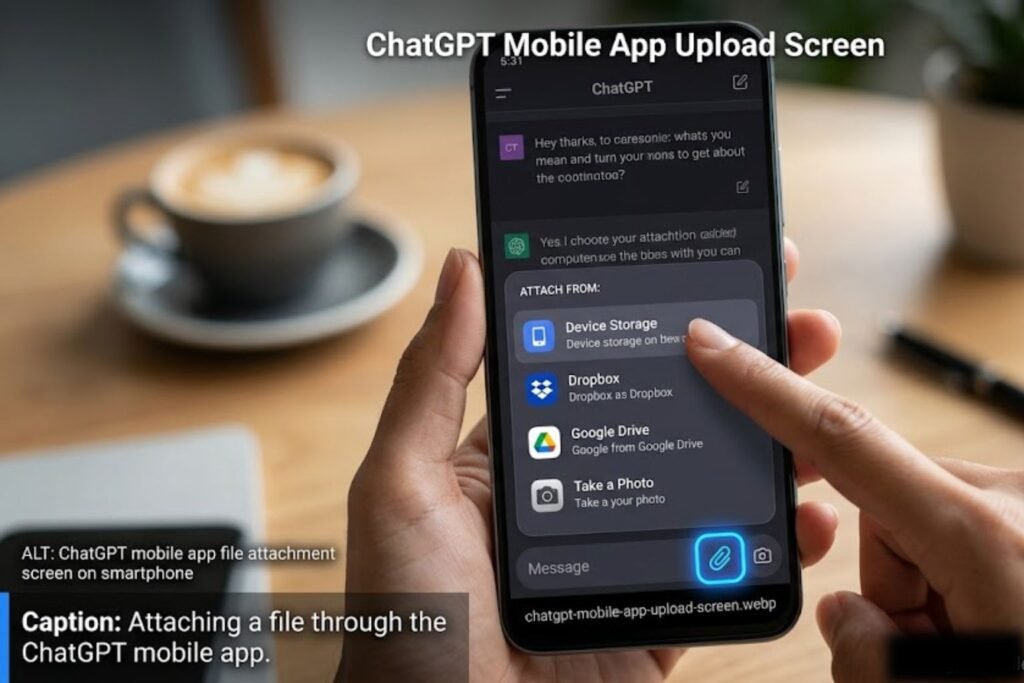
Mobile uploads fail for slightly different reasons than desktop ones. If ChatGPT is unable to upload files on the iOS or Android app, try these steps:
- Update the app to the latest version from the App Store or Google Play.
- Grant the app full access to Photos and Files in your phone’s privacy settings.
- Restart the app completely rather than just backgrounding it.
- Switch from cellular data to Wi-Fi, or vice versa, to rule out a network-specific block.
- Free up storage space, since some devices throttle app performance when storage runs low.
[chatgpt is at capacity solution]
Fixing Upload Issues on Browser (Chrome, Safari, Edge)
Browser-based uploads are the most common way people interact with ChatGPT, and they’re also the most sensitive to conflicts.
- Chrome: Clear site data specifically for chat.openai.com and chatgpt.com under Settings > Privacy and Security.
- Safari: Disable “Prevent Cross-Site Tracking” temporarily, since this setting occasionally blocks upload requests.
- Edge: Turn off Tracking Prevention or set it to Basic for the ChatGPT site.
- All browsers: Make sure the browser itself is updated to the latest version, since outdated browsers can mishandle large file uploads.
[chatgpt conversation not loading]
Supported vs Unsupported File Formats
| Category | Supported | Often Rejected |
|---|---|---|
| Documents | PDF, DOCX, TXT, RTF | Password-protected PDFs |
| Spreadsheets | XLSX, CSV | Corrupted or macro-heavy XLSM files |
| Images | PNG, JPG, WEBP | Extremely high-resolution RAW files |
| Code | PY, JS, JAVA, CPP, and most plain-text code files | Compiled binaries |
| Archives | ZIP (Plus and above, for data analysis) | RAR in some cases |
[chatgpt not generating answers]
Pros and Cons of ChatGPT’s File Upload System
| Pros | Cons |
|---|---|
| Supports a wide range of everyday file types | Free tier caps are very restrictive |
| Can analyze spreadsheets, code, and documents in depth | Large files often time out even under the stated limit |
| Zip file support allows basic folder-style uploads | No native folder upload option |
| Works across desktop, mobile, and browser | Error messages are often vague and unhelpful |
[chatgpt upload image not working]
Common Mistakes to Avoid
- Assuming the feature is broken without first checking file size or format.
- Uploading multiple large files at once instead of one at a time.
- Ignoring the model picker and staying on a model that doesn’t support attachments.
- Ignoring browser extensions as a possible cause, especially ad blockers.
- Uploading encrypted or password-protected files without removing protection first.
- Not restarting the chat after several failed attempts in the same conversation.
[chatgpt voice mode not working]
Expert Tips
According to OpenAI’s own help documentation, file processing quality improves significantly when documents are text-based rather than scanned images, since scanned PDFs require additional optical recognition that can slow or fail the process. Google’s general web guidance on file handling also notes that smaller, well-structured files consistently perform better across most cloud-based tools, and this holds true for ChatGPT as well. Most users report that splitting a large dataset into smaller chunks and uploading them sequentially, rather than all at once, produces far more reliable results than attempting a single massive upload.
A few additional tips worth trying:
- Rename files to remove unusual characters or excessively long filenames before uploading.
- Convert scanned documents into searchable, text-based PDFs when possible.
- Keep spreadsheet uploads limited to the data actually needed for the task rather than entire raw exports.
- Test with a small sample file first when troubleshooting a suspected format issue.
FAQs
1. Why is ChatGPT unable to upload files on my Free account? Free accounts have a daily upload cap, often just a few files per day. Once that cap is reached, the upload button stops working until it resets.
2. What is the maximum file size ChatGPT accepts? The stated ceiling is 512MB across all plans, but files perform far more reliably when kept under 25MB.
3. Does switching models fix upload problems? Yes, in many cases. Some model variants inside ChatGPT don’t support attachments at all, so switching to a current flagship model often resolves the issue instantly.
4. Can a VPN or ad blocker cause ChatGPT upload failures? Yes. Browser extensions, including VPNs and ad blockers, can interfere with the upload request and cause it to fail silently.
5. Why does ChatGPT reject a file that’s under the size limit? Text-heavy files are also limited by a token cap, so a file under 512MB can still be rejected if it contains too much extractable text.
6. Is the upload issue different on mobile versus desktop? Somewhat. Mobile issues are often tied to app permissions or outdated versions, while desktop issues are more often browser or extension related.
7. What should someone do if none of the fixes work? Trying a completely different browser or device, along with waiting out any temporary server load, resolves the issue in nearly all remaining cases.
Conclusion
Running into a moment where ChatGPT is unable to upload files is annoying, but it’s almost never a dead end. In the vast majority of cases, the fix comes down to checking the file size, confirming the format is supported, switching to the right model, or clearing out a browser conflict. Working through the steps above in order should resolve the issue for most people within a few minutes. If uploads still won’t go through after trying everything here, it’s worth checking OpenAI’s official help center for account-specific issues or reaching out to their support team directly.