

Introduction
Anyone who relies on ChatGPT for daily work or study knows how frustrating it feels when the assistant suddenly “forgets” everything. One day it remembers a person’s job, writing style, and preferences. The next day, it acts like a stranger. This is one of the most common complaints people search for, and there’s a good reason ChatGPT memory not working keeps showing up in forums and support threads.
The good news is that most memory issues come from a small number of causes, and nearly all of them can be fixed in a few minutes without needing any technical background. This guide walks through exactly why memory stops working and how to get it back on track, step by step, in plain language anyone can follow.
Featured Snippet Answer
ChatGPT memory usually stops working because it’s turned off in settings, the account has hit a memory limit, the chat is in temporary mode, or a recent update reset saved preferences. Turning memory back on, clearing old entries, and starting a fresh chat usually solves the problem within minutes.
What Does ChatGPT Memory Actually Do?
Memory is a feature that lets ChatGPT hold on to small details across separate conversations. Instead of starting from zero every single time, it can recall things like a person’s name, tone preferences, ongoing projects, or dietary restrictions. OpenAI explains that memory is meant to make responses feel more personal and less repetitive over time.
There are actually two memory systems working behind the scenes. One saves specific facts a person shares directly, and the other quietly learns patterns from conversations to shape future replies. Most users report that the second type feels more like a personality adjustment than a hard memory, which can make it tricky to tell when it’s actually broken versus when it’s just behaving differently.
Why Is ChatGPT Memory Not Working?
There isn’t one single reason memory fails. It’s usually one of these:
1. Memory Is Simply Turned Off
This sounds obvious, but it’s the most common cause by far. A setting toggle can get switched off during an app update, a device change, or even by accident.
2. The Chat Is in Temporary Mode
Temporary chats never save anything, by design. If someone opens a temporary chat and expects it to remember details later, it never will, because that’s exactly how it’s built to work.
[Internal Link: ChatGPT Temporary Chat Explained]
3. Memory Storage Is Full
Memory has a limit. Once it fills up, older entries may need to be removed before new ones can be saved. Google and other AI providers use similar capped systems for personalization data.
4. Account or Plan Restrictions
Free accounts sometimes have different memory behavior compared to ChatGPT Plus or Team accounts. Some memory features are also rolled out gradually by region, so not everyone sees the same options at the same time.
5. App or Browser Glitches
Outdated apps, corrupted cache files, or browser extensions can quietly interfere with memory syncing, especially on mobile devices.
6. A Recent Update Reset Settings
After major updates, some users report memory toggles reverting to default. This isn’t intentional, but it happens often enough to be worth checking first.
7. Using a Different Device or Login
Memory is tied to an account, not a device, but sync delays can make it seem like the memory disappeared when it’s really just catching up.
Memory vs. Custom Instructions: What’s the Difference?
People often confuse memory with custom instructions, but they’re not the same thing.
Custom instructions are a fixed block of text a person writes once, telling ChatGPT how to behave in every conversation. Memory, on the other hand, builds up naturally and updates itself as conversations continue. Think of custom instructions as a written note handed over at the start, while memory is more like a running notebook that gets updated along the way.
[chatgpt is at capacity solution]
Step-by-Step: How to Fix ChatGPT Memory Not Working
Follow these steps in order. Most people find their issue resolved within the first four steps.
Open Settings.
Tap the profile icon, then select Settings from the menu.
Go to Personalization.
Look for the section labeled Personalization or Memory, depending on the app version.
Check the Memory toggle.
Make sure it’s switched on. If it’s already on, turn it off, wait a few seconds, then turn it back on to reset the connection.
Confirm the chat isn’t temporary.
Look for the temporary chat icon at the top of the screen and turn it off if active.
Review saved memories.
Open the “Manage Memory” section and check whether old entries are taking up space.
Delete outdated entries.
Remove memories that are no longer relevant to free up room for new ones.
Update the app.
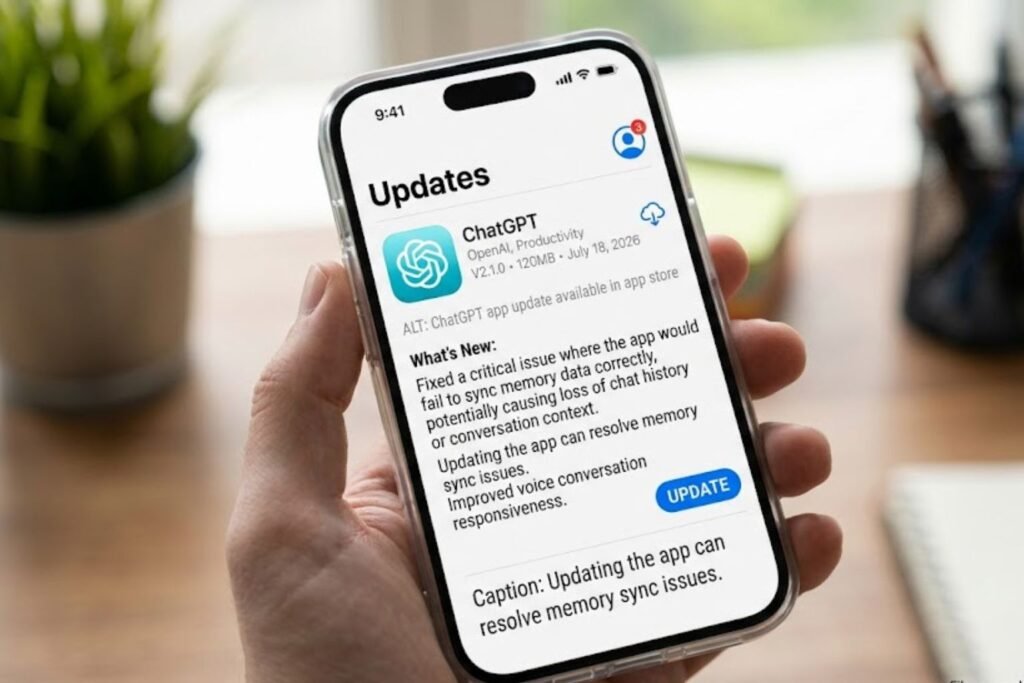
Go to the App Store, Google Play, or the desktop site and install the latest version.
Clear cache and cookies.
On browsers, clearing cache often resolves syncing glitches.
[chatgpt conversation not loading]
Log out and log back in.
This forces the account to resync memory data from OpenAI’s servers.
Try a different browser or device.
This helps confirm whether the issue is device-specific.
Contact OpenAI Support

If none of the above works, especially if memory data appears to have vanished entirely.
ChatGPT Memory Settings Explained
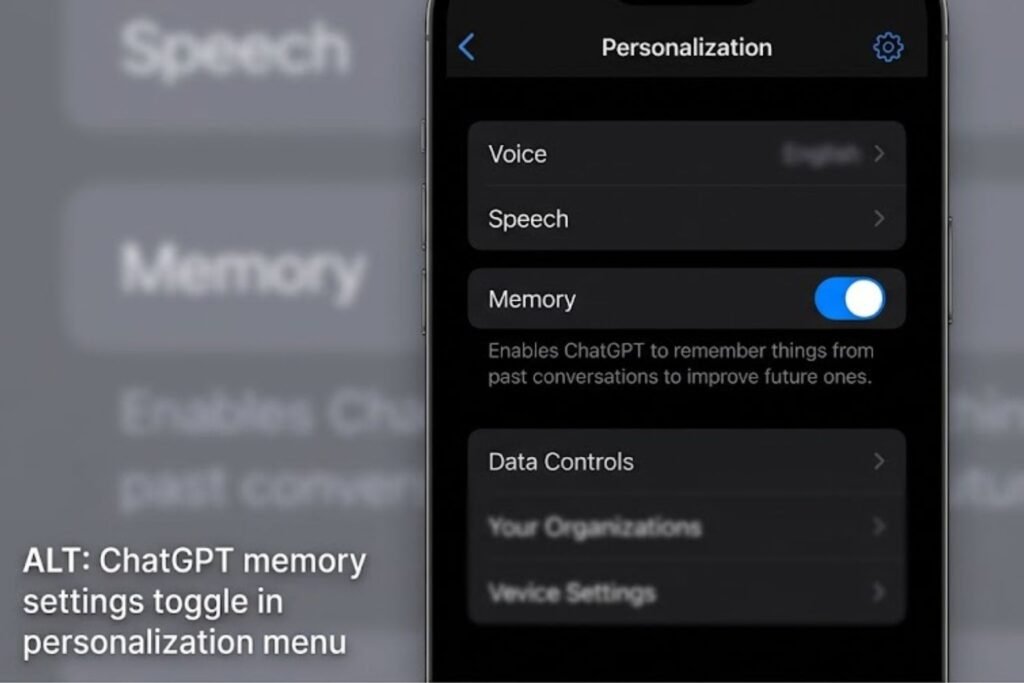
Inside Settings, there are usually three relevant areas:
Reference Saved Memories
Lets ChatGPT use specific facts saved from past chats.
Reference Chat History
Allows ChatGPT to draw on patterns from recent conversations, even without explicit memory entries.
Manage Memory
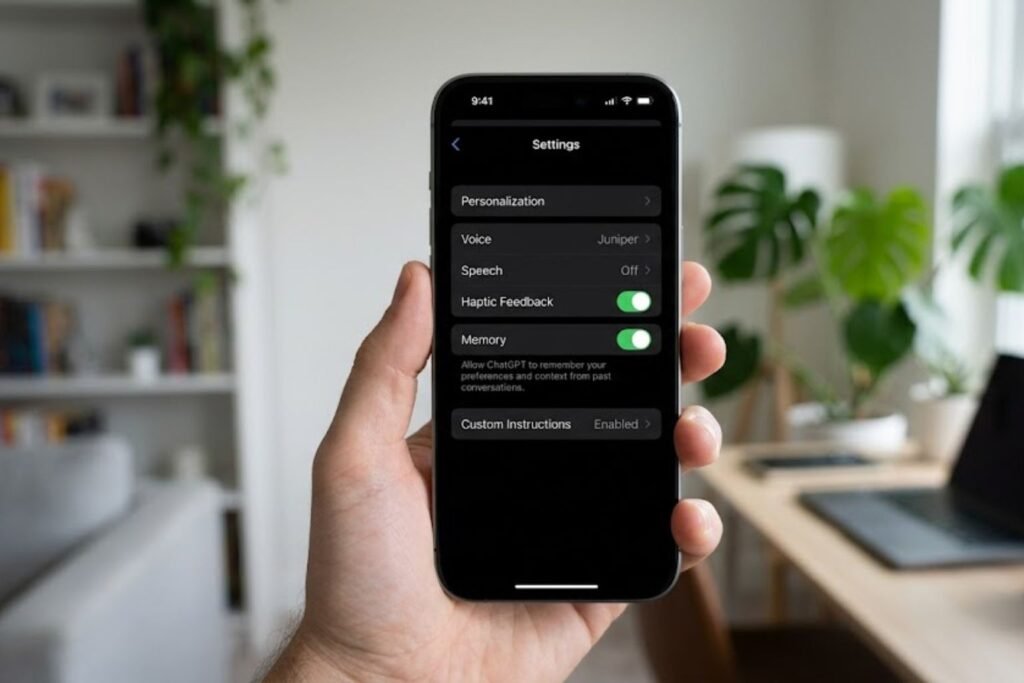
A list view where individual memories can be viewed or deleted one by one.
Both toggles need to be on for the fullest memory experience. Turning off “Reference Chat History” alone can make memory feel broken even though the core feature is technically still active.
[chatgpt not generating answers]
Comparison Table: Free vs Plus vs Team Memory
| Feature | Free Plan | ChatGPT Plus | ChatGPT Team |
|---|---|---|---|
| Saved Memory Access | Limited | Full Access | Full Access |
| Chat History Reference | Limited | Full Access | Full Access |
| Memory Storage Limit | Lower | Higher | Higher, shared controls |
| Cross-Device Sync | Yes | Yes | Yes |
| Admin Memory Controls | No | No | Yes |
Pros and Cons of ChatGPT Memory
| Pros | Cons |
|---|---|
| Saves time by skipping repeated context | Can feel invasive if not managed |
| Personalizes tone and suggestions | Storage limits require occasional cleanup |
| Useful for long-term projects | May carry outdated info if not updated |
| Easy to view and edit manually | Settings can reset after updates |
Common Mistakes to Avoid
- Assuming memory is permanent. It has limits and can be cleared automatically once full.
- Confusing temporary chats with regular chats. Temporary chats never save memory, no matter what.
- Ignoring app updates. Outdated versions are a frequent, overlooked cause of sync issues.
- Never reviewing saved memories. Old, irrelevant entries can crowd out useful new ones.
- Expecting memory to work identically on every plan. Free and paid accounts don’t always behave the same way.
Expert Tips to Keep Memory Working Smoothly
- Check memory settings once a month, the same way someone might clear a phone’s storage.
- Be specific when asking ChatGPT to remember something; vague requests are easier to lose.
- Avoid switching between temporary and regular chats mid-task, since it can create confusing gaps.
- Keep the app updated automatically rather than relying on manual checks.
- If working across multiple devices, log in with the same account every time rather than creating duplicates.
[chatgpt upload image not working]
FAQs
1. Why did ChatGPT suddenly forget everything? This usually happens when memory gets toggled off, a chat is temporary, or an app update resets personalization settings. Checking Settings first solves most cases.
2. Does clearing cache delete ChatGPT memory? No, clearing cache only removes temporary local files. Memory itself is stored on OpenAI’s servers, not on the device.
3. Can ChatGPT memory be turned off completely? Yes, memory can be disabled entirely in Settings under Personalization, and existing memories can be deleted at any time.
4. Is ChatGPT memory available on the free plan? Free accounts have limited memory access compared to Plus and Team plans, though basic personalization is still available.
5. Why does ChatGPT remember some things but not others? Memory saves selectively based on relevance and storage limits, so less important details may not be retained long-term.
6. Does logging out delete saved memories? No, logging out doesn’t delete memory. Memories stay tied to the account and reappear after logging back in.
7. How often should saved memories be reviewed? Reviewing memory once a month is a reasonable habit, especially for people using ChatGPT for ongoing projects or work tasks.
Conclusion
Memory issues in ChatGPT are almost always fixable, and they rarely mean something is seriously broken. In most cases, the fix comes down to checking a setting, clearing outdated entries, or updating the app. Anyone still dealing with ChatGPT memory not working after trying these steps should reach out to OpenAI’s support team directly, since account-specific glitches sometimes need a closer look. Keeping memory settings tidy every so often goes a long way toward making conversations feel smooth and personal again.