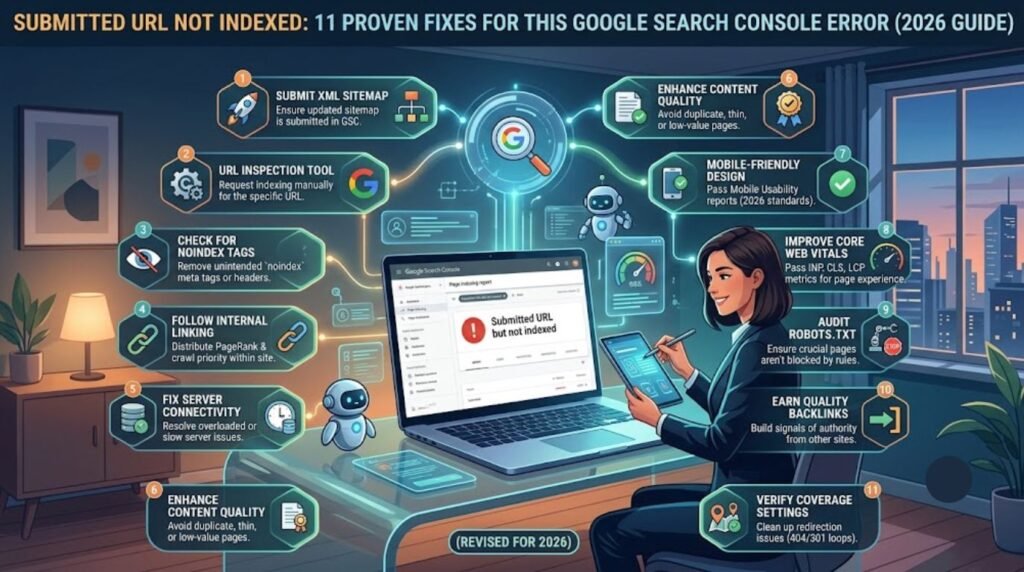

Introduction
Anyone who manages a website has probably opened Google Search Console, checked the Pages report, and felt that little drop in their stomach after spotting the label “submitted URL not indexed.” It’s one of the most common indexing errors website owners run into, and it simply means Google knows the page exists — because it was submitted through a sitemap or manually requested — but Google has decided, for one reason or another, not to add it to the search index yet.
This doesn’t automatically mean something is broken. Sometimes it’s a simple timing issue. Other times it points to a real problem, like thin content, a blocked resource, or a technical misconfiguration. The good news is that this error is almost always fixable once you understand what’s causing it.
What Does “Submitted URL Not Indexed” Actually Mean?
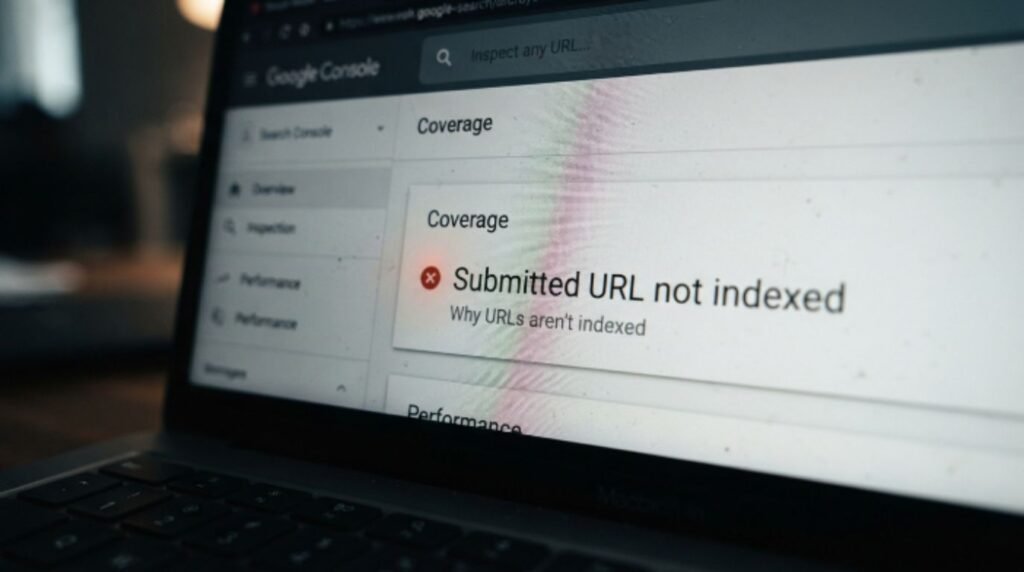
Anyone who manages a website has probably opened Google Search Console, checked the Pages report, and felt that little drop in their stomach after spotting the label “submitted URL not indexed.” It’s one of the most common indexing errors website owners run into, and it simply means Google knows the page exists — because it was submitted through a sitemap or manually requested — but Google has decided, for one reason or another, not to add it to the search index yet.
This doesn’t automatically mean something is broken. Sometimes it’s a simple timing issue. Other times it points to a real problem, like thin content, a blocked resource, or a technical misconfiguration. The good news is that this error is almost always fixable once you understand what’s causing it.
In this guide, readers will walk through what triggers this status, how it differs from similar-looking errors, and a full step-by-step process to get pages properly indexed.
Featured Snippet Answer
“Submitted URL not indexed” means Google has seen a page through your sitemap but chose not to index it. Common causes include low-quality content, crawl budget limits, noindex tags, blocked resources, or duplicate content. Fixing it usually involves improving content quality and requesting indexing again through Search Console.
Why Google Refuses to Index Your Page
Google doesn’t index every page it crawls. According to official documentation from <a href=”https://developers.google.com/” target=”_blank” rel=”noopener”>Google Search Central</a>, indexing decisions depend on content quality, technical accessibility, and overall site trust. Here are the most frequent reasons a submitted page gets skipped.
1. Thin or Low-Value Content
If a page doesn’t offer much beyond what’s already available elsewhere, Google may decide it isn’t worth adding to the index. This is especially common on product pages with little description, near-duplicate blog posts, or auto-generated pages.
2. Duplicate Content Issues
When a page closely resembles another page on the same site (or a page elsewhere on the web), Google often picks one version to index and quietly skips the rest. This is a big reason pagination pages, filtered category URLs, and tag archives get left out.
3. Noindex Tags or Robots.txt Blocks
Sometimes the fix is embarrassingly simple. A stray noindex meta tag or a Disallow rule in robots.txt can prevent a page from being indexed, even if everything else about it looks great.
[Internal Link: ChatGPT Login Problem]
4. Crawl Budget Limitations
Large websites, in particular, can run into crawl budget constraints. Google explains that it allocates a limited amount of crawling resources to each site, and it prioritizes pages it considers important. Newer or lower-authority pages sometimes sit in a queue longer than expected.
5. Poor Internal Linking
Pages that are orphaned, meaning nothing else on the site links to them, tend to get less crawling attention. Google relies heavily on internal links to understand which pages matter.
6. Slow or Unstable Server Response
If Googlebot repeatedly hits timeouts or server errors while trying to crawl a URL, it may deprioritize indexing that page until the server behaves reliably.
7. New Website or New Page
Brand-new sites and freshly published pages often just need time. Most users report that indexing can take anywhere from a few days to several weeks for newer domains with limited authority.
Submitted URL Not Indexed vs. Other GSC Errors
It helps to know how this status compares to similar-sounding ones, since the fix is different for each.
| Status | What It Means | Typical Fix |
|---|---|---|
| Submitted URL not indexed | Google saw the sitemap submission but chose not to index it | Improve content, check for blocks, request indexing |
| Crawled – currently not indexed | Googlebot crawled the page but hasn’t indexed it yet | Improve quality signals, wait, or request indexing |
| Discovered – currently not indexed | Google knows the URL exists but hasn’t crawled it yet | Improve internal links, reduce crawl waste |
| Excluded by noindex tag | A noindex directive is blocking indexing | Remove the noindex tag if indexing is wanted |
| Page with redirect | The URL redirects elsewhere | Update sitemap to reflect the final URL |
Step-by-Step: How to Fix Submitted URL Not Indexed
Step 1: Confirm the URL Is Actually Meant to Be Indexed
Open Search Console and check the exact URL flagged. Some flagged URLs are pages that were never intended to rank, like internal search results or filtered views. If that’s the case, no fix is needed.
Step 2: Run the URL Through the URL Inspection Tool
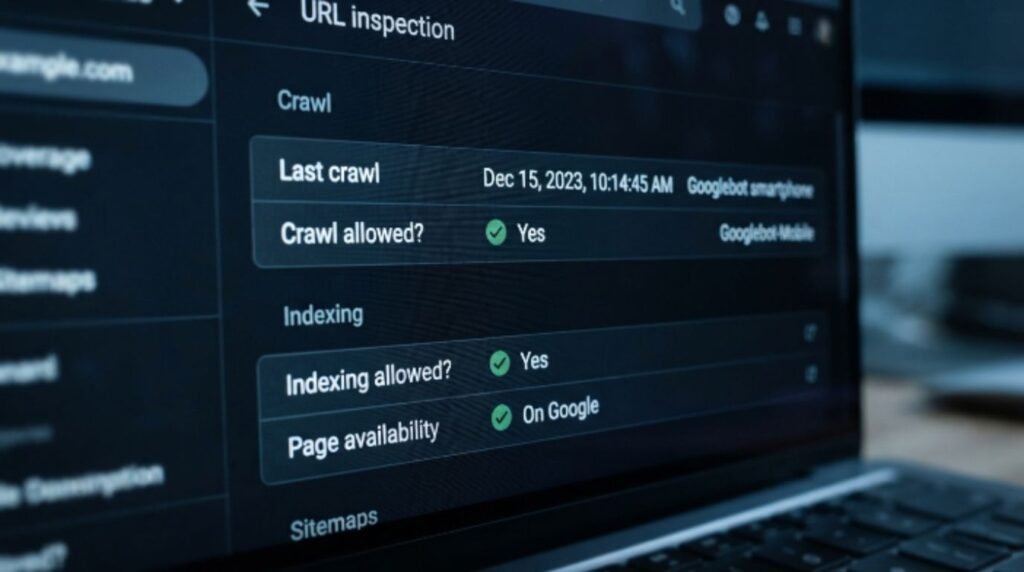
Paste the affected URL into the URL Inspection Tool inside Search Console. This shows exactly how Googlebot sees the page, including any blocking issues.
Screenshot URL Inspection Tool result screen
Step 3: Check for Noindex Tags and Robots.txt Blocks
View the page source and search for noindex. Also check the robots.txt file to confirm the URL isn’t disallowed.
[Internal Link: ChatGPT Network Error]
Step 4: Review Content Quality
Ask honestly whether the page provides real value. Pages that are too short, too similar to other pages, or written mainly for search engines instead of readers are prime candidates for exclusion.
Step 5: Improve Internal Linking
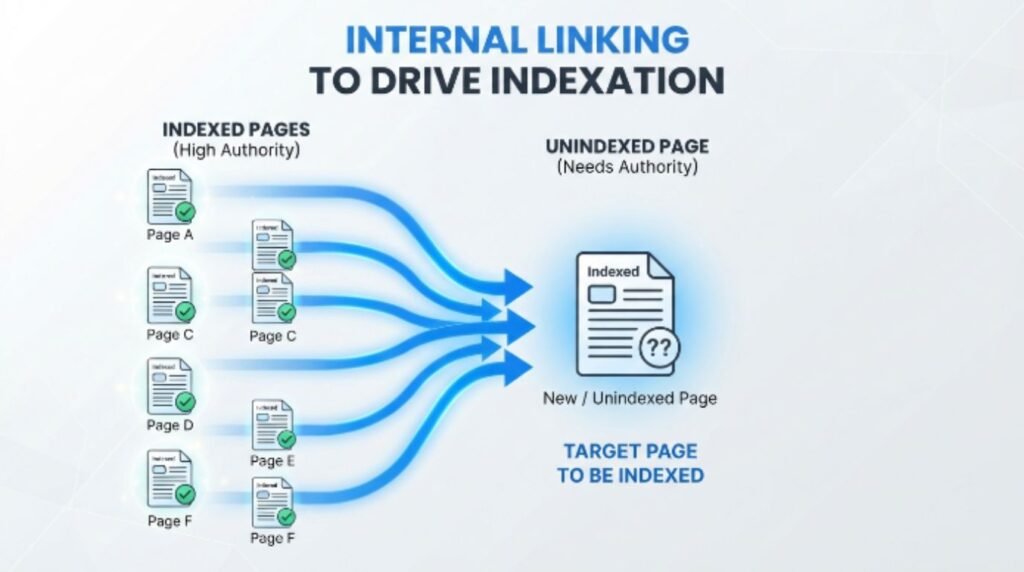
Add links to the page from other relevant, already-indexed pages on the site. This signals to Google that the page matters.
Step 6: Check Canonical Tags
Make sure the page isn’t accidentally pointing its canonical tag to a different URL, which tells Google to index that other page instead.
Step 7: Fix Server Response Issues
Use the URL Inspection Tool’s crawl details to check for server errors or slow response times, and resolve them with hosting or developer support.
Step 8: Request Indexing
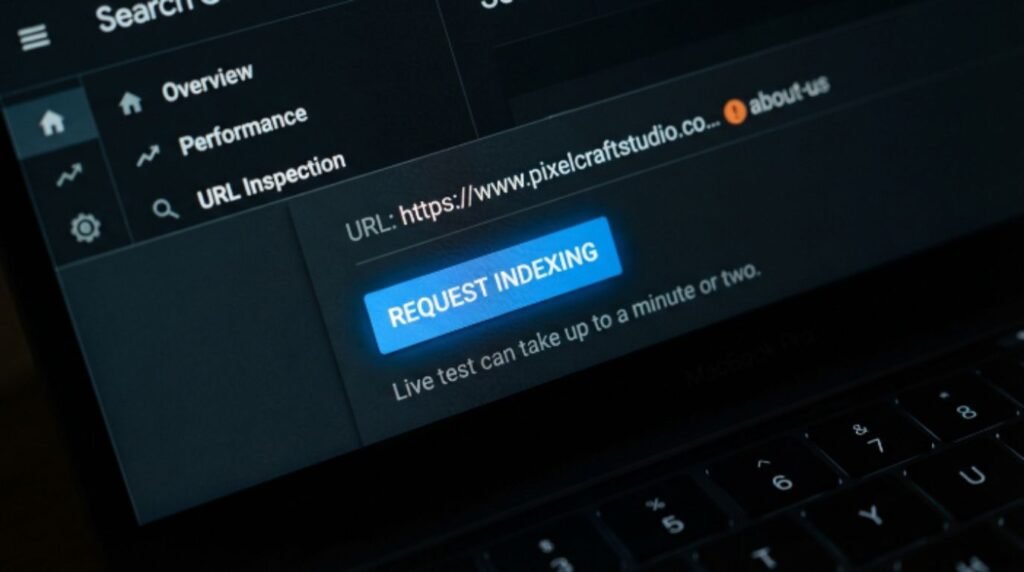
Once the issues above are addressed, click “Request Indexing” inside the URL Inspection Tool. Google will attempt to crawl and evaluate the page again.
Screenshot Request Indexing button in Search Console
Step 9: Update and Resubmit the Sitemap
If multiple pages are affected, resubmitting an updated XML sitemap through Search Console can help Google recrawl the whole batch more efficiently.
Step 10: Be Patient and Monitor
Indexing isn’t instant. Google recommends checking back after a few days to a couple of weeks rather than repeatedly requesting indexing, which doesn’t speed up the process.
Common Mistakes to Avoid
- Repeatedly clicking “Request Indexing” on the same URL multiple times a day, hoping it speeds things up. It doesn’t.
- Ignoring mobile usability issues, since Google primarily uses mobile-first indexing.
- Publishing pages with duplicate or spun content across the site.
- Forgetting to remove a noindex tag left over from a staging environment.
- Submitting an outdated sitemap that still references broken or redirected URLs.
- Assuming every unindexed page is a technical bug instead of a content quality issue.
Expert Tips
- Prioritize fixing indexing issues on high-value pages first, rather than trying to fix everything at once.
- Use the “Crawled – currently not indexed” data alongside this report, since the two often share root causes.
- Keep an eye on Core Web Vitals; a slow, clunky page experience can quietly hurt indexing priority over time.
- Build topical depth around a page instead of publishing it in isolation. Pages that fit into a well-linked content cluster tend to get indexed faster.
- If a page still won’t index after genuine improvements, consider whether it should exist at all, or whether it should be merged with a stronger page.
Pros and Cons of Manual Indexing Requests
| Pros | Cons |
|---|---|
| Can speed up crawling for a specific URL | Doesn’t guarantee indexing if quality issues remain |
| Free and built into Search Console | Has a daily quota limit |
| Useful after fixing a real technical issue | Overuse can look spammy to some automated systems |
| Gives visibility into crawl errors | Doesn’t fix the underlying cause on its own |
[Internal Link: ChatGPT Plus Worth It]
Frequently Asked Questions
1. How long does it take for a submitted URL to get indexed? It varies widely, but most pages on established sites get indexed within a few days to two weeks. Newer or lower-authority sites can take longer.
2. Does requesting indexing multiple times help? No. Requesting indexing repeatedly on the same URL doesn’t speed things up and can actually be counterproductive.
3. Can a sitemap error cause this issue? Yes. An outdated or incorrectly formatted sitemap can confuse Google about which URLs are current, contributing to indexing delays.
4. Is “submitted URL not indexed” the same as being penalized? Not usually. It’s rarely a manual penalty. It’s far more common for it to be a quality, crawl, or technical signal issue.
5. Should every page on a website be indexed? No. Some pages, like internal search results or duplicate filter combinations, are better left unindexed on purpose.
6. Does page speed affect indexing? Indirectly, yes. A slow or unreliable server can cause crawl failures, which delays or prevents indexing.
7. What’s the fastest way to check why a page isn’t indexed? Run it through the URL Inspection Tool in Search Console. It shows the exact reason Google gives for excluding the page.
[Internal Link: ChatGPT Login Problem]
Final Thoughts
Getting a “submitted URL not indexed” message can feel frustrating, especially after putting real effort into a page. But in most cases, it’s a solvable problem rather than a dead end. Start by checking for technical blockers like noindex tags or robots.txt issues, then take an honest look at content quality and internal linking. Once those pieces are in place, request indexing and give Google a reasonable amount of time to respond.
Website owners who treat this as a signal to improve their site, rather than just a bug to click away, usually see the most lasting results. Anyone still stuck after working through this checklist should double check settings inside <a href=”https://search.google.com/search-console” target=”_blank” rel=”noopener”>Google Search Console</a> and consider reviewing guidance from <a href=”https://developers.google.com/search/docs” target=”_blank” rel=”noopener”>Google Search Central</a> for site-specific nuances.
[Internal Link: ChatGPT Not Working] [Internal Link: ChatGPT Network Error]