
Introduction
Few things are more frustrating than typing a question into the search bar and watching the page just… sit there. When Google search is not loading, it can feel like the whole internet has gone quiet, even though everything else on your device seems fine. Google Search Not Loading The good news is that this problem is almost always fixable, and most people can solve it in under ten minutes without calling anyone for help.
This guide walks through every common cause, from shaky Wi-Fi connections to outdated browser settings, and gives clear, numbered steps for phones, tablets, and computers alike. Whether the issue started this morning or has been happening on and off for days, the fixes below cover the most likely culprits first, so there’s no need to guess.
Featured Snippet Answer
Google search usually fails to load because of a weak internet connection, a browser cache problem, an outdated app, or a temporary Google server issue. Restarting the router, clearing the browser cache, updating the Google app, and checking Google’s status page fix the issue in most cases within a few minutes.
Why Is Google Search Not Loading?
Before jumping into fixes, it helps to understand what’s actually going wrong behind the scenes. In most cases, the problem falls into one of five categories:
- Connectivity issues — a weak Wi-Fi signal, mobile data hiccup, or router problem
- Browser problems — a corrupted cache, a broken extension, or an outdated browser version
- App-related issues — an outdated or glitchy Google app on a phone
- DNS problems — the device can’t translate google.com into the correct server address
- Google’s own servers — rare, but occasional outages do happen
According to official documentation from Google Search Central, most loading errors on the user’s end come from local network settings or outdated software rather than a problem with Google itself. That matters, because it means the fix is usually something within reach, not something that requires waiting around.
Quick Fixes You Can Try Right Now
Before diving into a full step-by-step guide, these five quick checks solve the issue for a large share of users:
- Refresh the page (or pull down to refresh on mobile)
- Turn Wi-Fi off and back on
- Restart the device
- Try a different browser or the Google app
- Check whether other websites load normally
If none of these help, the more detailed steps below should do the trick.
Step-by-Step Guide to Fix Google Search Not Loading
Step 1: Check the Internet Connection
Open any other website or app that needs the internet. If nothing loads, the issue is the connection, not Google. Restart the router by unplugging it for 30 seconds, then plugging it back in.
Step 2: Restart the Device
A simple restart clears out temporary glitches in the operating system that can quietly interfere with how apps and browsers connect to the internet.
Step 3: Clear Browser Cache and Cookies
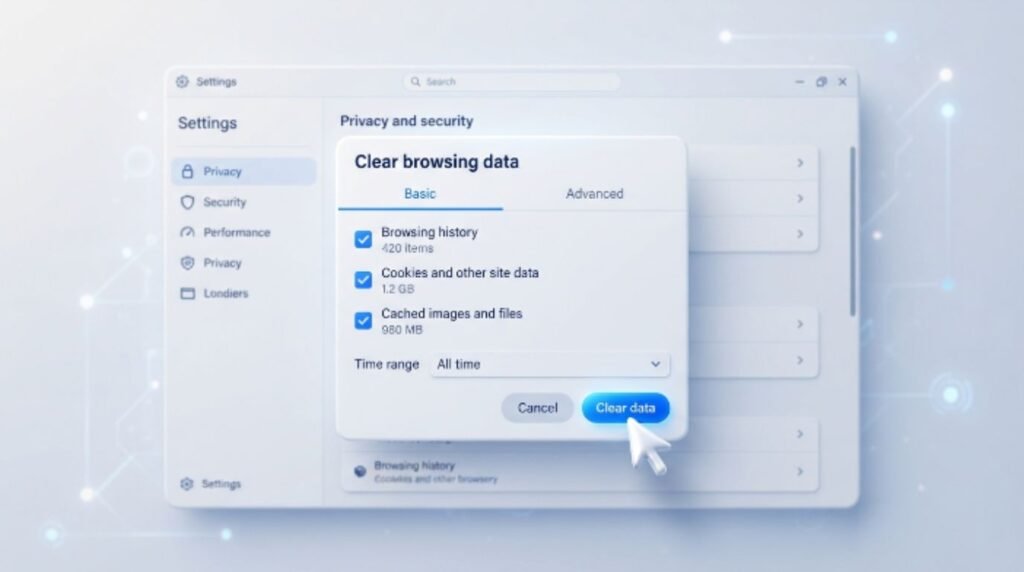
Over time, a browser’s cache can become cluttered or corrupted, which sometimes blocks pages from loading correctly, even on sites as reliable as Google.
- Chrome: Settings → Privacy and Security → Clear Browsing Data
- Safari: Settings → Safari → Clear History and Website Data
- Firefox: Settings → Privacy & Security → Clear Data
- Edge: Settings → Privacy, Search, and Services → Clear Browsing Data
Step 4: Disable Browser Extensions
Ad blockers, VPN extensions, and privacy tools can sometimes interfere with search results loading properly. Disabling extensions one at a time helps identify the culprit.
Step 5: Update the Browser or the Google App
Outdated software is one of the most overlooked reasons search stops working. Google regularly updates its systems, and an old browser or app version may no longer be fully compatible.
[Internal Link: Google Chrome Not Working]
Step 6: Flush DNS Settings
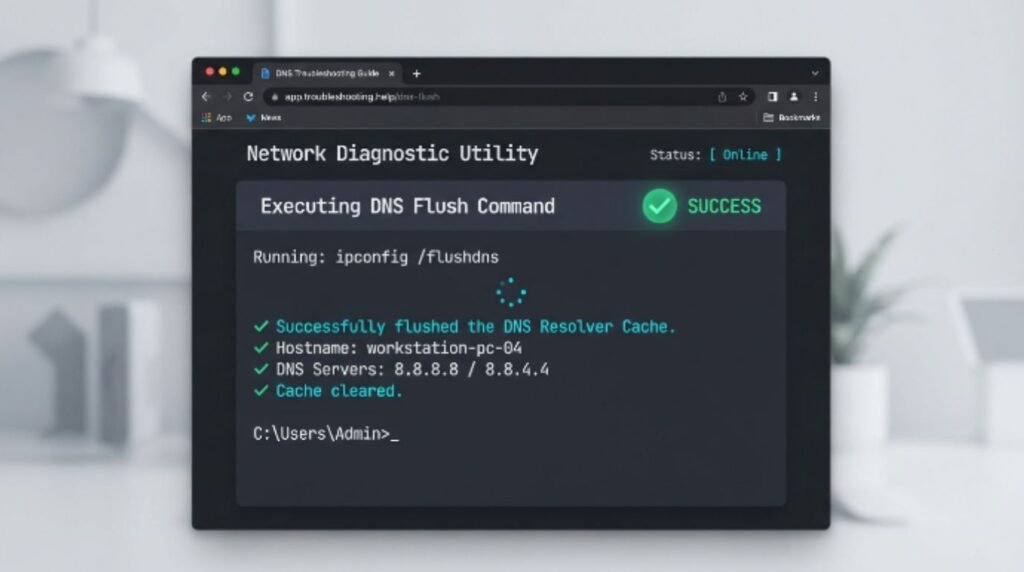
On a computer, DNS problems can prevent a device from finding Google’s servers at all.
- Windows: Open Command Prompt and type ipconfig /flushdns
- Mac: Open Terminal and type sudo dscacheutil -flushcache
Step 7: Try a Different DNS Server
Switching to a public DNS service such as Google’s own 8.8.8.8 or Cloudflare’s 1.1.1.1 can resolve loading issues caused by a slow or unreliable default DNS provider.
[Internal Link: Cloudflare DNS Setup]
Step 8: Disable VPN or Proxy Temporarily
A VPN or proxy server sometimes routes traffic through a slow or blocked path. Turning it off briefly helps confirm whether it’s the source of the problem.
Step 9: Check Google’s Status Page
Every so often, the issue really is on Google’s end. The official Google Workspace Status Dashboard shows live outage information.
Step 10: Reset Network Settings (Mobile)
On Android and iPhone, resetting network settings clears out any corrupted Wi-Fi or cellular configurations that may be blocking search traffic.
[Internal Link: iPhone Wi-Fi Not Working]
Google Search Not Loading on Mobile vs Desktop (Comparison Table)
| Feature | Mobile (Android/iOS) | Desktop (Windows/Mac) |
|---|---|---|
| Most common cause | Outdated app or weak signal | Cache issues or DNS problems |
| Fastest fix | Restart device / update app | Clear cache and flush DNS |
| Extra tools needed | None | Command Prompt or Terminal |
| Average fix time | 2–5 minutes | 5–10 minutes |
| Likelihood of app-specific bug | Higher | Lower |
Fixing Google Search Not Loading on Android
- Open Settings → Apps → Google → Storage → Clear Cache
- Check for app updates in the Play Store
- Restart the phone
- Toggle Airplane Mode on and off
- Reset network settings if the problem continues
[Internal Link: Android Play Store Not Working]
Fixing Google Search Not Loading on iPhone/iPad
- Close the Google app completely and reopen it
- Update the app through the App Store
- Turn Wi-Fi off and back on, or switch to mobile data
- Restart the iPhone or iPad
- Reset network settings under Settings → General → Transfer or Reset
[Internal Link: iPhone Google App Crashing]
Fixing Google Search Not Loading on Chrome, Safari, Firefox, and Edge
Most browser-related search issues share the same root causes, but the exact fix location differs slightly by browser.
- Chrome: Clear cache, disable extensions, check for updates in Settings → About Chrome
- Safari: Clear website data, check for macOS updates, disable content blockers
- Firefox: Clear cookies and cache, disable add-ons, refresh Firefox
- Edge: Clear browsing data, reset Edge settings, check for Windows updates
Google recommends keeping browsers updated to the latest version to avoid compatibility issues with modern web pages.
[Internal Link: Firefox Slow Loading Fix]
Pros and Cons of Common Fixes
| Fix | Pros | Cons |
|---|---|---|
| Restarting device | Fast, safe, works often | Doesn’t fix deeper issues |
| Clearing cache | Fixes many browser bugs | Logs user out of saved sites |
| Flushing DNS | Fixes connection routing issues | Requires typing a command |
| Switching DNS provider | Often faster and more reliable | Slightly technical to set up |
| Resetting network settings | Fixes stubborn mobile issues | Erases saved Wi-Fi passwords |
Common Mistakes to Avoid
- Assuming Google itself is down before checking the local connection
- Skipping the cache-clearing step because it seems too simple
- Forgetting to update the browser or app before trying advanced fixes
- Leaving multiple extensions active while testing for conflicts
- Not restarting the router after unplugging it
[Internal Link: WiFi Keeps Disconnecting]
Expert Tips to Prevent This From Happening Again
- Keep browsers and apps updated automatically where possible
- Restart the router every few weeks to clear temporary bugs
- Avoid installing too many browser extensions at once
- Bookmark the official Google Search Central and Google Search Console Help pages for troubleshooting guidance
- Most users report that switching to a reliable public DNS provider reduces loading issues long-term
[Internal Link: Best DNS Servers 2026] [Internal Link: How to Speed Up Chrome]
FAQs
1. Why is Google search not loading on my phone but other apps work fine? This usually points to an outdated Google app or a corrupted app cache rather than a full internet outage. Updating or reinstalling the app often resolves it.
2. Is Google down right now? Full Google outages are rare and short-lived. Checking the Google Workspace Status Dashboard confirms whether it’s a widespread issue.
3. Why does Google search work on Wi-Fi but not mobile data, or vice versa? This points to a network-specific problem, such as a router issue or a carrier-side data restriction, rather than an issue with Google itself.
4. Can a VPN cause Google search to stop loading? Yes, some VPN servers route traffic through slow or blocked paths, which can prevent search results from loading properly.
5. Does clearing the cache delete saved passwords? Clearing cache alone doesn’t delete saved passwords, but clearing cookies may log the user out of saved sessions.
6. Why does Google search load on one browser but not another? This typically means the issue is browser-specific, such as an outdated version, extension conflict, or corrupted cache in that particular browser.
7. How can this be prevented in the future? Keeping the browser and Google app updated, restarting the router occasionally, and avoiding too many extensions all reduce the chances of this happening again.
Conclusion
Google search not loading is almost always something that can be fixed at home, without special tools or technical knowledge. Starting with the basics, checking the connection, restarting the device, and clearing the cache, solves the problem for most people right away. For anyone still stuck after trying every step above, checking Google’s official status page or reaching out to the device manufacturer’s support team is the next best move. Bookmark this guide for next time, and share it with anyone else who’s stuck staring at a blank search page.