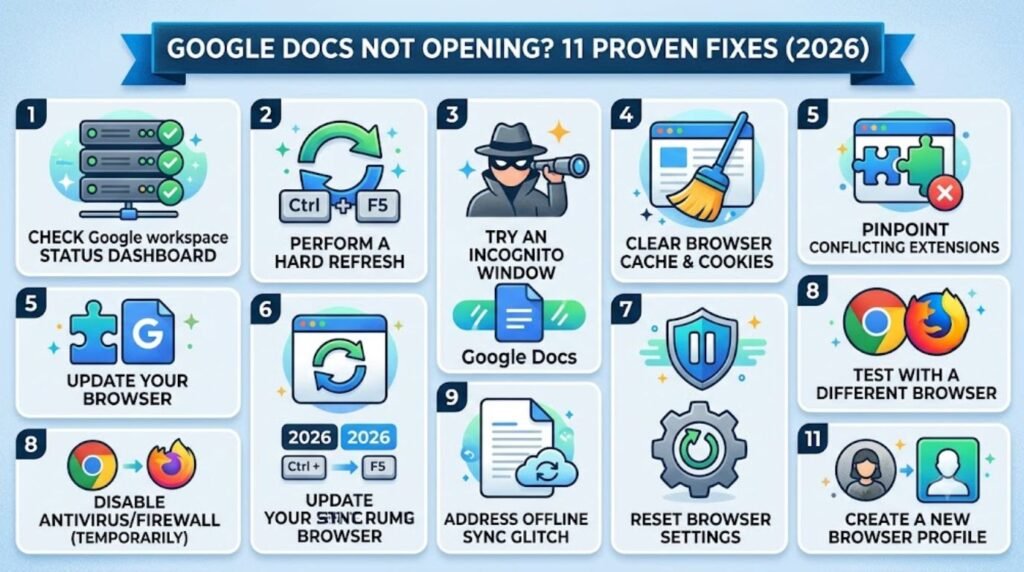

Introduction
Google Docs not opening is one of those problems that always seems to happen at the worst possible time — right before a deadline, during a video call, or when a client is waiting on a file. The good news is that this issue is almost always fixable, and it rarely means the document itself is gone for good.
Most of the time, the cause is something simple: a browser hiccup, a shaky internet connection, or a small syncing delay on Google’s end. According to official documentation from Google Workspace, temporary loading issues are usually tied to browser cache, extensions, or connectivity rather than lost data. This guide walks through every practical fix, from the fastest one-minute tricks to deeper troubleshooting steps for desktop, Android, and iPhone users, so the document opens properly and stays that way.
Featured Snippet Answer
If Google Docs is not opening, first check your internet connection, then clear your browser cache, disable extensions, and try an incognito window. If the problem continues, open the document directly from Google Drive, try a different browser, or check Google’s official Workspace Status Dashboard for a service outage.
Why Is Google Docs Not Opening? Common Causes
Before jumping into fixes, it helps to understand what’s actually going wrong behind the scenes. Google Docs runs almost entirely in the browser or through a dedicated app, so it depends on a chain of things working together: your internet connection, your browser’s cache and cookies, your device’s storage, and Google’s own servers. When any link in that chain breaks, the document can freeze, show a blank page, or refuse to load at all.
Here are the most frequent culprits:
- Weak or unstable internet connection — Google Docs constantly syncs in the background, so even a brief drop can stall loading.
- Browser cache and cookies buildup — Over time, stored data can conflict with newer versions of Google Docs.
- Outdated browser or app version — Google frequently updates Docs, and older software may not keep up.
- Conflicting browser extensions — Ad blockers, VPNs, and privacy tools sometimes block scripts Docs needs to run.
- Too many open tabs or low device memory — This can cause the page to hang instead of fully loading.
- Server-side outages — Occasionally, the issue isn’t on your end at all.
- Corrupted local app data — On mobile, this is a common reason the Docs app crashes or won’t open.
Most users report that clearing the cache or switching browsers solves the issue within minutes, so it’s worth starting with the simplest steps first.
Quick Fixes to Try First
Before diving into anything technical, run through this short checklist. It solves the majority of cases without needing any advanced troubleshooting.
- Refresh the page (or fully close and reopen the app).
- Check your Wi-Fi or mobile data connection.
- Try opening the document on a different device.
- Confirm you’re signed into the correct Google account.
- Check the Google Workspace Status Dashboard for outages.
If none of these quick steps help, move on to the full step-by-step guide below.
Step-by-Step Guide: Fixing Google Docs Not Opening on Desktop
Step 1: Check Your Internet Connection
It sounds obvious, but a slow or intermittent connection is one of the top reasons documents fail to load. Try loading a different website. If everything feels sluggish, restart the router or switch to mobile data temporarily.
Step 2: Clear Browser Cache and Cookies
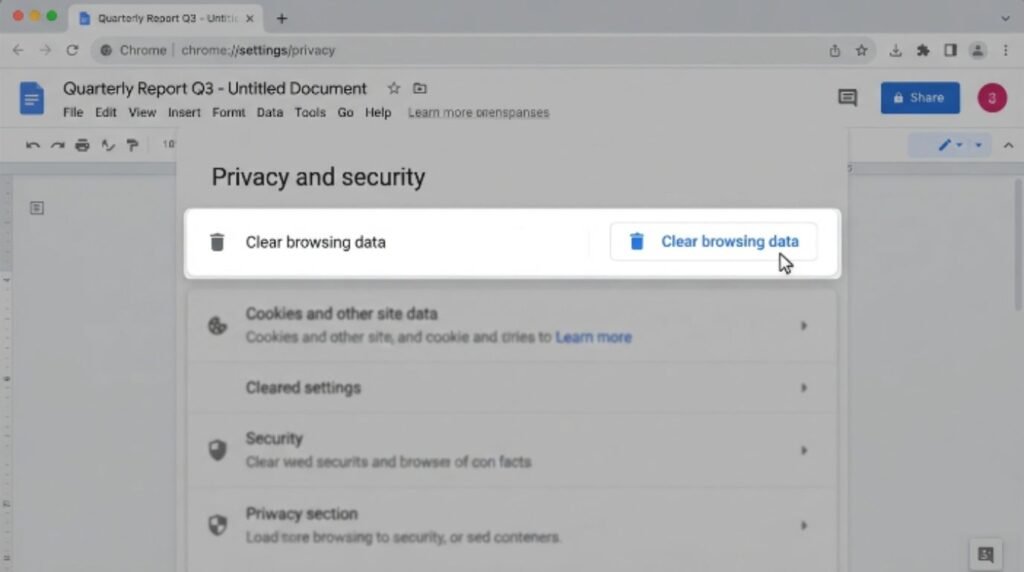
Cached data can quietly pile up and start conflicting with Google’s scripts.
- Open browser settings.
- Go to Privacy and Security.
- Select “Clear browsing data.”
- Choose cache and cookies, then clear.
- Restart the browser and try Docs again.
Step 3: Try an Incognito or Private Window
Incognito mode loads the page without extensions or stored cache, which helps confirm whether one of those is the problem.
Step 4: Disable Browser Extensions
Ad blockers and privacy extensions sometimes block essential scripts.
- Open the extensions menu.
- Disable all extensions temporarily.
- Reload Google Docs.
- Re-enable extensions one by one to find the culprit.
Step 5: Update Your Browser
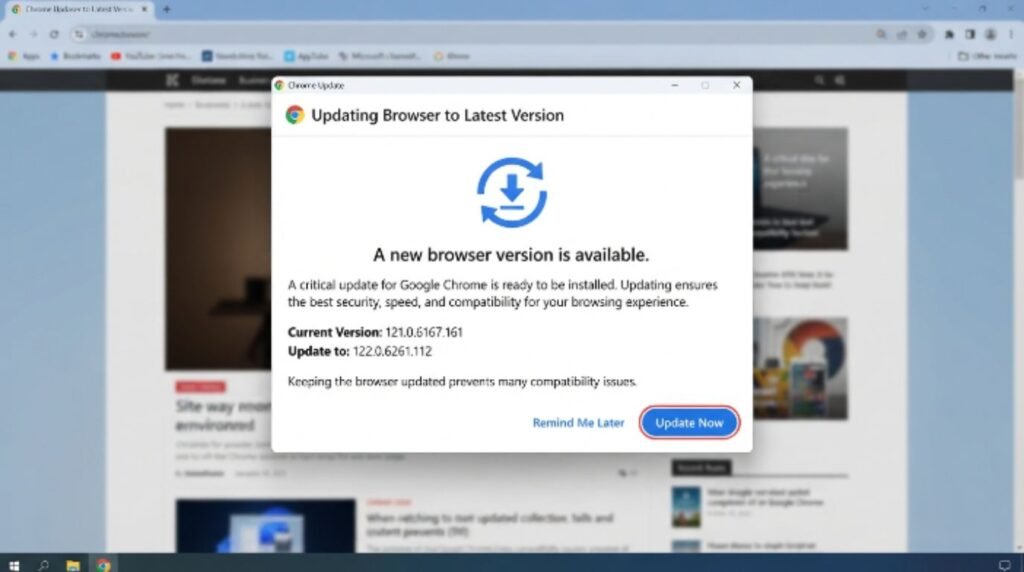
Google Docs is built to run on modern browser engines. Google recommends keeping Chrome, Firefox, Edge, or Safari updated to the latest stable release for the smoothest experience.
Step 6: Try a Different Browser
If Docs still won’t open, test it in another browser entirely. This quickly shows whether the issue is browser-specific.
Step 7: Check for a Google Workspace Outage
Sometimes the problem isn’t local at all. Google’s official Workspace Status Dashboard shows real-time service issues across Docs, Sheets, Gmail, and more.
Fixing Google Docs Not Opening on Mobile (Android & iPhone)
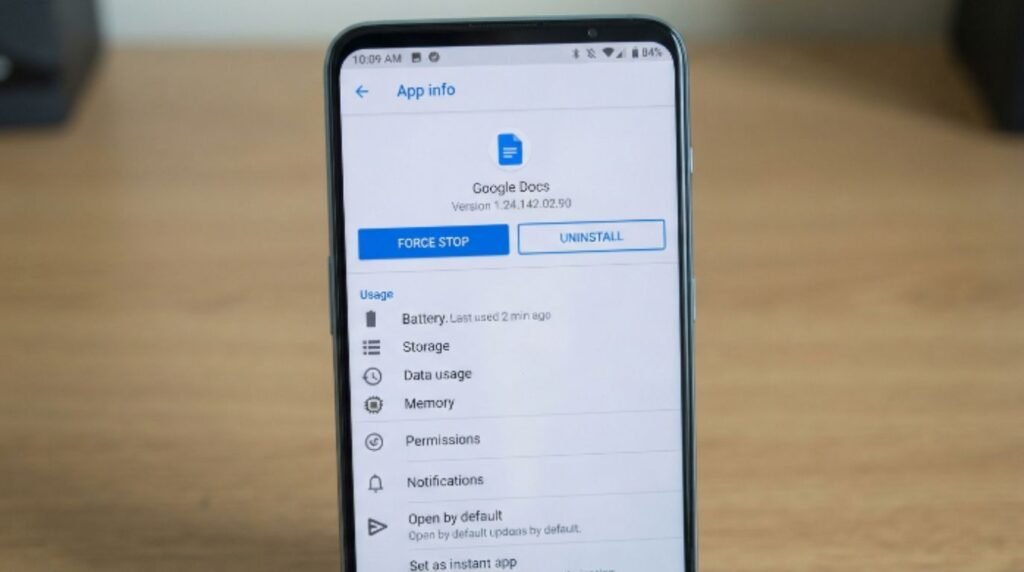
Mobile devices come with their own quirks, especially around app storage and background data.
For Android
- Force stop the Google Docs app (Settings > Apps > Google Docs > Force Stop).
- Clear the app’s cache (not data, to avoid losing offline files).
- Check for app updates in the Play Store.
- Restart the phone.
- Reinstall the app if the issue persists.
For iPhone
- Close the app completely and reopen it.
- Check for updates in the App Store.
- Restart the iPhone.
- Check available storage space, since low storage can prevent apps from loading properly.
- Reinstall the app as a last resort.
Apple Support notes that outdated iOS versions can sometimes cause compatibility issues with newer app builds, so keeping the operating system current is worth doing anyway.
Google Docs App vs Browser: Which Works Better
Some users find the app more reliable, while others prefer the browser version for its extra features. Here’s a quick side-by-side look.
| Feature | Google Docs App | Google Docs (Browser) |
|---|---|---|
| Offline access | Yes, with offline mode enabled | Requires Chrome extension setup |
| Speed on mobile | Generally faster | Can be slower on mobile data |
| Full formatting tools | Limited | Full toolbar available |
| Storage dependency | Uses local app cache | Uses browser cache |
| Best for | Quick edits on the go | Detailed document work |
Comparison Table: Common Causes and Fixes
| Cause | Symptom | Fix |
|---|---|---|
| Poor internet connection | Blank page, endless loading spinner | Restart router, switch networks |
| Cache buildup | Old version loads, buttons unresponsive | Clear cache and cookies |
| Extension conflict | Page loads partially or freezes | Disable extensions, retry |
| Outdated browser/app | Crashes or won’t open at all | Update to latest version |
| Server outage | Issue affects many users at once | Check Workspace Status Dashboard |
| Low device storage | App won’t launch on mobile | Free up storage, restart device |
[Internal Link: ChatGPT Login Problem]
Pros & Cons of Using Google Docs Offline Mode
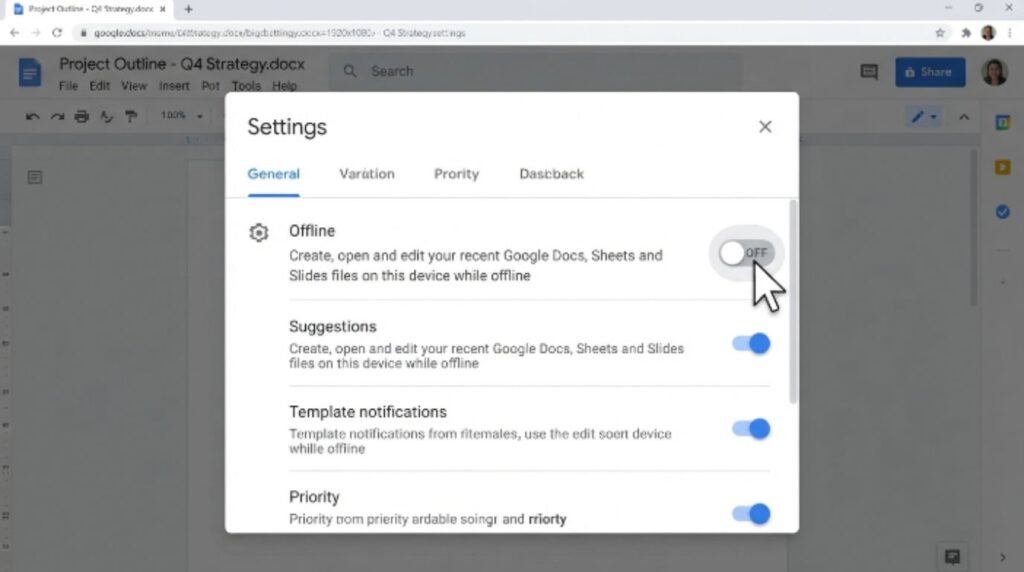
Turning on offline mode can prevent a lot of “not opening” issues tied to spotty internet, but it comes with trade-offs.
| Pros | Cons |
|---|---|
| Documents open even without internet | Uses extra local storage |
| Reduces loading failures from weak connections | Some formatting features are limited offline |
| Automatically syncs once back online | Initial setup takes a few extra steps |
| Works well for travel or unstable networks | Large files may take longer to sync later |
Common Mistakes to Avoid
- Force-closing the app repeatedly without checking the actual cause first, which can sometimes corrupt local cache further.
- Ignoring browser update prompts for months, leading to compatibility issues down the line.
- Ignoring low storage warnings on mobile until the app stops functioning altogether.
- Assuming the document is lost when it’s usually just a loading or syncing delay.
- Skipping the outage check and spending an hour troubleshooting a problem that’s actually on Google’s end.
Expert Tips to Prevent This From Happening Again
- Enable offline access for important documents so unstable internet doesn’t block access.
- Keep only a handful of tabs open when working with large or heavily formatted Docs files.
- Restart the browser at least once a day if Docs is used constantly for work.
- Bookmark the Google Workspace Status Dashboard for quick outage checks.
- Periodically clear cache on both browser and mobile apps, roughly once a month, to keep things running smoothly.
Google Search Central also recommends keeping software updated across all devices, since compatibility gaps are one of the quieter causes behind loading failures.
FAQs
1. Why is Google Docs not opening on my Chromebook? This is often linked to storage space or a pending ChromeOS update. Restarting the device and checking for updates usually resolves it quickly.
2. Can a weak Wi-Fi signal really stop Google Docs from opening? Yes. Google Docs syncs constantly in the background, so even brief connection drops can cause the page to freeze or fail to load.
3. Will clearing my cache delete my documents? No. Clearing cache only removes temporary browser data, not your actual files, which remain safely stored in Google Drive.
4. Why does Google Docs open on my phone but not my laptop? This usually points to a browser-specific issue, like outdated software, a conflicting extension, or corrupted cache on the laptop.
5. Is there a way to check if Google’s servers are down? Yes, the Google Workspace Status Dashboard shows live outage information for Docs and other Google services.
6. Does using an ad blocker cause Google Docs not opening issues? Sometimes. Certain ad blockers and privacy extensions can accidentally block scripts that Docs needs to load properly.
7. Should I reinstall the Google Docs app if nothing else works? Yes, as a last step. Reinstalling clears out any corrupted app data that basic troubleshooting couldn’t fix.
Conclusion
Dealing with Google Docs not opening can feel stressful in the moment, especially with a deadline looming, but the fix is usually simple once the cause is identified. Starting with the basics — checking the connection, clearing cache, testing another browser — solves most cases within a few minutes. For anyone who runs into this often, turning on offline mode and keeping software updated goes a long way toward preventing future headaches. If the steps above didn’t resolve the issue, checking Google’s official Workspace Status Dashboard is the next best move, since it confirms whether the problem is temporary and out of anyone’s hands.