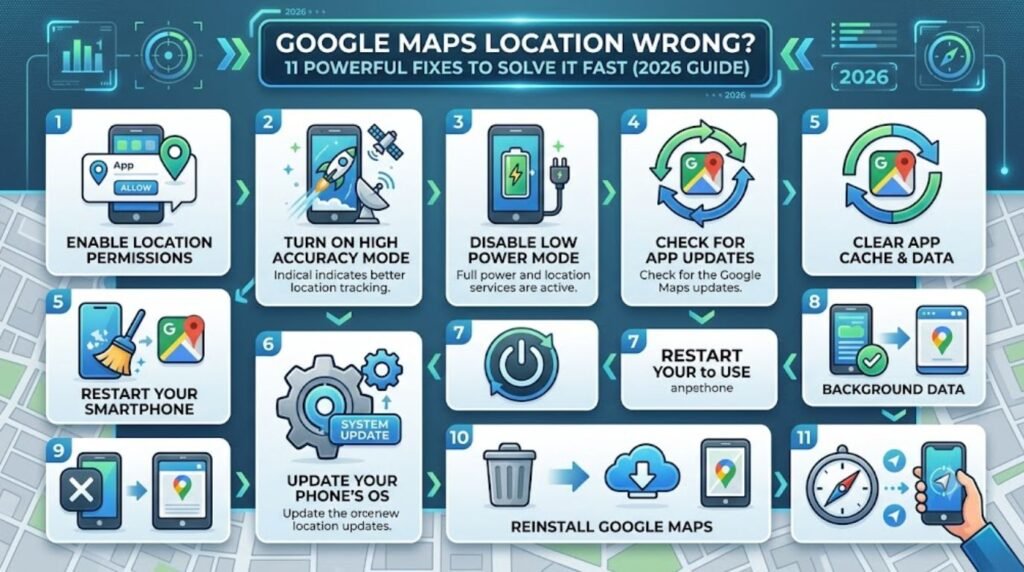

Introduction
Google Maps Location Wrong Few things are more frustrating than opening an app for directions only to find that Google Maps location is wrong. Maybe the little blue dot is sitting three streets away, or a delivery driver keeps ending up at the wrong house. This mix-up happens to everyone at some point, and it’s usually not a sign that anything is seriously broken. In most cases, a wrong location on Google Maps comes down to a handful of predictable causes: weak GPS signal, outdated cache data, a Wi-Fi network mismatch, or a permission setting that got flipped off by accident.
The good news is that almost every one of these problems can be solved in a few minutes, without needing any technical background. This guide walks through why the issue happens and gives clear, tested steps for Android, iPhone, and desktop users so the map matches reality again.
Featured Snippet Answer
Google Maps location is usually wrong because of weak GPS signal, cached data, disabled location permissions, or an incorrect Wi-Fi-based location guess. Fixing it typically involves turning location services on, refreshing GPS by restarting the device, clearing the app cache, and confirming permissions are set to “Allow all the time.”
Why Is Google Maps Location Wrong? Common Causes
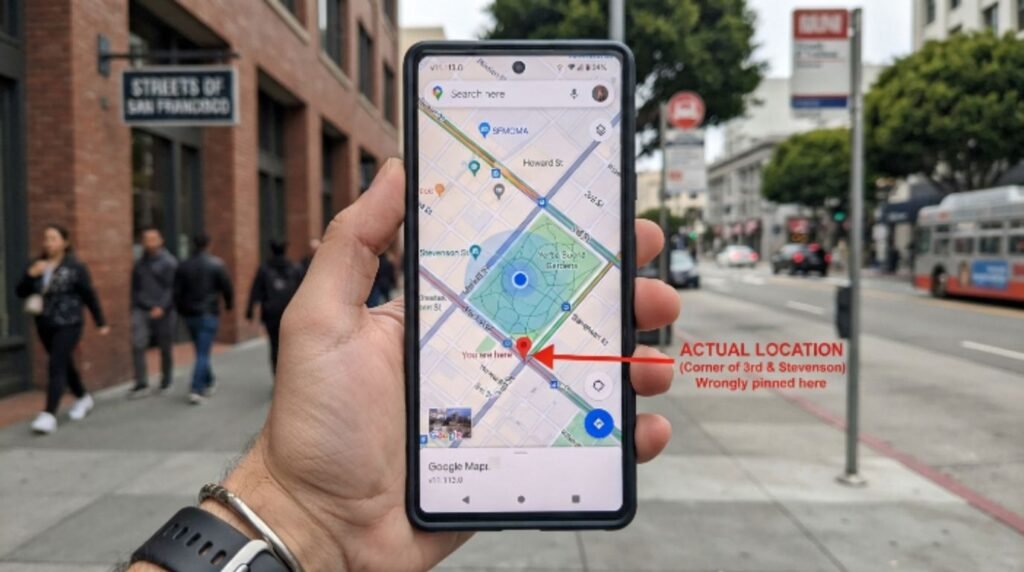
Before jumping into fixes, it helps to understand what’s actually happening behind the scenes. Google Maps doesn’t just use GPS satellites to figure out where someone is standing. It blends several signals together: GPS, nearby Wi-Fi networks, cell tower triangulation, and even Bluetooth beacons in some areas. When any one of these sources feeds in bad data, the app can display a location that’s off by a few feet or, in worse cases, several miles.
A few of the most frequent culprits include:
- Weak or blocked GPS signal, often caused by being indoors, underground, or surrounded by tall buildings.
- Outdated Wi-Fi positioning data, which happens when a router has moved but Google’s database hasn’t updated yet.
- Cached map data that hasn’t refreshed since the last time the app was opened.
- Location permissions set to “only while using the app” or turned off entirely.
- VPN usage, which can trick location services into thinking the device is somewhere else.
- Outdated app or operating system, since older versions sometimes carry bugs that were already patched.
According to official documentation from Google Search Central, location accuracy tools blend multiple data sources and are designed to self-correct over time, but a stale cache or a permissions issue can interrupt that process temporarily. Most users report that the issue resolves itself once the underlying setting is corrected, rather than pointing to any permanent flaw in the app itself.
Quick Fixes You Can Try Right Now
Before diving into device-specific steps, try these fast fixes. They solve the majority of cases in under two minutes.
- Close and reopen the Google Maps app completely (don’t just minimize it).
- Toggle Airplane Mode on, wait five seconds, then turn it off again.
- Move to an open area, away from tall buildings or indoor ceilings.
- Check that location services are turned on for the entire device, not just the app.
- Restart the phone or computer.
If the blue dot still looks off after trying these, move on to the more detailed steps below.
[Internal Link: How to Fix GPS Not Working]
Step-by-Step Guide: Fix Google Maps Location Wrong on Android
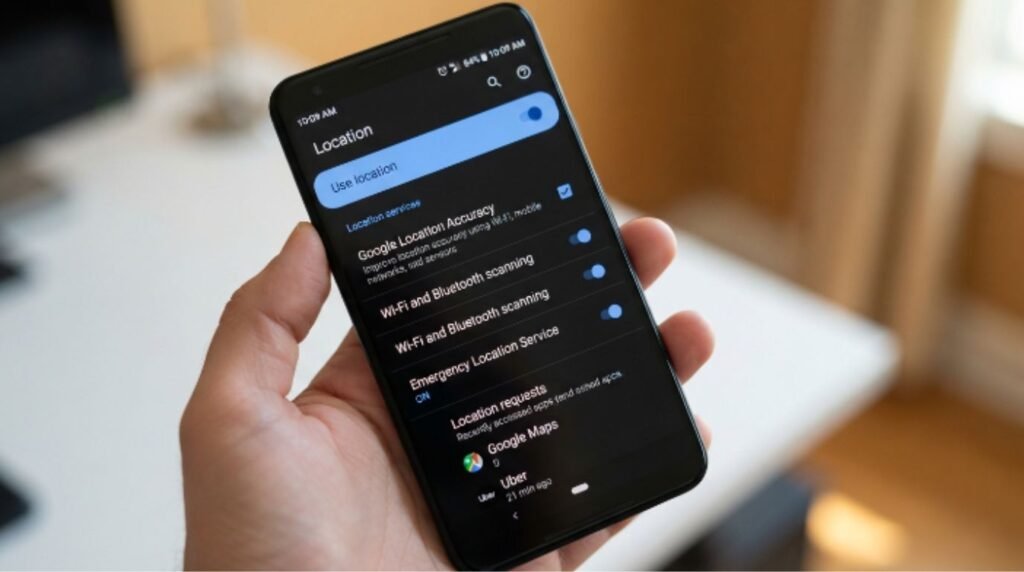
Android phones handle location slightly differently depending on the manufacturer, but the core steps stay consistent across most devices.
- Open Settings and tap Location.
- Make sure the Location toggle is switched on.
- Tap Advanced or Google Location Accuracy and enable Improve Location Accuracy. This lets the phone use Wi-Fi and Bluetooth scanning alongside GPS.
- Go to Apps, select Google Maps, and tap Permissions.
- Set location access to Allow all the time rather than “only while using the app.”
- Open Google Maps, tap the profile icon, then Settings, and choose Clear app cache (this can also be done through Android’s App Info menu).
- Restart the phone to refresh the GPS radio.
- Reopen Google Maps and check whether the blue dot lines up correctly.
Android Help documentation confirms that clearing cached data forces the app to pull a fresh location fix instead of relying on stored information, which resolves a large share of reported cases.
[Internal Link: Android Battery Draining Fast]
[Internal Link: Android Storage Full Fix]
Step-by-Step Guide: Fix Google Maps Location Wrong on iPhone
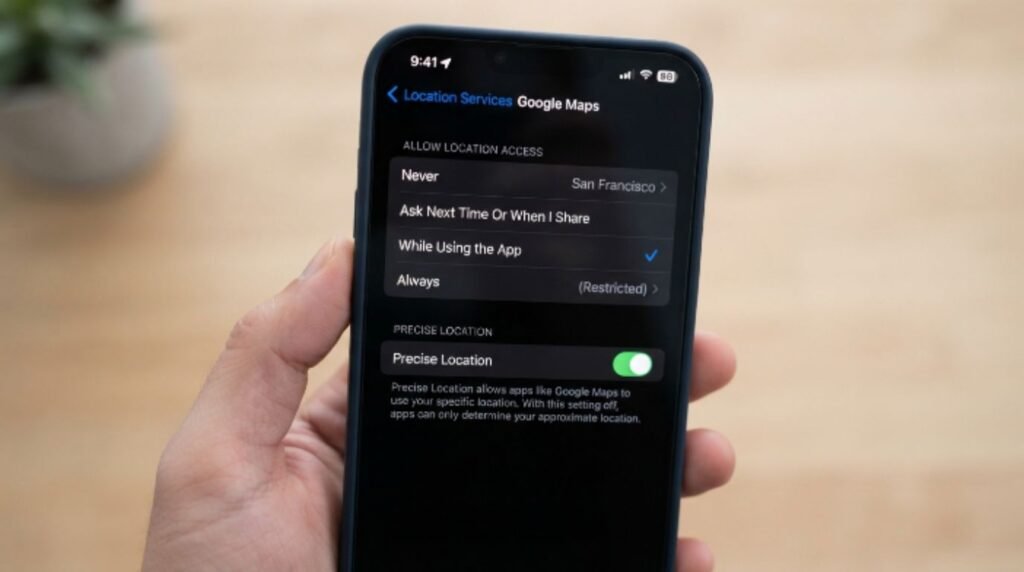
iPhones rely on Apple’s own location framework, which Google Maps taps into. Here’s how to correct it.
- Open Settings and tap Privacy & Security.
- Tap Location Services and confirm the toggle at the top is switched on.
- Scroll down and select Google Maps.
- Choose While Using the App or Always, whichever fits how the app is normally used.
- Turn on Precise Location if it isn’t already enabled.
- Go back to the main Location Services screen and tap System Services, then enable Wi-Fi Networking and Setting Time Zone.
- Delete the Google Maps app and reinstall it from the App Store to clear any corrupted cache.
- Restart the iPhone and reopen Google Maps.
Apple Support notes that Precise Location plays a major role in accuracy, and turning it off intentionally (even by accident during setup) can cause the displayed location to shift by a significant distance.
[Internal Link: iPhone Location Not Updating]
[Internal Link: iPhone Storage Almost Full]
Fixing Google Maps Location Wrong on Desktop
Desktop and laptop users face a different challenge, since there’s no built-in GPS chip in most computers. Instead, Google Maps relies on the browser’s location permission plus Wi-Fi network data.
- Open Chrome (or the browser being used) and click the lock icon next to the address bar.
- Select Site Settings and confirm Location is set to Allow.
- Reload the Google Maps tab.
- If the location is still wrong, check the computer’s Wi-Fi network name, since some routers get mislabeled in location databases after a move.
- Try switching to a wired connection temporarily to see if the location corrects itself.
- Clear the browser cache and cookies for maps.google.com.
- Restart the browser and try again.
Google Search Console Help explains that browser-based location relies heavily on nearby network signals rather than satellite data, which is why moving offices or relocating a router can throw off accuracy for a short period.
[Internal Link: Chrome Running Slow Fix]
How to Correct a Business or Home Address on Google Maps
Sometimes the issue isn’t the blue dot at all, it’s that a business listing or home address pin is placed incorrectly on the map itself. Here’s how to fix that.
- Open Google Maps and search for the address in question.
- Tap or click on the pin to open the info panel.
- Select Suggest an edit.
- Choose Edit location or Address is incorrect.
- Drag the pin to the correct spot on the map.
- Submit the correction and wait for Google to review it.
Google recommends verifying a business address through Google Business Profile as well, since claimed listings tend to get corrected faster than unclaimed ones. Most edits are reviewed within a few days, though high-traffic areas sometimes take longer.
[Internal Link: Google Business Profile Setup Guide]
Comparison Table: GPS vs Wi-Fi vs Network Location
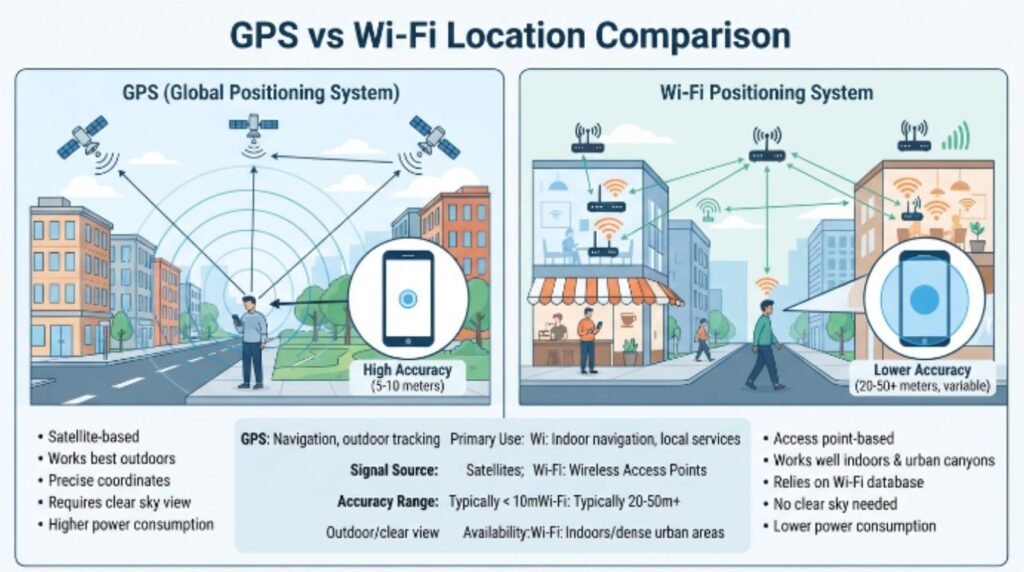
| Feature | GPS | Wi-Fi Positioning | Cell Network Triangulation |
|---|---|---|---|
| Accuracy | Very high outdoors (3–10 ft) | Moderate (varies by area) | Low to moderate (can be off by miles) |
| Works Indoors | Poor | Good | Good |
| Battery Usage | Higher | Lower | Lowest |
| Speed to Lock On | Slower in cities | Fast | Fast |
| Best Used For | Driving, hiking, outdoor navigation | Indoor malls, offices | Backup when GPS/Wi-Fi unavailable |
Pros and Cons of Location Accuracy Methods
| Method | Pros | Cons |
|---|---|---|
| GPS Only | Extremely accurate outdoors, works globally | Drains battery, weak indoors |
| Wi-Fi + GPS (Improve Accuracy) | Best overall accuracy, works indoors and out | Slightly higher data usage |
| Network-Based Only | Very low battery use | Least accurate, can be off by miles |
Common Mistakes to Avoid
- Ignoring app updates. Running an outdated version of Google Maps often means missing accuracy fixes Google has already released.
- Leaving a VPN on by accident. This is one of the most overlooked reasons the map shows a completely different city or country.
- Never clearing cache. Cached data can quietly build up and cause the app to show old location information.
- Assuming it’s a permanent bug. Most instances resolve within minutes once the correct setting is toggled.
- Skipping a restart. Restarting the device refreshes the GPS radio and often fixes issues nothing else could.
[Internal Link: VPN Not Connecting Fix]
Expert Tips
- Enable Wi-Fi scanning even when Wi-Fi itself is turned off. This lets the phone use nearby networks for positioning without connecting to them, which noticeably improves accuracy.
- Keep the operating system updated, since both Apple Support and Android Help regularly push location-related bug fixes through system updates.
- If working from a shared office network, ask the network administrator whether the router’s registered address matches the physical location, since a mismatch here is a frequent, hidden cause.
- For frequent travelers, turning on Precise Location before landing in a new country can prevent a rough first-day location guess.
[Internal Link: WiFi Keeps Disconnecting]
[Internal Link: Best Travel Apps 2026]
FAQs
1. Why does Google Maps show me in the wrong city? This usually happens when a VPN is active or the device is relying on cell tower data instead of GPS. Turning off the VPN and enabling precise location typically fixes it right away.
2. Can weather affect Google Maps location accuracy? Yes, heavy cloud cover or storms can weaken GPS signal slightly, though it’s rarely the main cause. Wi-Fi and network data usually compensate for this.
3. Why is my home address wrong on Google Maps? This is often a mapping database error rather than a device issue. Use the “Suggest an edit” feature to correct the pin location directly on the map.
4. Does restarting my phone actually help fix location errors? Yes, restarting refreshes the GPS radio and clears temporary glitches, which resolves a large share of reported cases according to Android Help documentation.
5. Is Google Maps location wrong a sign of a hacked phone? Not usually. It’s almost always related to settings, cache, or signal strength rather than any security issue.
6. Why does my location jump around on the map while driving? This typically happens in areas with tall buildings or tunnels that block GPS signal temporarily, causing the dot to “jump” once signal returns.
7. How long does it take Google to fix a wrong address after I report it? Most edits are reviewed within a few days, though busy urban areas or disputed addresses can occasionally take longer.
Conclusion
Dealing with a Google Maps location wrong problem can feel confusing at first, but the fix is almost always simple once the cause is identified. Whether it’s a permissions setting buried in the phone, a cache that needs clearing, or an address pin that needs a quick correction, each of these issues has a clear, repeatable solution. Start with the quick fixes, move into the device-specific steps if needed, and don’t hesitate to submit a map correction if a business or home address is the real issue.
Getting the blue dot back where it belongs usually takes just a few minutes, and once it’s fixed, it tends to stay accurate. If the location still seems off after trying everything above, checking for a pending app or system update is a great next step.
[Internal Link: Google Maps Not Working]
[Internal Link: How to Fix GPS Not Working]