
Introduction
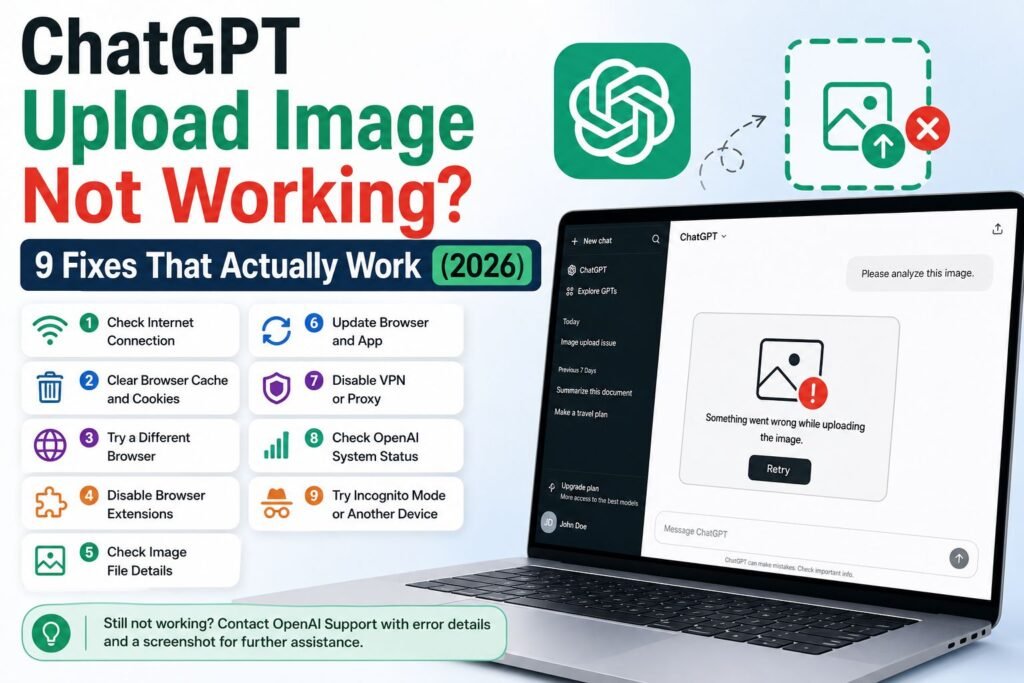
Few things are more annoying than clicking the attachment icon in ChatGPT, picking a photo, and watching absolutely nothing happen. If ChatGPT upload image not working is the exact problem stopping you right now, you’re not alone — this is one of the most searched ChatGPT complaints, and it usually comes down to a small handful of causes. The good news is that most of them take less than five minutes to fix. This guide walks through why the upload button freezes, why images fail to attach, and why some photos get rejected outright, then gives clear steps to get things running again on desktop, iPhone, and Android.
Featured Snippet Answer: ChatGPT upload image not working is usually caused by an unsupported model, a file over 20MB, a slow or blocked connection, a browser glitch, or a temporary OpenAI outage. Switching to a vision-capable model, shrinking the image, refreshing the page, or trying a different browser solves it in most cases.
Why ChatGPT Won’t Let You Upload Images
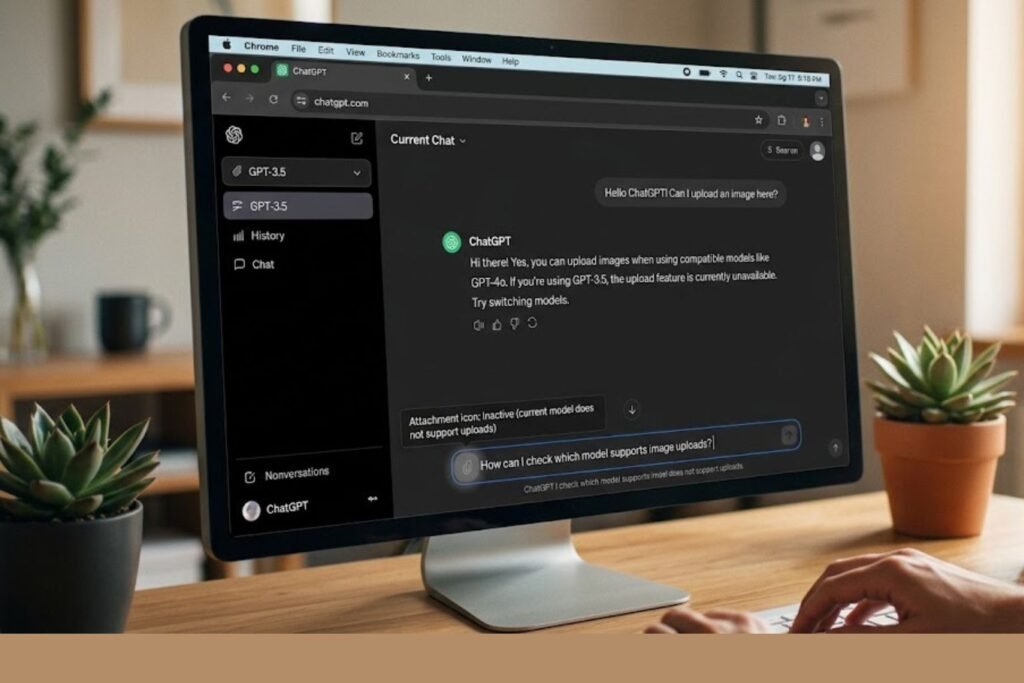
Before jumping into fixes, it helps to understand what’s actually breaking. Image uploads in ChatGPT touch several moving parts at once — your account tier, the model you’re chatting with, your browser or app, your internet connection, and OpenAI’s servers. When any one of those hiccups, the upload can silently fail.
1. You’re On a Model That Doesn’t Support Vision
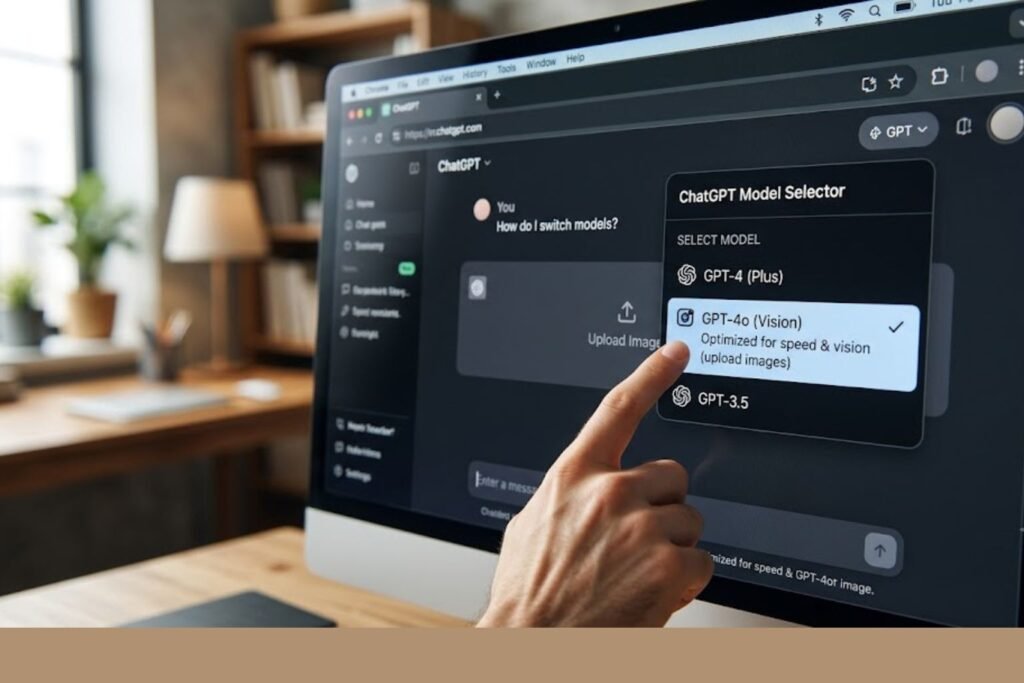
Not every ChatGPT model can “see” images. Older or lightweight models sometimes can’t process photos, so the attachment icon disappears or the upload gets stuck. If you’ve switched models recently, that’s often the root cause.
[ChatGPT Plus Worth It]
2. The File Is Too Big or the Wrong Format
ChatGPT generally caps individual images around 20MB, and it works best with common formats like JPEG, PNG, and non-animated GIF. A massive raw photo straight from a modern phone camera, or an unusual format like TIFF or HEIC, can quietly fail to upload.
3. Browser Cache, Cookies, or Extensions Are Interfering
Ad blockers, privacy extensions, and old cached data are frequent troublemakers. They can misread the upload request as suspicious activity and block it before the file ever reaches OpenAI’s servers.
4. Weak or Unstable Internet Connection
Unlike loading a webpage, uploading a file requires a steady connection for the whole transfer. A spotty Wi-Fi signal or a VPN adding extra hops can cause the upload to time out midway.
5. You Hit a Usage Limit
Free accounts have tighter limits on vision-related messages. Once that limit is reached, the option to upload images may temporarily disappear, even though the rest of ChatGPT keeps working normally.
6. A Temporary OpenAI Outage
Sometimes it isn’t you at all. During periods of heavy traffic, OpenAI may briefly restrict resource-heavy features like image processing to keep the core chat experience stable.
Step-by-Step: How to Fix ChatGPT Upload Image Not Working
Work through these in order — most people are back up and running by step three or four.
Refresh the page and start a new chat.
A stuck session is the single most common cause. Closing the tab and opening a brand-new conversation clears out temporary glitches.
Check your model.
Click the model selector at the top of the screen and make sure you’re on a current model that supports images rather than a text-only or legacy option.
Resize or convert your image.
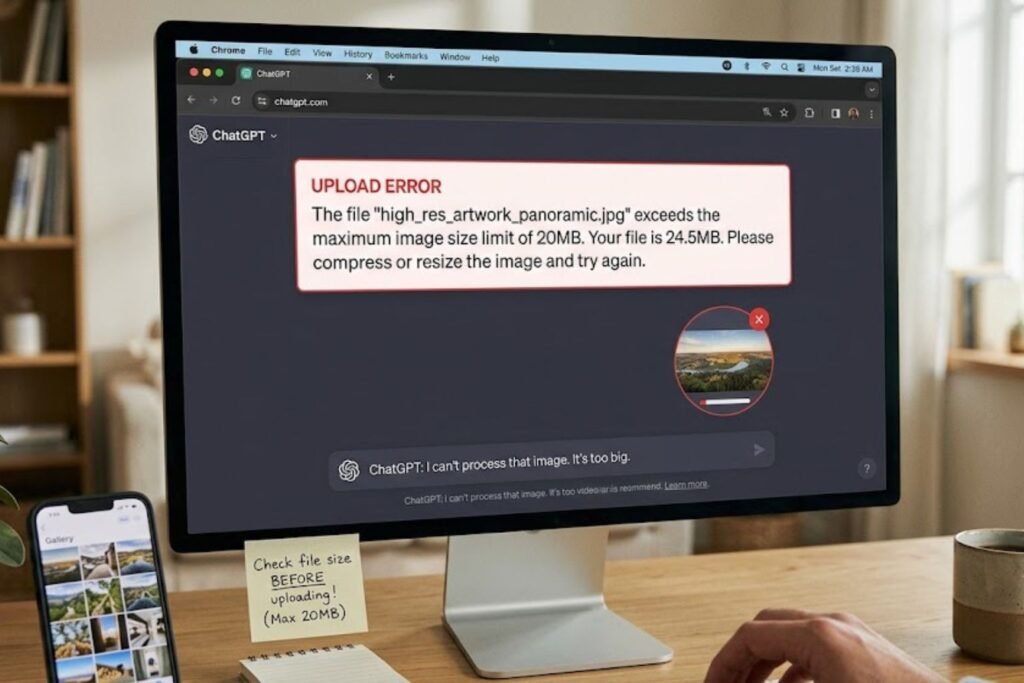
If the file is larger than 20MB, compress it or convert it to JPEG or PNG using any free online image compressor before trying again.
Wait for the thumbnail to fully load.
Sending your message before the attachment finishes uploading is a surprisingly common mistake. Watch for the progress indicator to complete first.
Try a different browser or an incognito/private window.
This bypasses cached data, cookies, and most extensions in one step.
Disable ad blockers and privacy extensions temporarily.
Turn them off just for the ChatGPT site and try the upload again.
Test your internet connection.
Switch from Wi-Fi to mobile data (or vice versa) to rule out a network issue.
Log out and log back in.
This refreshes your session token and can clear account-level glitches.
Check OpenAI’s status page.
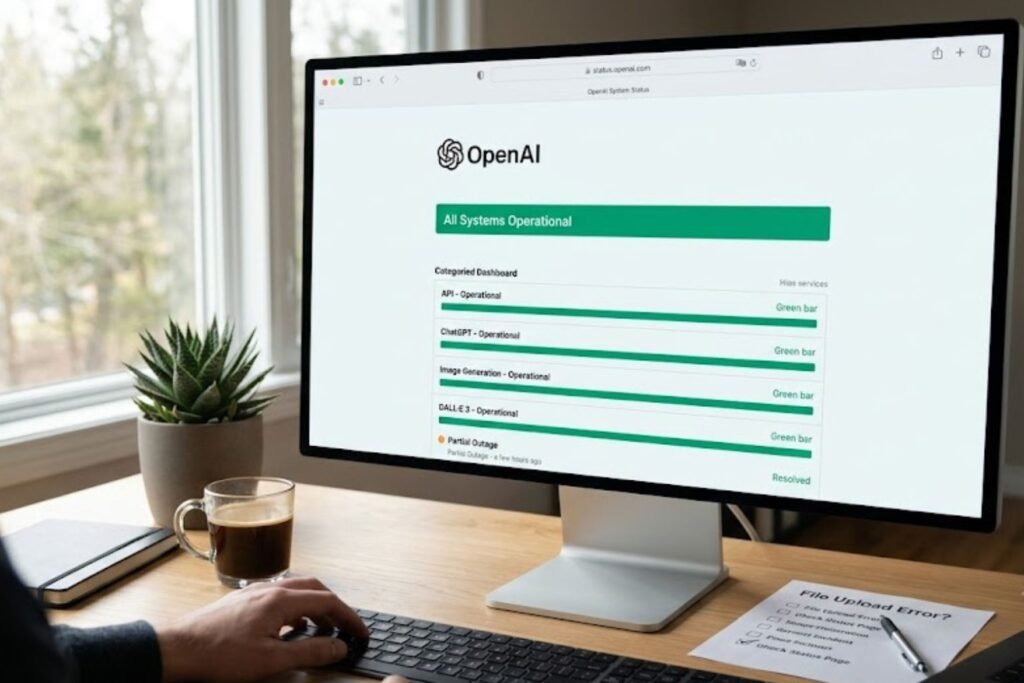
If uploads fail across every device and browser, the issue may be on OpenAI’s end rather than yours.
Fix by Device: Desktop vs Mobile
On Desktop (Windows/Mac)
- Clear your browser’s cache and cookies for chatgpt.com.
- Update your browser to the latest version — outdated browsers can struggle with the scripts that handle file uploads.
- Try dragging and dropping the image directly into the chat box instead of using the attachment icon.
[chatgpt is at capacity solution]
On Mobile (iOS/Android)
- Confirm the ChatGPT app has permission to access your photo library in your phone’s settings.
- Update the app to the latest version from the App Store or Google Play.
- If a specific photo won’t upload, try a different one first to confirm it isn’t a corrupted file.
- On iPhone, saving photos in “Most Compatible” format (JPEG instead of HEIC) tends to reduce upload errors.
[chatgpt conversation not loading]
Comparison: Free vs Plus vs Team/Enterprise Image Access
| Feature | Free | Plus | Team/Enterprise |
|---|---|---|---|
| Image upload access | Limited, usage-capped | Yes, higher limits | Yes, highest limits |
| Vision-capable model available | Sometimes restricted | Yes | Yes |
| File size limit | ~20MB | ~20MB | ~20MB |
| Multiple images per message | Limited | Up to several per message | Up to several per message |
| Priority during high traffic | Lower | Higher | Highest |
[chatgpt not generating answers]
Pros and Cons of ChatGPT’s Image Upload Feature
| Pros | Cons |
|---|---|
| Reads text, charts, and screenshots accurately most of the time | File size and format limits can trip up unfamiliar users |
| Works across desktop, iOS, and Android | Free accounts face stricter caps |
| Great for troubleshooting error messages visually | Occasional server-side hiccups during peak hours |
| No separate app needed | Some formats like HEIC or TIFF can be unreliable |
[Best ChatGPT Alternatives]
Common Mistakes to Avoid
- Retrying the exact same file over and over. If a file fails once, retrying it in the same broken session rarely helps — fix the underlying issue first.
- Ignoring the model selector. Many users don’t realize the model they’re chatting with affects whether image upload is even available.
- Uploading giant, unedited photos. A 40MB photo straight off a modern camera is an easy way to trigger a silent failure.
- Sending the message before the upload finishes. This is one of the most overlooked causes of a “failed to process” error.
- Assuming it’s always a bug. Usage limits and account tier restrictions are often mistaken for technical errors.
[chatgpt upload image not working]
Expert Tips
- Keep a “safe” test image (a small JPEG under 5MB) on hand to quickly check whether an upload issue is file-specific or account-wide.
- Most users report that starting a fresh chat resolves upload issues faster than troubleshooting inside a long, cluttered conversation thread.
- If you regularly upload screenshots, save them as PNG rather than relying on your device’s default screenshot format, since PNG tends to be the most consistently supported.
- Before assuming a bug on your end, quickly check whether other ChatGPT features (like plain text chat) are working normally — that helps narrow down whether it’s local or server-side.
[chatgpt conversation not loading]
FAQs
1. Why can’t I upload images on ChatGPT free plan? Free accounts have limited access to vision features and may hit a usage cap faster than paid plans. Once the cap is reached, the upload option can temporarily disappear.
2. What image formats does ChatGPT support? JPEG, PNG, and non-animated GIF are generally well supported. Formats like TIFF or unconverted HEIC files are more likely to cause errors.
3. Why does my image upload freeze at a certain percentage? This is often caused by a weak internet connection or a browser extension interrupting the transfer. Try a different network or disable extensions and retry.
4. Does clearing my browser cache actually help? Yes, in many cases. Cached data and cookies can conflict with the upload script, and clearing them resolves the issue without needing to reinstall anything.
5. Is there a file size limit for ChatGPT image uploads? Yes, images are generally limited to around 20MB each. Compressing larger files before uploading usually solves size-related failures.
6. Why does image upload work on desktop but not mobile? This usually points to app permissions or an outdated mobile app version rather than an account issue. Check photo access permissions and update the app.
7. How do I know if the problem is on OpenAI’s side? If uploads fail across multiple devices, browsers, and networks at the same time, it’s more likely a temporary outage. Checking OpenAI’s official status page can confirm this.
Conclusion
A ChatGPT upload image not working error is frustrating in the moment, but it’s rarely a dead end. Most of the time, the fix is as simple as switching models, shrinking a file, refreshing the page, or trying a different browser. Work through the steps above in order, and in the rare case that nothing helps, checking OpenAI’s status page or reaching out to support will confirm whether the issue is on their end. Bookmark this guide so it’s easy to find next time an upload gets stuck.