
Introduction
Anyone who manages a website has probably opened Google Search Console one morning and found a strange little label sitting under the “Not indexed” section: Crawl anomaly. It’s vague on purpose, and that vagueness is exactly what makes it stressful. There’s no single error code attached to it, no neat explanation, just a pile of URLs that Googlebot tried to visit and, for one reason or another, couldn’t process the way it expected to.
The good news is that a crawl anomaly fix is rarely as complicated as the label makes it sound. Most of the time it comes down to a handful of predictable culprits: a shaky server response, a blocked resource, a messy redirect, or a page that only certain visitors (including bots) can actually reach. This guide walks through what the error means, why it shows up, and exactly how to track it down and resolve it, one step at a time.
Featured Snippet Answer
A crawl anomaly fix starts by opening the Page Indexing report in Google Search Console, checking which URLs are affected, and testing them live with the URL Inspection tool. Most anomalies trace back to server errors, blocked resources, timeouts, or inconsistent redirects, and clearing those usually resolves the issue within a couple of crawl cycles.
What Is a Crawl Anomaly, Really?
Google uses “crawl anomaly” as a catch-all label. It’s applied whenever Googlebot attempts to fetch a page and runs into a response that doesn’t fit neatly into the other defined categories, like a 404, a soft 404, or a straightforward server error. Instead, it’s a bit of an odd one out — a fetch attempt that failed or behaved unexpectedly in a way Google hasn’t bucketed elsewhere.
According to Google Search Central documentation, the Page Indexing (previously called Coverage) report groups excluded and error pages by the reason Google believes they weren’t indexed. A crawl anomaly generally means Googlebot ran into an unexpected HTTP status, a connection issue, or a response it couldn’t fully interpret at the time of the crawl.
It’s worth remembering that this label doesn’t always mean something is broken for real users. Sometimes it only affects Googlebot’s specific request, especially if there’s bot-blocking security software involved, or if a page briefly returned an error during a deployment window.
Why Crawl Anomalies Happen
There isn’t one single cause, which is part of the frustration. Based on patterns most site owners and SEOs report seeing, these are the usual suspects:
- Server instability — the hosting environment briefly returns a 5xx error under load, during backups, or during deploys.
- Firewall or bot-blocking rules — security plugins, CDNs, or WAFs sometimes challenge or block Googlebot’s user agent by mistake.
- Restricted pages — login-only areas, member portals, or admin routes return 401 or 403 responses, which Google can’t index anyway.
- Timeouts — pages that take too long to respond, often because of heavy scripts or slow database queries.
- Redirect inconsistency — a URL that redirects differently depending on device, cookie, or region confuses the crawler.
- DNS hiccups — a domain that briefly fails to resolve during the crawl attempt.
- Malformed URLs — strange characters, broken parameters, or auto-generated links pointing to resources that were never meant to be crawled.
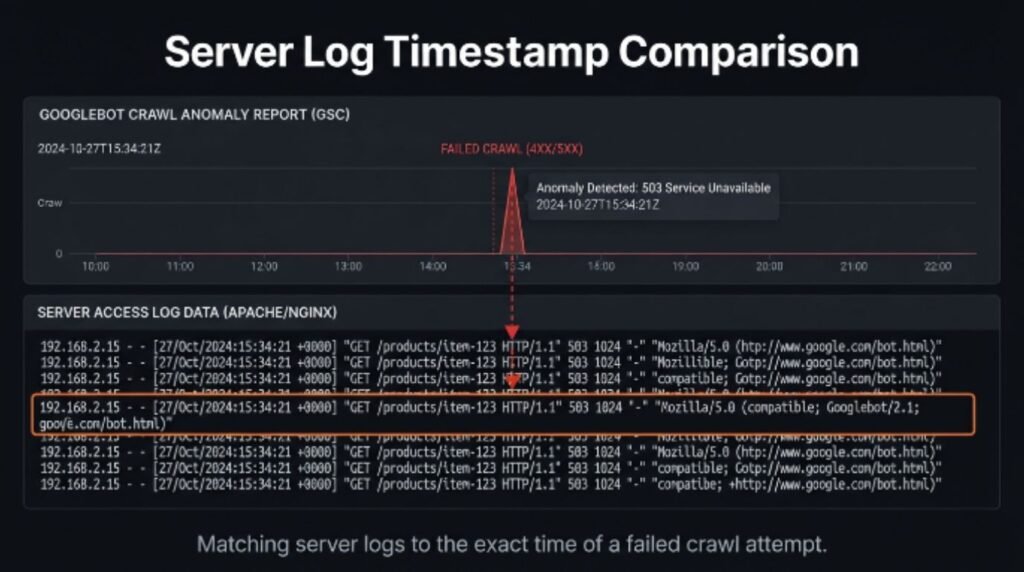
Most users report that once they check server logs around the timestamp of the failed crawl, the cause becomes fairly obvious. It’s usually not a mystery, just a case of needing to look in the right place.
Crawl Anomaly vs Other Coverage Errors
It helps to know how this error is different from its cousins in the Page Indexing report, since the fix for each one is different.
| Report Label | What It Usually Means | Typical Fix |
|---|---|---|
| Crawl anomaly | Unusual or unclassified fetch failure | Check server logs, test live URL, stabilize responses |
| 404 (Not Found) | Page genuinely doesn’t exist | Redirect or restore the page |
| Soft 404 | Page returns 200 but looks empty or thin | Add real content or return a true 404 |
| Server error (5xx) | Server failed to respond properly | Fix hosting, scaling, or application errors |
| Blocked by robots.txt | Crawling explicitly disallowed | Update robots.txt if the page should be indexed |
| Redirect error | Redirect chain broken or too long | Simplify to a single clean redirect |
Step-by-Step: Crawl Anomaly Fix Guide
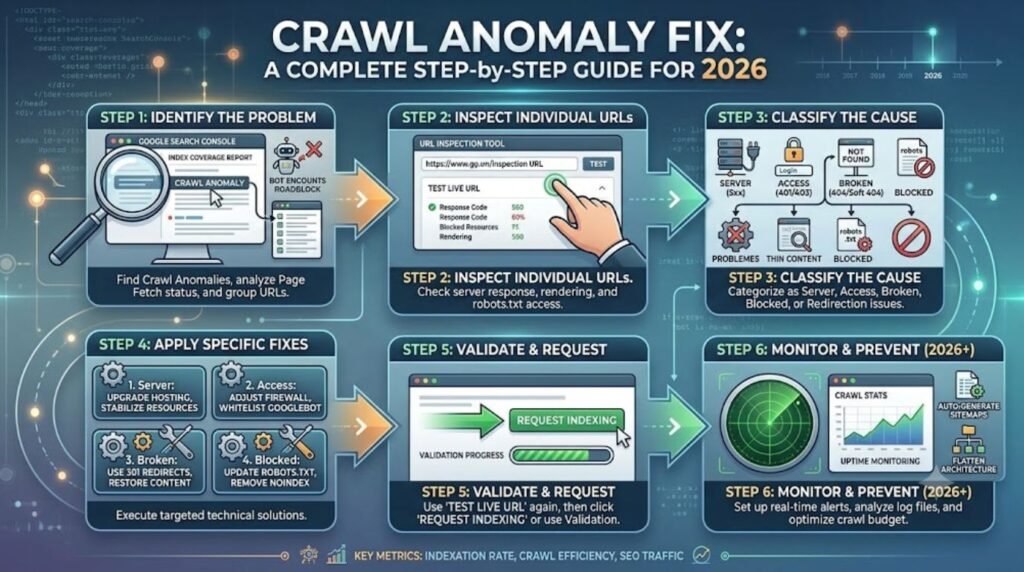
Open the Page Indexing report. In Google Search Console, go to Indexing > Pages, then scroll to the “Why pages aren’t indexed” table and click “Crawl anomaly.”
Export the list of affected URLs. Even a small sample helps spot patterns, like all the URLs sharing a folder, template, or parameter.
Run each URL through URL Inspection. Click “Test Live URL” to see how Googlebot is treated right now, not just at the last crawl.
Check the HTTP status code. A live test often reveals a 403, 500, 502, or timeout that didn’t show up anywhere else.
Review server and access logs. Match the timestamp of the failed crawl against your server logs to see exactly what happened.
Rule out bot blocking. Temporarily allow Googlebot’s verified IP ranges or user agent through any firewall, CDN, or security plugin.
Fix the root issue. This might mean increasing server resources, fixing a broken redirect, correcting a script, or removing an unnecessary noindex or block.
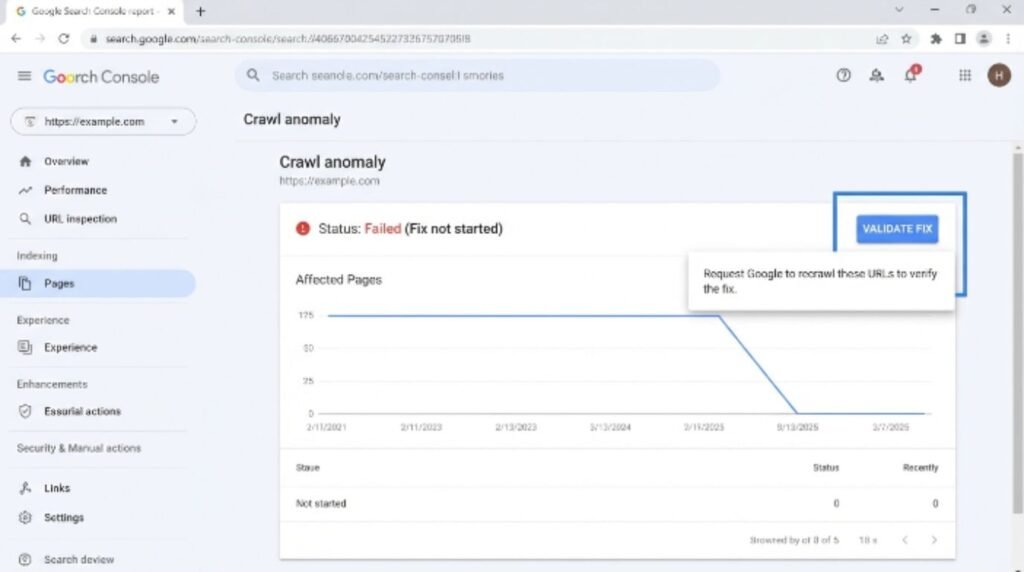
Request validation in Search Console. Once the fix is live, use the “Validate Fix” button so Google recrawls the affected URLs sooner.
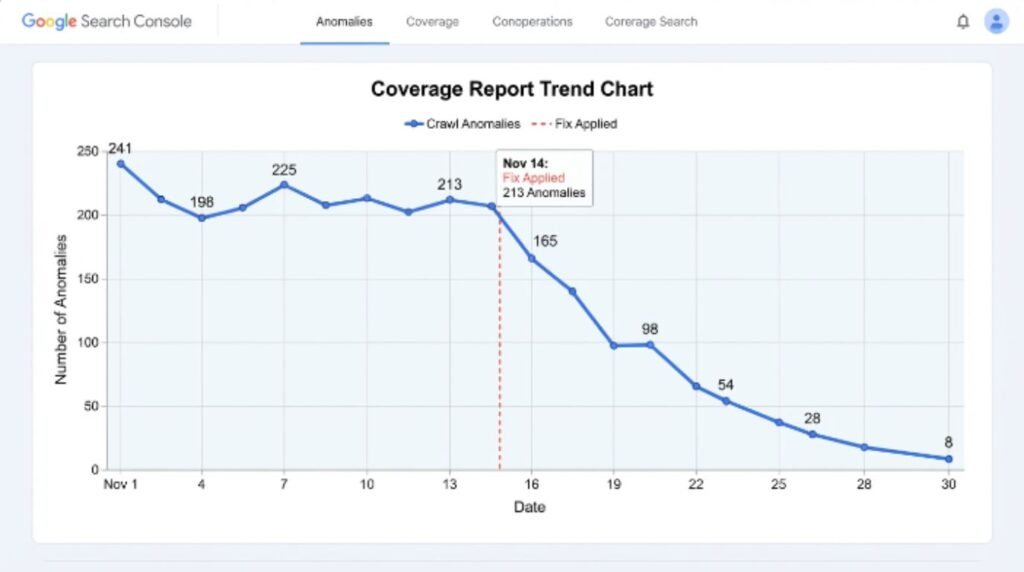
Monitor for a few crawl cycles. Recovery isn’t always instant, so check back over the following one to two weeks.
Server-Side Checks You Shouldn’t Skip
A lot of crawl anomaly fixes live or die on the server side, so it’s worth being thorough here rather than jumping straight to Search Console tricks.
- Response time under load. Use a tool to simulate multiple simultaneous requests and see if response times spike.
- Uptime monitoring. A monitoring service that pings the site every few minutes can catch brief outages that Search Console won’t show clearly.
- Rate limiting settings. Some servers throttle requests that arrive too quickly, which can catch Googlebot during aggressive crawl bursts.
- SSL certificate validity. An expired or misconfigured certificate can cause connection failures that get logged as anomalies.
- CDN cache behavior. Occasionally a CDN serves a stale error page cached from a past outage, long after the origin server recovered.
[Internal Link: WordPress Site Not Loading]
Pros and Cons of Different Fix Approaches
| Approach | Pros | Cons |
|---|---|---|
| Fixing the server/infrastructure directly | Solves the root cause, prevents recurrence | Can require developer time and testing |
| Adjusting firewall/CDN bot rules | Fast to apply, often solves blocking issues | Needs careful whitelisting to avoid security gaps |
| Blocking the page from crawling entirely | Removes it from the report quickly | Doesn’t fix real users’ experience if the page matters |
| Requesting validation without fixing anything | Free, quick | Won’t work if the underlying issue is still there |
Common Mistakes to Avoid
Clicking “Validate Fix” before actually fixing anything. Google will simply mark the fix as failed and the report resets.
Assuming every anomaly needs urgent attention. A handful of anomalies on low-value or unimportant URLs usually isn’t worth panicking over.
Blocking Googlebot by accident while testing security rules. Always confirm the crawler can still reach the site after any firewall change.
Ignoring mobile-specific crawling. Google primarily crawls with a mobile user agent, so a fix that only works on desktop won’t help.
Forgetting to check the sitemap. Submitting broken or outdated URLs in a sitemap can keep generating anomalies even after individual pages are fixed.
[Internal Link: Google Search Console Not Indexing]
Expert Tips
- Google recommends prioritizing anomalies on pages that matter for traffic or conversions rather than trying to clear every single one at once.
- Google Search Central explains that Search Console’s crawl stats report is a good companion tool, since it shows crawl request trends and response breakdowns over time, not just a single snapshot.
- Most users report that pairing Search Console data with raw server log analysis gives a much clearer picture than either tool alone.
- Cloudflare and similar providers generally suggest reviewing WAF and bot-management logs whenever a known crawler like Googlebot appears to be getting challenged.
[Internal Link: ChatGPT Down Today]
How Long Does a Fix Take to Show Results?
There’s no fixed timeline, since it depends on how often Google recrawls a given section of the site. High-authority, frequently updated pages might get revisited within days. Lower-priority pages can take a few weeks. Requesting validation in Search Console does speed things up somewhat, since it tells Google to prioritize a recrawl of the specific URLs involved, but it doesn’t guarantee an instant fix confirmation.
[Internal Link: Google Indexing Slow]
FAQs
1. What does a crawl anomaly mean in Google Search Console? It means Googlebot tried to fetch a page and got a response that didn’t fit neatly into other error categories, often a server issue, block, or timeout.
2. Is a crawl anomaly bad for SEO? It can be, if it’s affecting pages that matter for rankings or traffic. A few anomalies on unimportant URLs usually aren’t a serious concern.
3. How do I check which URLs have a crawl anomaly? Open Indexing > Pages in Search Console, then click “Crawl anomaly” under the “Why pages aren’t indexed” section.
4. Can a crawl anomaly fix itself over time? Sometimes, yes, especially if it was caused by a temporary server hiccup. Persistent issues usually need direct troubleshooting.
5. Does robots.txt cause crawl anomalies? Not directly, since a robots.txt block is usually reported separately. However, misconfigured rules can sometimes contribute to unexpected crawl behavior.
6. How do I know if Googlebot is being blocked by my firewall? Check firewall or WAF logs for Googlebot’s user agent or verified IP ranges, and look for challenge or block events around the crawl anomaly timestamps.
7. Should I use the “Validate Fix” button right away? Only after the underlying issue has actually been resolved. Clicking it before fixing anything usually just results in a failed validation.
Conclusion
A crawl anomaly fix usually comes down to patience and process rather than guesswork. Start with the Page Indexing report, test the affected URLs live, dig into server and firewall logs, and resolve whatever’s actually breaking the connection. Once that’s done, request validation and give Google a couple of crawl cycles to catch up. Keeping an eye on Search Console regularly, rather than only after something breaks, makes these situations much easier to catch early next time.
[Internal Link: ChatGPT Error Loading]