
Introduction
Reverse image search is one of those tools people don’t think about until it suddenly stops working. One minute it’s helping track down where a photo came from, and the next minute it’s throwing errors, spinning endlessly, or just refusing to load results. If reverse image search not working is the exact problem staring back at the screen right now, there’s good news: this is usually a small, fixable issue rather than a sign of something seriously broken.
Most of the time it comes down to browser settings, outdated apps, a shaky internet connection, or a search engine having a rough day. This guide walks through every common cause and every practical fix, from the simplest one-click solutions to slightly more technical steps for stubborn cases. By the end, most readers should have their reverse image search tool running smoothly again.
Featured Snippet Answer
Reverse image search usually stops working due to browser glitches, outdated extensions, disabled JavaScript, a poor internet connection, or temporary server issues on Google’s end. Clearing the browser cache, updating the app, switching browsers, or trying a different device often fixes the problem within minutes.
Why Reverse Image Search Stops Working
Before jumping into fixes, it helps to understand what actually causes reverse image search to fail in the first place. There isn’t just one culprit — several things can quietly interfere with the process.
Browser-related issues. Old cache files, corrupted cookies, or an outdated browser version can block the image upload or search request from going through properly.
Extension conflicts. Ad blockers, VPN extensions, or privacy tools sometimes strip out scripts that reverse image search needs to function.
Connectivity problems. A weak or unstable internet connection can cause the image upload to time out before results ever load.
Server-side hiccups. Search engines occasionally experience temporary outages or maintenance windows, which can make the tool appear broken when it’s actually just busy.
Device or app limitations. Mobile apps sometimes restrict reverse image search features unless accessed through a specific browser or app version.
Image format issues. Certain file types, oversized images, or corrupted files can fail to upload correctly, triggering an error message.
Google itself notes that search features can be affected by connection quality and browser compatibility, which lines up with what most users experience. According to official documentation from Google Search Help, keeping browsers updated and clearing temporary data resolves a large share of search-related glitches.
[Internal Link: Google Chrome Not Working]
Quick Fixes You Can Try Right Now
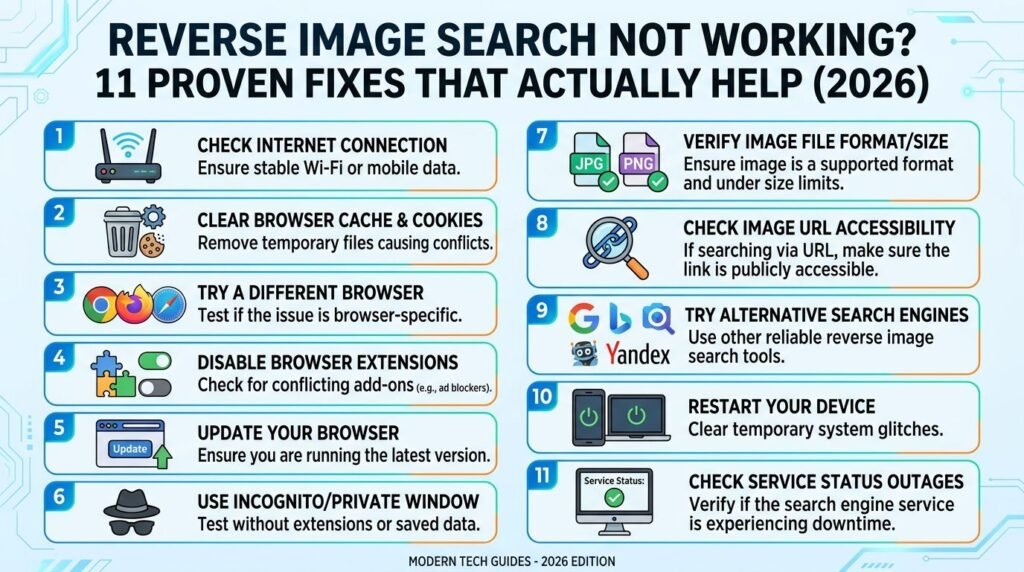
Sometimes the fastest fix is also the simplest. Before diving into detailed troubleshooting, it’s worth running through this quick checklist:
- Refresh the page or restart the app completely.
- Check the internet connection by loading a different website.
- Try the search in an incognito or private window.
- Switch to a different browser temporarily.
- Restart the device — yes, it still works wonders.
- Make sure the image file isn’t corrupted or unusually large.
Most users report that at least one of these steps clears up the issue without needing anything more advanced. If the problem persists, the detailed guides below cover deeper fixes.
Step-by-Step Guide: Fixing Reverse Image Search on Desktop
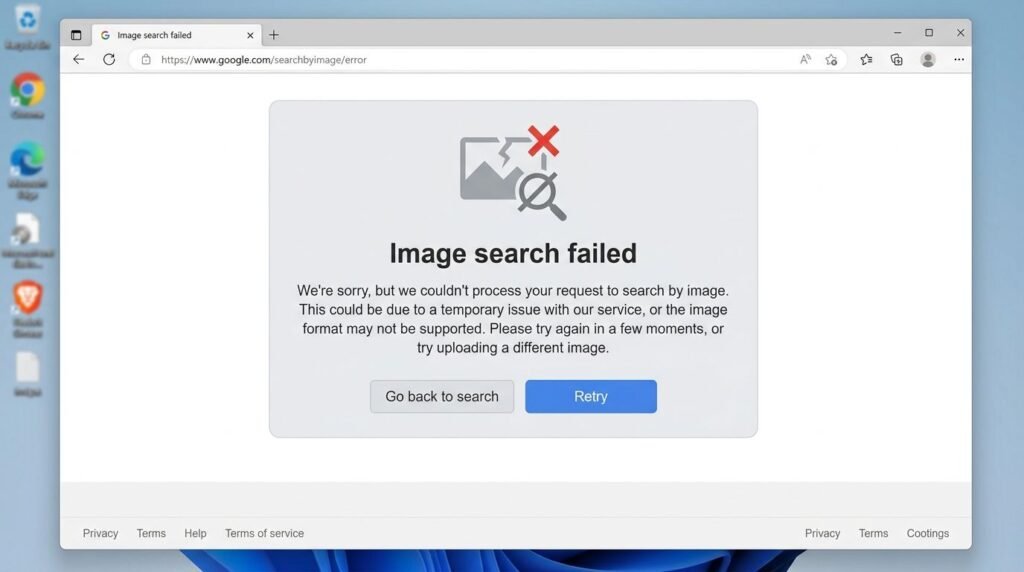
For anyone using a laptop or desktop computer, these steps address the most common desktop-specific causes.
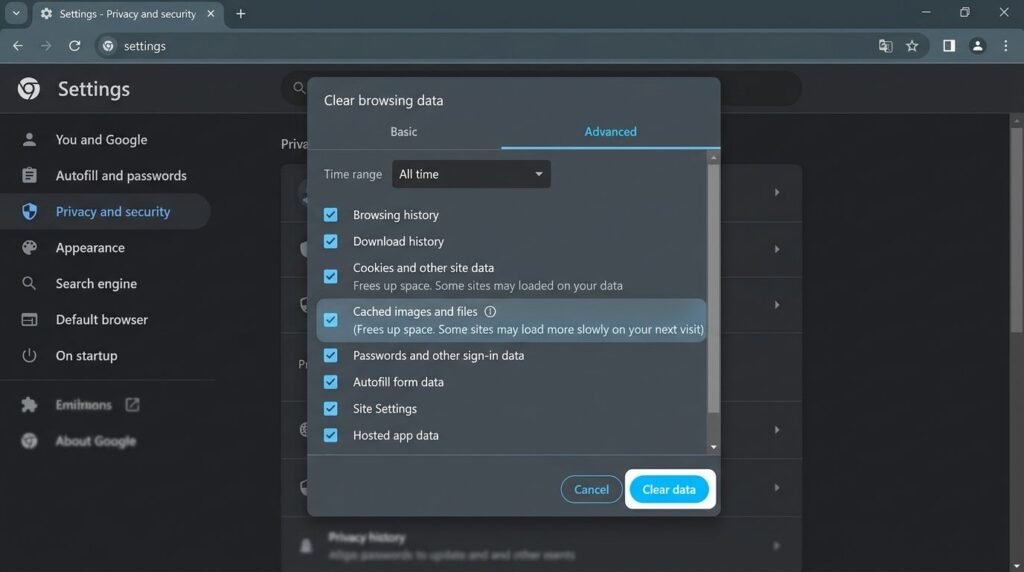
Clear browser cache and cookies. Old data can conflict with search scripts. Clearing it forces the browser to load a fresh version of the page.
Disable browser extensions temporarily. Ad blockers and privacy extensions are common troublemakers. Turn them off one at a time to identify the culprit.
Update the browser to the latest version. Outdated browsers may not support newer search features properly.
Enable JavaScript. Reverse image search relies heavily on JavaScript, so make sure it isn’t disabled in browser settings.
Try a different browser. If Chrome isn’t cooperating, testing the same search in Firefox or Edge can confirm whether the issue is browser-specific.
Check firewall or antivirus settings. Overly aggressive security software can sometimes block image uploads.
Restart the computer. This clears temporary memory issues that might be interfering with the browser session.
Following these steps in order usually narrows down the problem within a few minutes.
[Internal Link: Windows Update Stuck]
Step-by-Step Guide: Fixing Reverse Image Search on Mobile
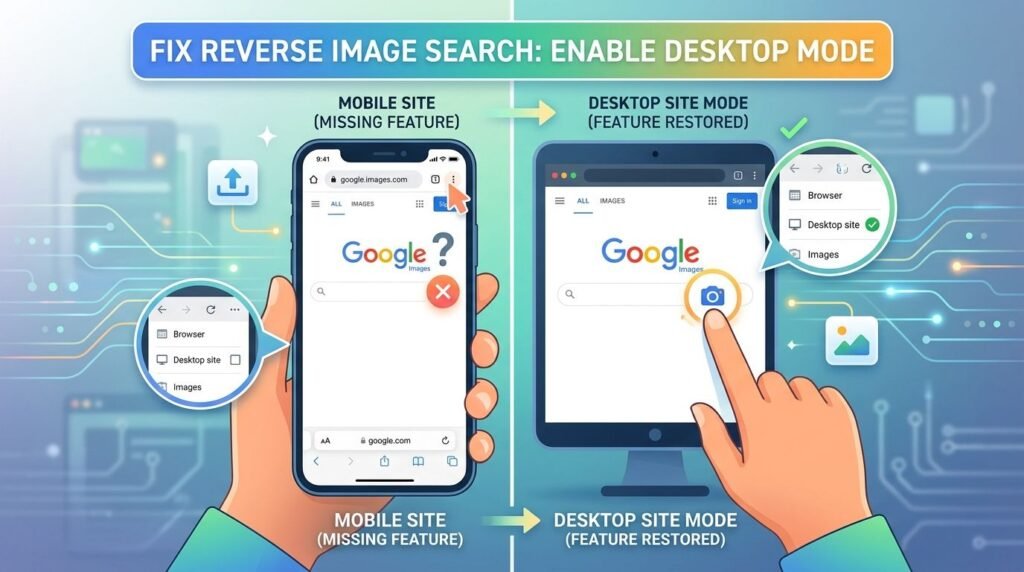
Mobile devices come with their own quirks, especially since reverse image search isn’t always built directly into mobile apps the same way it is on desktop.
Use a browser instead of the app. Many mobile apps limit reverse image search, so switching to Chrome or Safari often unlocks the full feature.
Request the desktop site. Most mobile browsers have a “Desktop Site” option that enables features hidden on mobile view.
Clear the app cache. On Android, this can be done through device settings under app storage options.
Update the app or browser. Outdated versions frequently cause missing buttons or broken upload functions.
Check storage space. Low storage can prevent images from uploading correctly.
Restart the phone. A simple reboot resolves a surprising number of mobile glitches.
Try a different Wi-Fi or mobile data connection. Network instability is a common mobile-specific issue.
[Internal Link: Android Update Problem]
Reverse Image Search Not Working on Chrome
Chrome is the most popular browser for reverse image search, so when it breaks, it affects a huge number of users. Common Chrome-specific fixes include:
- Right-clicking the image and confirming “Search Image with Google” appears in the menu.
- Resetting Chrome settings to default under Chrome’s settings menu.
- Removing recently installed extensions.
- Signing out and back into the Google account.
- Clearing the “Hosted App Data” specifically, not just regular browsing history.
According to Google Search Central, browser compatibility plays a direct role in how search-related tools render and function, which explains why Chrome-specific issues sometimes require Chrome-specific solutions.
[Internal Link: Chrome Extensions Not Working]
Reverse Image Search Not Working on iPhone
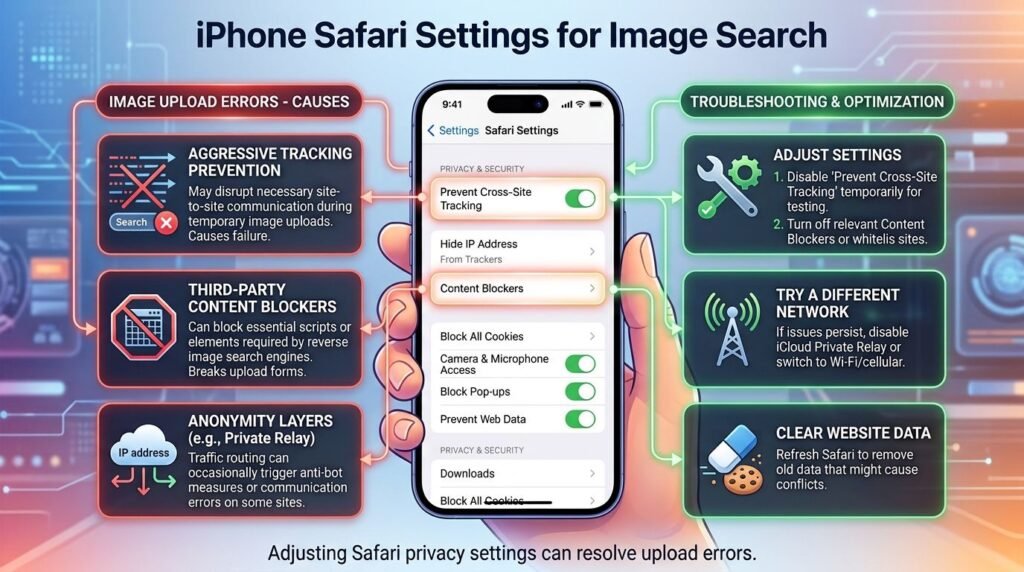
iPhone users often run into a slightly different set of obstacles, mostly tied to Safari settings and iOS restrictions.
- Open Safari and request the desktop website version.
- Check that Safari’s “Prevent Cross-Site Tracking” isn’t blocking the upload process.
- Clear Safari’s cache through iPhone settings.
- Confirm iOS is updated to the latest version.
- Try third-party browsers like Chrome or Firefox on iPhone, since Safari sometimes restricts long-press image search options.
Apple Support recommends keeping iOS updated to maintain compatibility with web-based tools, which directly applies to search features like this one.
[Internal Link: iPhone Storage Full Fix]
Reverse Image Search Not Working on Android
Android devices generally offer more flexibility, but that doesn’t mean they’re immune to issues.
- Use Chrome for Android and confirm it’s updated through the Play Store.
- Clear cache via Settings > Apps > Chrome > Storage.
- Disable data saver mode, which can sometimes compress images incorrectly before upload.
- Check Google app permissions, especially storage and photo access.
- Restart the device after clearing cache to apply changes fully.
Android Help confirms that clearing app cache and updating apps resolves a large portion of functionality issues across Android devices.
[Internal Link: Android Storage Full Fix]
Comparison Table: Reverse Image Search Tools
| Feature | Google Images | Bing Visual Search | TinEye |
|---|---|---|---|
| Free to use | Yes | Yes | Yes (limited) |
| Mobile browser support | Strong | Moderate | Moderate |
| Upload by file | Yes | Yes | Yes |
| Search by URL | Yes | Yes | Yes |
| Best for | General search | Shopping/visual match | Finding image origin |
| Accuracy for exact matches | High | Moderate | Very high |
Pros and Cons of Reverse Image Search Tools
| Pros | Cons |
|---|---|
| Quick way to verify image origin | Can be affected by outages or bugs |
| Works across most major browsers | Mobile apps often limit features |
| Free and widely accessible | Accuracy varies by tool and image quality |
| Useful for spotting fake or stolen images | Some tools require account sign-in for full features |
Common Mistakes to Avoid
- Skipping the cache clear. This is the single most overlooked fix and solves more issues than people expect.
- Using outdated apps. An outdated app version is one of the most frequent hidden causes.
- Ignoring extension conflicts. Ad blockers are sneaky; they can silently disable search functions without any warning.
- Uploading massive image files. Extremely large files sometimes fail silently instead of showing a clear error.
- Assuming the tool is permanently broken. Many issues are temporary server hiccups that resolve within an hour.
- Not testing on another device. This step quickly confirms whether the issue is device-specific or more widespread.
[Internal Link: Google Account Recovery]
Expert Tips
- Bookmark two reverse image search tools instead of relying on just one, since server issues rarely affect multiple platforms at once.
- Keep browsers set to auto-update to avoid compatibility issues going forward.
- For sensitive searches, use incognito mode to prevent account-based restrictions from interfering.
- If working from a shared or work network, firewall settings may need adjusting — worth checking with an IT admin if the issue persists.
- Regularly clear cache monthly, even without visible bugs, to prevent buildup-related slowdowns.
[Internal Link: VPN Not Working]
FAQs
Why is reverse image search not working on my phone? Mobile apps often restrict this feature. Switching to a browser and requesting the desktop site usually resolves it quickly.
Does clearing cache really fix reverse image search? Yes, in many cases. Corrupted or outdated cache data is one of the most common causes of search tools failing to load properly.
Is reverse image search down right now? It’s possible, especially if search engines are undergoing maintenance. Checking a site status page or trying again in a few minutes usually confirms this.
Can antivirus software block reverse image search? Yes, overly strict security settings can occasionally block uploads. Temporarily disabling it for testing purposes can help confirm this.
Why does reverse image search not work on Safari? Safari’s privacy settings sometimes interfere with cross-site data needed for image uploads. Adjusting tracking prevention settings often fixes this.
Should I use an app or browser for reverse image search? A browser generally offers more complete functionality than most standalone apps, especially for image uploads and detailed results.
What if none of these fixes work? Trying a different device or waiting a short while for server-side issues to resolve is usually the last practical step before reaching out to the platform’s support team.
Conclusion
Dealing with reverse image search not working can be frustrating, especially when there’s a specific image that needs checking right away. The good news is that most causes boil down to a handful of familiar culprits: browser cache, outdated apps, extension conflicts, or a temporary server issue.
Working through the steps above — starting with the quick fixes and moving into browser or device-specific solutions — solves the problem for the vast majority of users. If reverse image search still isn’t cooperating after trying these steps, waiting a short while and trying again is often all that’s left to do, since server-side issues typically resolve on their own. Bookmark this guide for next time, and feel free to share it with anyone else running into the same frustrating error.
[Internal Link: ChatGPT Down Today]