
Introduction
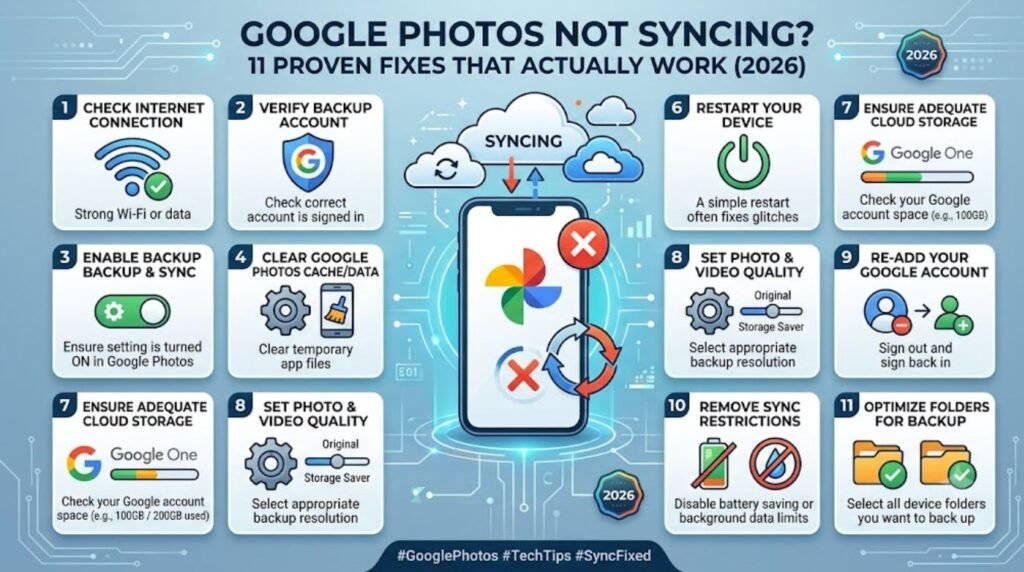
Few things are more frustrating than opening Google Photos and realizing your latest vacation pictures, screenshots, or baby photos simply aren’t there. When Google Photos not syncing becomes a recurring headache, it usually isn’t a mystery — it’s almost always tied to a handful of common culprits: a shaky internet connection, a full storage account, a paused backup setting, or an outdated app. The good news is that most of these problems can be solved in under ten minutes, without needing to call tech support or reinstall your entire phone.
This guide walks through exactly why syncing breaks, how to check what’s going wrong, and the precise steps to get photos uploading again — whether the person is on Android, iPhone, or a desktop computer. Real fixes, explained in plain language, are below.
Quick Answer
Google Photos usually stops syncing because of a poor internet connection, a paused backup toggle, insufficient Google One storage, or an outdated app version. Fixing it typically involves checking Wi-Fi, confirming backup is turned on, freeing up storage, and updating the app through the Play Store or App Store.
Why Google Photos Stops Syncing
Before jumping into fixes, it helps to understand what’s actually happening behind the scenes. Google Photos relies on a steady internet connection, active permissions, and available cloud storage to move files from a device to Google’s servers. When any one of those pieces breaks down, the sync process quietly stalls — often without a clear error message.
According to official documentation from Google, backup pauses can happen automatically when a device is low on battery, connected to a metered network, or simply hasn’t opened the app in a while. Most users report the issue clears up once they identify which specific setting is blocking the upload.
Here are the most frequent causes:
- Weak or disconnected Wi-Fi or mobile data
- Backup and sync toggle switched off
- Google Account storage full (15GB free limit reached)
- Battery saver mode restricting background activity
- Outdated Google Photos app version
- Wrong Google Account selected for backup
- Corrupted app cache or data
- Device date and time set incorrectly
- Third-party file manager blocking access permissions
[Internal Link: Google Drive Not Syncing]
Before You Start: Quick Checks
A few 30-second checks can save a lot of troubleshooting time later.
- Confirm the phone or computer has an active internet connection.
- Open Google Photos and pull down to refresh the screen.
- Check whether other apps (like Gmail) are also failing to load, which would point to a broader network issue rather than a Google Photos problem.
- Restart the device — this alone resolves a surprising number of sync glitches.
If the issue persists after these basic checks, it’s time to move into the deeper fixes below.
[Internal Link: Fix Android Sync Issues]
Step-by-Step Guide to Fix Google Photos Not Syncing
Step 1: Check the Internet Connection
Sync needs a stable connection to move files. Switch between Wi-Fi and mobile data to see if one works better than the other. If backup is set to Wi-Fi only, turn on mobile data backup temporarily as a test, then switch it back to avoid data charges.
Step 2: Confirm Backup Is Turned On
- Open the Google Photos app.
- Tap the profile icon in the top-right corner.
- Select Photos settings.
- Tap Backup.
- Make sure the toggle is switched on.
This single step resolves the issue for a large share of users, since the backup toggle can get switched off accidentally during an app update or a phone restart.
Step 3: Check Google Account Storage
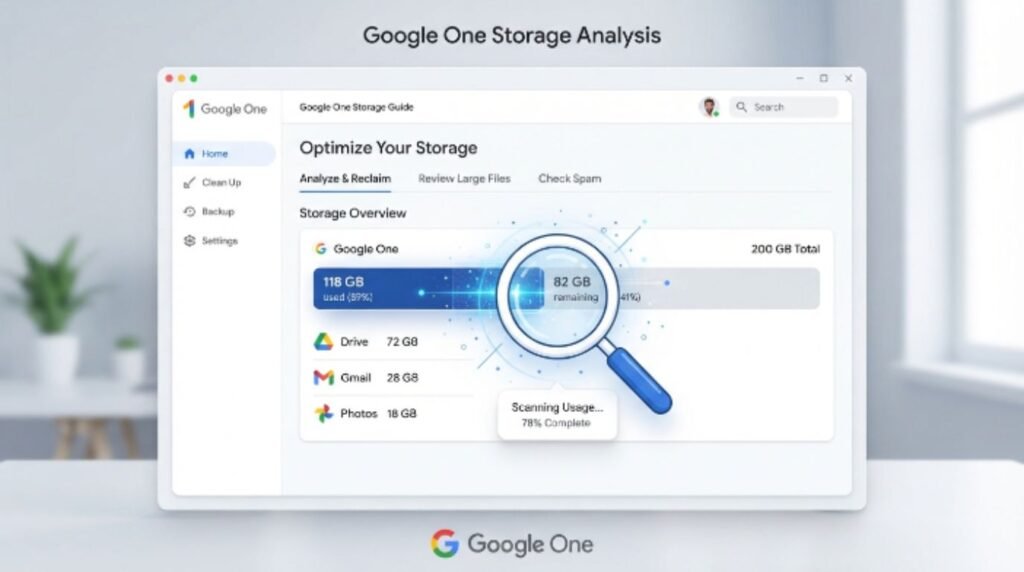
Google Photos backup pauses completely once a Google Account runs out of storage space.
- Go to one.google.com/storage.
- Check how much space is used out of the available limit.
- If storage is full, either delete unneeded files, empty the trash, or upgrade to a Google One plan.
[Internal Link: Google One Storage Plans]
Step 4: Update the Google Photos App
An outdated app version is one of the sneakiest reasons syncing breaks. Open the Play Store or App Store, search for Google Photos, and tap Update if one is available. Google regularly pushes fixes for sync bugs through these updates.
Step 5: Clear App Cache (Android Only)
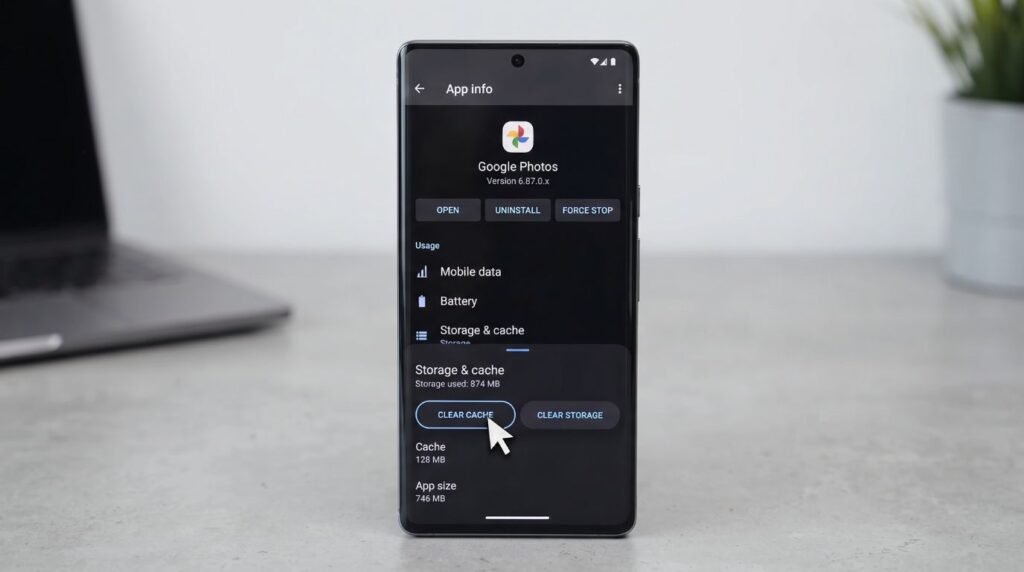
- Go to Settings > Apps > Google Photos.
- Tap Storage.
- Tap Clear Cache.
This does not delete any photos — it only clears temporary files that may be causing the app to misbehave.
[Internal Link: Google Photos App Not Opening]
Step 6: Turn Off Battery Saver Mode
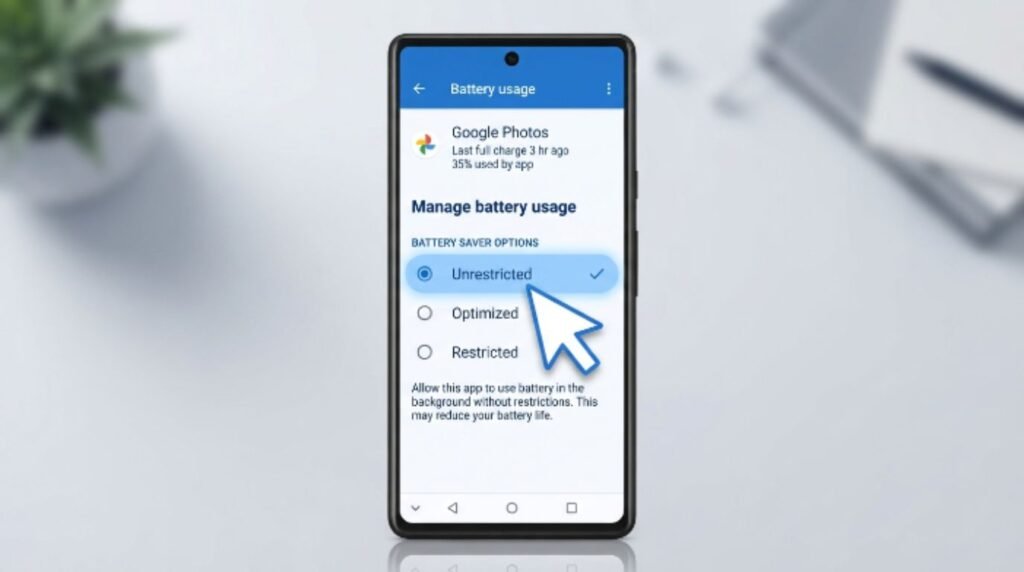
Battery-saving features on many Android phones restrict background activity, which stops Google Photos from uploading while the screen is off. Turning off battery saver, or adding Google Photos to a device’s list of unrestricted apps, usually fixes this.
Step 7: Check Date and Time Settings
An incorrect date or time on a device can cause secure connections to fail silently. Setting the device to automatic date and time (usually under Settings > System) resolves this in most cases.
Step 8: Sign Out and Sign Back In
- Open Google Photos.
- Tap the profile icon.
- Tap Manage accounts on this device or a similar option.
- Remove the account, then add it again.
This refreshes the connection between the device and Google’s servers.
Step 9: Reinstall the App
If nothing else works, uninstalling and reinstalling Google Photos often clears deeper software conflicts without affecting any photos already backed up to the cloud.
[google account recovery without phone number]
Google Photos Sync Issues: Android vs iPhone vs Desktop
| Platform | Common Cause | Fastest Fix |
|---|---|---|
| Android | Battery saver blocking background sync | Whitelist Google Photos in battery settings |
| iPhone | Background App Refresh turned off | Enable it under Settings > General |
| Desktop (Backup and Sync) | Outdated desktop app | Download the latest version from Google |
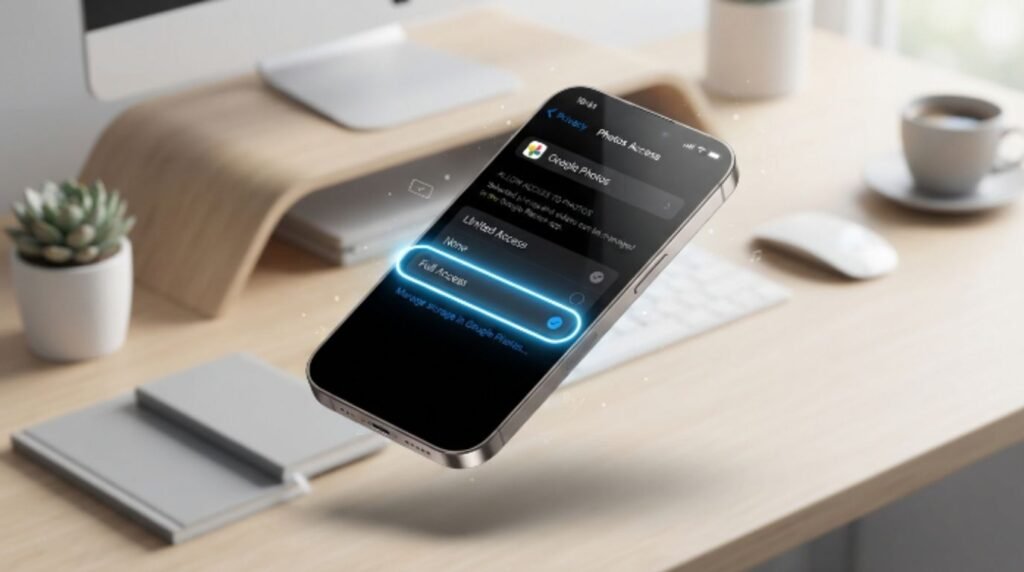
On iPhone specifically, Apple’s own photo permissions play a role too. If Google Photos doesn’t have Full Access under Settings > Privacy > Photos, syncing will silently fail for new images.
[Internal Link: iPhone Photos Not Uploading to Google Photos]
Pros and Cons of Google Photos Backup
| Pros | Cons |
|---|---|
| Free 15GB storage shared across Google Account | Storage fills up quickly with high-res photos and videos |
| Automatic backup across devices | Requires stable internet to work reliably |
| Easy to share albums with family and friends | Sync issues can be hard to diagnose without clear error messages |
| Works across Android, iPhone, and desktop | Some features vary by platform |
Common Mistakes to Avoid
- Assuming the app is broken without checking the backup toggle first
- Ignoring low storage warnings until the account is already full
- Backing up on cellular data without realizing it eats into a mobile plan
- Deleting the Google Photos app instead of just clearing its cache
- Forgetting that photos backed up under a different Google Account won’t show up
- Not checking Wi-Fi-only backup settings while traveling
[Internal Link: Google Photos Storage Full]
Expert Tips to Keep Syncing Smooth
- Turn on Wi-Fi backup for videos separately, since videos consume far more data and storage than photos.
- Periodically check one.google.com/storage to catch a full account before it stops backup entirely.
- Keep the Google Photos app updated automatically through the Play Store or App Store settings.
- Use the Free up space feature inside the app to delete local copies of photos that are already safely backed up.
- Google recommends connecting to Wi-Fi at least once every 24–48 hours if backup has been paused for a while, since large photo libraries can take time to fully catch up.
[Internal Link: How to Backup Photos on Android]
Frequently Asked Questions
Why did Google Photos suddenly stop backing up my photos? This usually happens because the backup toggle got switched off, storage ran out, or the app needs an update. Checking these three settings resolves most cases quickly.
Does Google Photos sync over mobile data? Only if mobile data backup is manually enabled in settings. By default, Google Photos backs up over Wi-Fi to avoid using cellular data.
Why are only some of my photos syncing? Partial syncing often happens when storage is nearly full, or when certain photos were taken while backup was paused and haven’t been picked up yet.
Will clearing the app cache delete my photos? No. Clearing cache only removes temporary files stored on the device, not the actual photos in the cloud or on the phone.
How long does Google Photos take to sync? It depends on file size, internet speed, and how many photos are waiting. A large backlog can take several hours or even days on a slow connection.
Can Google Photos not syncing cause photo loss? Photos already saved locally on the device are safe even if syncing fails. The risk only arises if the device is lost or damaged before the photos finish backing up.
Is there a limit to how much Google Photos can store? Yes. Every Google Account gets 15GB of free storage shared across Gmail, Drive, and Photos. Beyond that, a paid Google One plan is required.
Conclusion
Dealing with Google Photos not syncing is rarely as complicated as it first feels. In most cases, the fix comes down to checking the internet connection, confirming the backup toggle is on, freeing up storage space, and keeping the app updated. Working through the steps above in order should get photos uploading again without needing any technical background.
Anyone still stuck after trying these fixes can reach out through Google’s official support channels for account-specific help. Bookmark this guide for next time syncing acts up — a quick five-minute check now can prevent lost memories later.