
Introduction
Few things are as frustrating as typing out the perfect reply, hitting send, and watching that little arrow just sit there spinning. If Instagram messages not sending has become a daily headache, the person isn’t alone. Thousands of users run into this exact problem every week, and it usually has nothing to do with what was typed or who it was sent to. Instead, the culprit is often something small — a shaky connection, an outdated app, or a setting buried deep in the app’s menus. This guide walks through every realistic reason DMs get stuck, then hands over a clear, step-by-step path to getting messages flowing again. No fluff, no guesswork — just practical fixes that real users have relied on.
Featured Snippet Answer
Instagram messages usually fail to send because of a weak internet connection, an outdated app version, a temporary Instagram server outage, or a corrupted app cache. Restarting the app, checking Wi-Fi or mobile data, updating Instagram, and clearing the cache resolve most sending issues within minutes.
Why Are Instagram Messages Not Sending?
Before jumping into fixes, it helps to understand what’s actually going on behind the scenes. Instagram’s messaging system relies on a stable connection between the app, the servers, and the recipient’s device. When any part of that chain breaks, messages either fail outright or get stuck loading forever.
Here are the most common reasons this happens:
- Weak or unstable internet connection — DMs need a steady signal, and even a brief drop can interrupt delivery.
- Outdated app version — Older versions sometimes lose compatibility with Instagram’s messaging servers.
- Instagram server outage — Occasionally, the problem isn’t on the user’s end at all.
- Corrupted cache or app data — Over time, temporary files can pile up and cause glitches.
- Being blocked or restricted — If the recipient has blocked the sender, or Instagram has flagged the account, messages won’t go through.
- Device storage running low — Not enough free space can prevent apps from functioning properly.
- Third-party apps or VPNs — These sometimes interfere with Instagram’s connection to its servers.
- Account restrictions — Instagram occasionally limits messaging on new or flagged accounts to prevent spam.
[Internal Link: Instagram Not Working]
Most of these causes are easy to rule out one by one, which is exactly what the step-by-step section below covers.
Quick Comparison: Common Causes vs. Fixes
| Cause | Likely Sign | Quick Fix |
|---|---|---|
| Weak internet | Messages stuck on “sending” | Switch between Wi-Fi and mobile data |
| Outdated app | Features missing or app crashes | Update via App Store or Play Store |
| Server outage | Widespread issue, not just one chat | Check Instagram’s status page and wait |
| Cache buildup | App feels slow or laggy | Clear cache in app settings |
| Blocked by recipient | Message sends but never delivers | Confirm with recipient via another platform |
| Low storage | Other apps also lagging | Free up device storage |
| VPN interference | Started after installing a VPN | Disable VPN temporarily |
Step-by-Step Guide to Fix Instagram Messages Not Sending
Working through these steps in order saves time, since they move from the quickest checks to the more advanced ones.
1. Check the Internet Connection
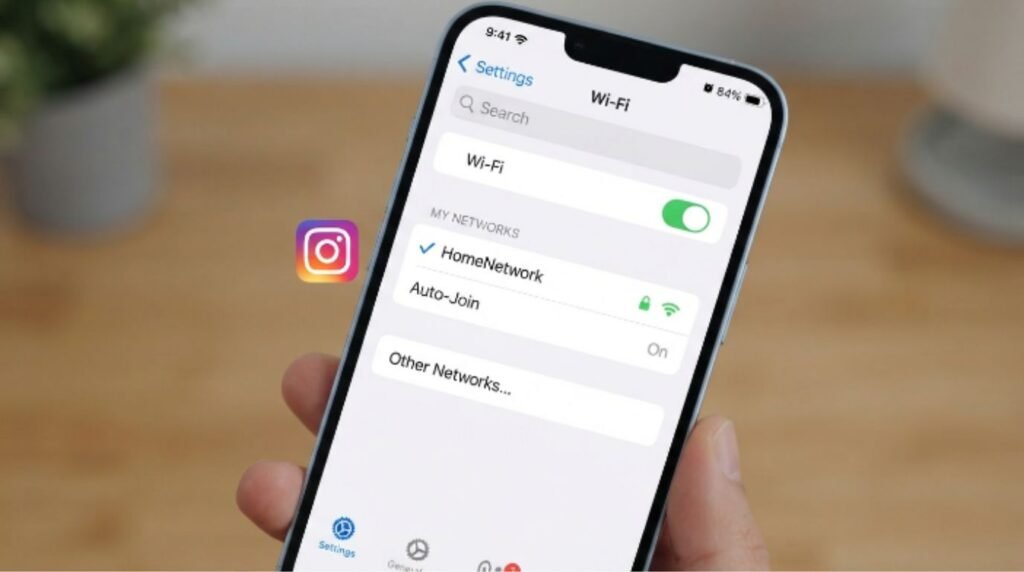
This sounds obvious, but it’s the number one reason DMs get stuck. Try loading a different app or website to confirm the connection is actually working. Switching from Wi-Fi to mobile data (or vice versa) often solves the problem instantly.
2. Restart the Instagram App
Closing the app completely and reopening it clears temporary glitches. On most phones, this means swiping the app away from the recent apps screen, not just tapping the home button.
3. Restart the Device
A simple reboot clears background processes that might be interfering with the app’s connection.
4. Update Instagram to the Latest Version
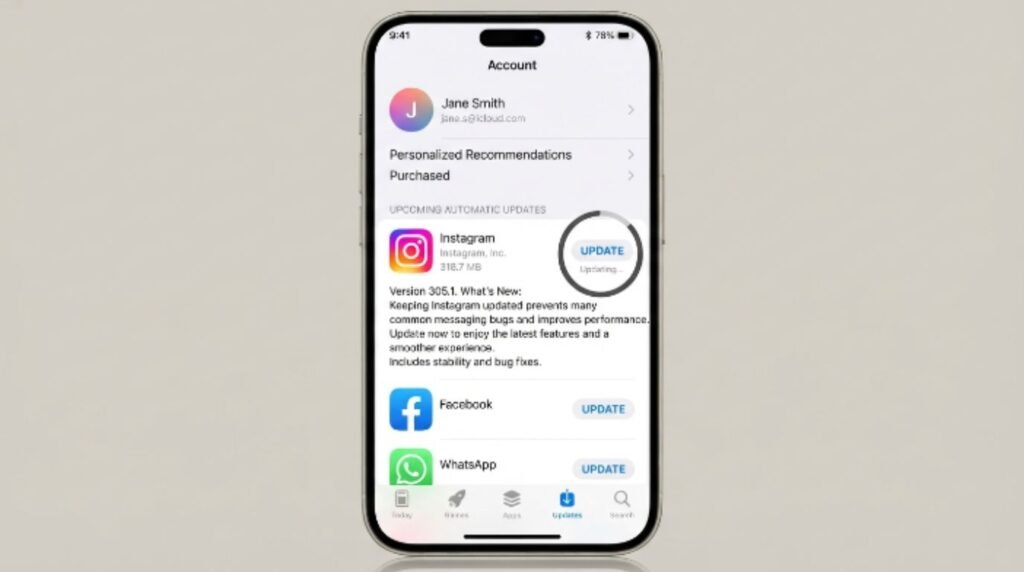
[Internal Link: Instagram App Update Guide]
Outdated apps often lose sync with Instagram’s servers. Head to the App Store or Google Play Store and check for pending updates.
5. Check Instagram’s Server Status
Sometimes the issue isn’t local at all. Websites like Downdetector show real-time reports from other users experiencing the same problem, which confirms whether it’s a wider outage.
6. Clear the App Cache
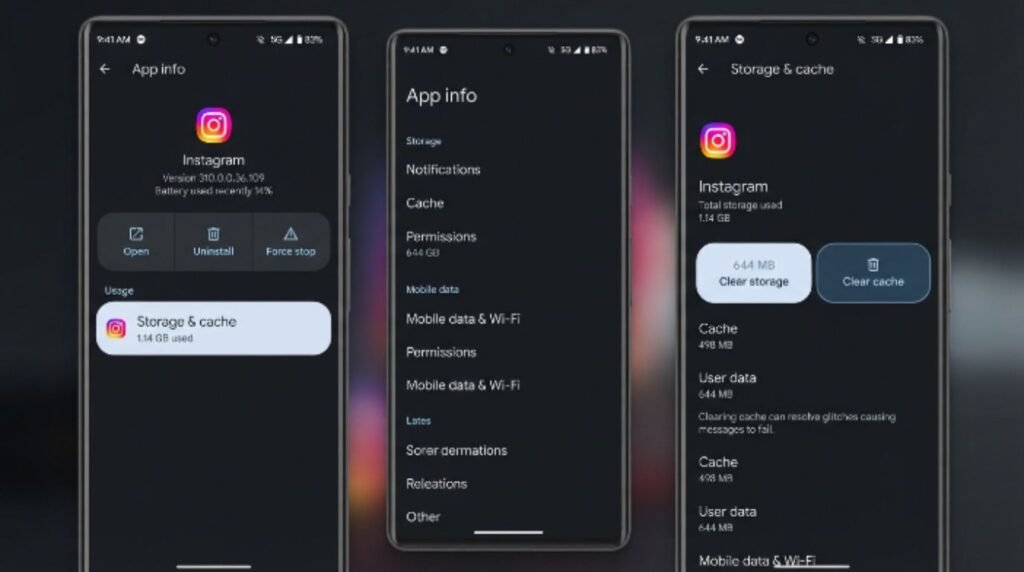
[Internal Link: How to Clear Instagram Cache]
On Android, this is done through the phone’s app settings. On iPhone, since Instagram doesn’t allow cache clearing directly, offloading and reinstalling the app achieves a similar result.
7. Log Out and Log Back In
This refreshes the account’s connection to Instagram’s servers and often resolves messaging glitches tied to session errors.
[Internal Link: Instagram Login Problems]
8. Free Up Storage Space
If the device is nearly full, apps can behave unpredictably. Deleting unused photos, videos, or apps can make a noticeable difference.
9. Disable VPNs or Proxy Apps
VPNs sometimes route traffic through servers that Instagram flags as suspicious, which can quietly block message delivery.
10. Check for Account Restrictions
[Internal Link: Instagram Account Restricted]
New accounts, or ones that have been reported, may face temporary messaging limits. Instagram’s Help Center explains that this is usually part of its spam-prevention system.
11. Confirm the Recipient Hasn’t Blocked the Sender
If a message consistently fails to deliver to one specific person while others work fine, it may indicate a block. There’s no direct way to confirm this within the app, but a mutual friend or another platform can help verify.
12. Reinstall the App
[Internal Link: Instagram Not Loading]
A fresh install wipes out any deeper corruption in the app’s files without affecting the account itself.
13. Check Date and Time Settings
Incorrect device date and time settings can cause authentication errors with Instagram’s servers. Setting the device to update time automatically usually fixes this.
14. Try Instagram on a Browser
Logging into Instagram through a desktop or mobile browser can help determine whether the issue is app-specific or account-wide.
[Internal Link: Instagram Web Login]
15. Contact Instagram Support
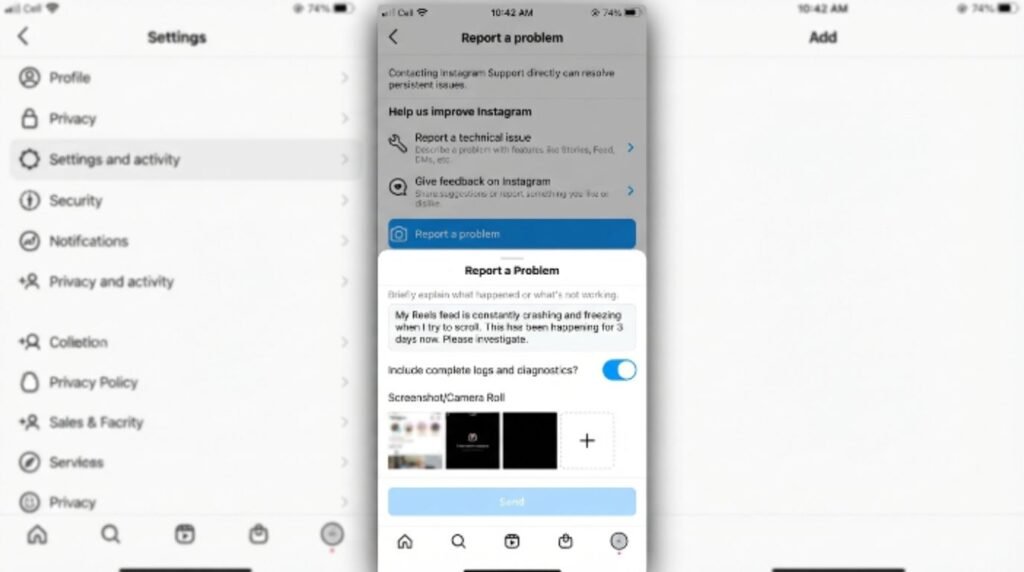
If nothing else works, reaching out through the in-app “Report a Problem” tool sends details directly to Meta’s support team.
[Internal Link: Contact Instagram Support]
Fixing Instagram DMs on iPhone vs Android
While most fixes apply to both platforms, a few steps differ slightly depending on the device.
On iPhone, since there’s no direct cache-clearing option, offloading the app through Settings > General > iPhone Storage is the closest alternative. It’s also worth checking Screen Time restrictions, since these occasionally block messaging features without an obvious warning.
On Android, cache and data can be cleared directly through Settings > Apps > Instagram > Storage. Android users should also double-check battery optimization settings, since aggressive power-saving modes sometimes restrict background app activity needed for messages to send.
According to Apple Support and Android Help documentation, both platforms recommend keeping apps and system software updated to avoid connectivity issues like this one.
Pros and Cons of Each Fix
| Fix | Pros | Cons |
|---|---|---|
| Restart app/device | Quick, no data loss | May not fix deeper issues |
| Update app | Fixes bugs, adds stability | Requires storage space |
| Clear cache | Frees up space, resolves glitches | iPhone requires reinstall instead |
| Reinstall app | Thorough fix | Takes a few minutes, needs re-login |
| Disable VPN | Removes interference | Loses VPN privacy benefits temporarily |
| Contact support | Direct help from Meta | Response times can vary |
Common Mistakes to Avoid
- Assuming it’s always a server outage. Most of the time, the fix is local — checking Instagram’s status page first saves unnecessary waiting.
- Skipping the app update. Many users troubleshoot everything except the one thing that usually solves it.
- Reinstalling before restarting. A simple restart solves the issue far more often than people expect, so it’s worth trying first.
- Ignoring storage warnings. Low storage doesn’t just affect photos — it affects how apps run in the background.
- Using multiple VPNs at once. This can create conflicting network routes that confuse Instagram’s servers.
- Not checking for account restrictions. Some users troubleshoot technical issues for hours without realizing their account has a temporary limit.
[Internal Link: Instagram Spam Block]
Expert Tips to Prevent Future Message Failures
- Keep the Instagram app set to update automatically so fixes and bug patches arrive without manual effort.
- Periodically clear cache on Android devices, even before problems start, to keep the app running smoothly.
- Avoid sending a large volume of messages in a short time, since Google and Meta’s own spam-prevention systems can flag this kind of activity.
- Keep at least 1GB of free storage available at all times for smoother app performance.
- According to Meta’s official Help Center, using a stable Wi-Fi connection for messaging-heavy activity reduces failed delivery attempts significantly.
- Most users report that logging out and back in once a month prevents session-related glitches from building up.
[Internal Link: Instagram Tips and Tricks]
Frequently Asked Questions
Why do my Instagram messages say “sending” and never deliver? This usually points to a weak internet connection or a temporary server issue. Restarting the app and checking the connection resolves it in most cases.
Can being blocked cause messages not to send? Yes. If a recipient has blocked the sender, the message may appear to send but will never actually deliver on their end.
Does clearing cache delete Instagram messages? No. Clearing cache only removes temporary files, not saved conversations or account data.
Why do messages fail only in one specific chat? This often points to a block, a restricted account, or a glitch specific to that conversation thread rather than the whole app.
Is it normal for Instagram to have outages? Yes, occasional outages happen to nearly every major app. Checking a status tracker confirms whether it’s widespread.
Should reinstalling Instagram fix messaging problems? In most cases, yes. Reinstalling clears out corrupted files that a simple restart can’t fix.
[Internal Link: Instagram Down Right Now]
What should be done if none of the fixes work? Reaching out to Instagram Support directly through the app’s “Report a Problem” feature is the next best step for unresolved issues.
Conclusion
Dealing with Instagram messages not sending can feel frustrating, especially when it happens during an important conversation. The good news is that most cases come down to a handful of common, fixable causes — a shaky connection, an outdated app, or a bit of cache buildup. Working through the steps above in order, starting with the simplest ones, resolves the issue for the vast majority of users without needing to contact support at all. Anyone still stuck after trying everything shouldn’t hesitate to reach out to Instagram directly for personalized help.
[Internal Link: Instagram Messages Not Loading]