
Introduction
A Google Drive upload failed message can show up at the worst possible time — right before a deadline, in the middle of a big project handoff, or while trying to back up important photos. It’s frustrating, but it’s also one of the most common issues Drive users run into, and in almost every case, it’s fixable in a few minutes.
This guide walks through exactly why uploads fail, how to fix the problem step by step on both desktop and mobile, and how to stop it from happening again. According to official Google Drive documentation, most upload errors trace back to a small handful of causes: storage limits, connection drops, browser conflicts, or sync app glitches. Once the cause is identified, the fix is usually simple.
[Internal Link: Google Drive Sync Not Working]
Featured Snippet Answer
Google Drive upload failed usually means one of four things: the account is out of storage, the internet connection dropped mid-upload, a browser extension or cache issue is blocking the request, or the Drive desktop app needs a restart. Clearing browser cache, checking storage, and restarting the sync app resolve most cases within minutes.
Why Does Google Drive Upload Failed Happen?
Before jumping into fixes, it helps to understand what’s actually going on behind the scenes. Google Drive uploads fail for a mix of technical and account-related reasons, and knowing which one applies makes troubleshooting a lot faster.
1. Storage Is Full
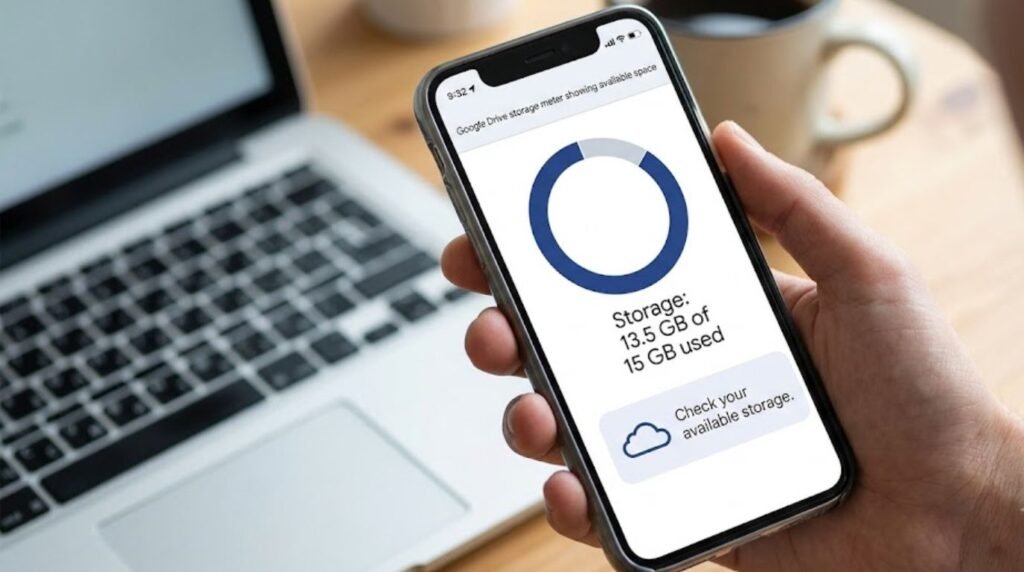
Every free Google Account gets 15GB of storage, and that space is shared across Gmail, Google Drive, and Google Photos — not 15GB for each one separately. Once that pool fills up, new uploads simply won’t go through, and Drive will throw an error instead of quietly failing.
2. Unstable Internet Connection
Large files need a steady connection from start to finish. A dropped Wi-Fi signal, a switch between networks, or a weak mobile signal can interrupt the upload and trigger a failure message partway through.
3. File Size or Type Limits
Google Drive allows individual files up to 5TB, but there’s also a daily cap: users can upload or copy up to 750GB across a 24-hour window. Hitting either limit stops uploads until the quota resets.
4. Browser Cache and Extension Conflicts
Old cached data, outdated cookies, or ad-blocking extensions can quietly interfere with the upload process, especially in Chrome and other Chromium-based browsers.
5. Outdated Drive App or Browser
Running an old version of the Google Drive desktop app, or an outdated browser, is one of the most overlooked causes of upload failures.
6. File Corruption or Naming Issues
Files with unusual characters in their names, or files that are partially corrupted, can stall or fail during the upload process.
7. Permission or Account Sync Conflicts
Sometimes the issue isn’t the file at all — it’s a permissions conflict between a work account and a personal account, especially on shared or managed devices.
[Internal Link: Google Account Sign In Problems]
Quick Fixes to Try First
Before diving into a deeper troubleshooting session, these quick checks resolve the majority of upload failures:
- Refresh the browser tab or restart the Drive desktop app
- Check available storage in Google Drive settings
- Confirm the internet connection is stable (try loading another site)
- Try uploading a smaller test file to isolate the issue
- Restart the device
If none of these work, move on to the full step-by-step guide below.
Step-by-Step Guide: Fixing Google Drive Upload Failed on Desktop
Step 1: Check Google Drive Storage
- Open Google Drive in a browser
- Look at the storage meter in the bottom-left corner
- If storage is nearly full, delete unused files or empty the Trash, since deleted files still count against the quota until they’re permanently removed
- Consider upgrading through Google One if more space is needed
[Internal Link: How to Free Up Google Drive Storage]
Step 2: Clear Browser Cache and Cookies
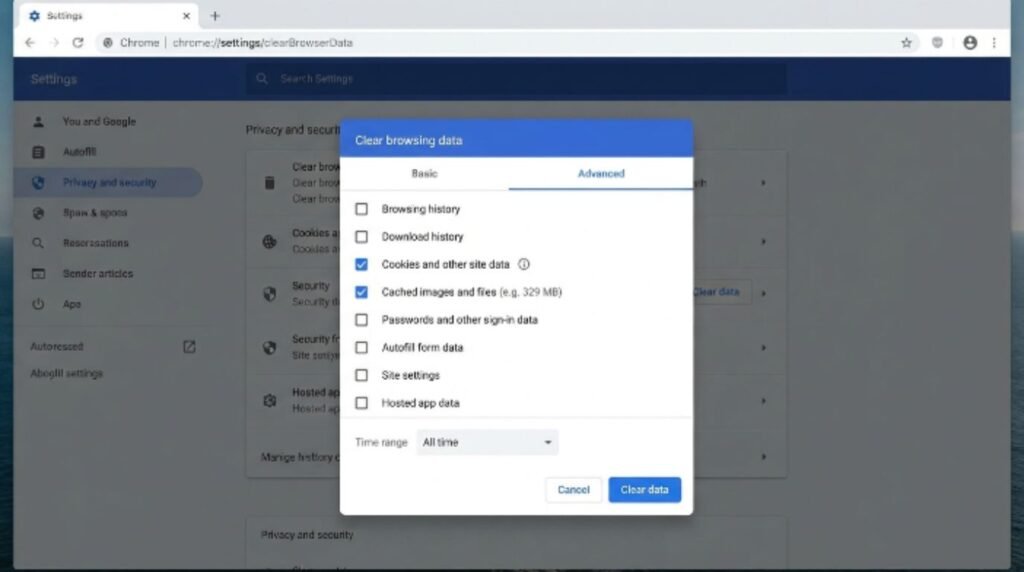
- Open browser settings
- Navigate to “Privacy and Security” or “Clear Browsing Data”
- Select cached images, files, and cookies
- Clear the data and restart the browser
- Try the upload again
Step 3: Disable Browser Extensions Temporarily
- Open an Incognito or Private window (extensions are usually disabled by default here)
- Try uploading the file again
- If it works, the issue is likely an extension — disable ad blockers or privacy extensions one at a time to find the culprit
Step 4: Restart or Update the Google Drive Desktop App
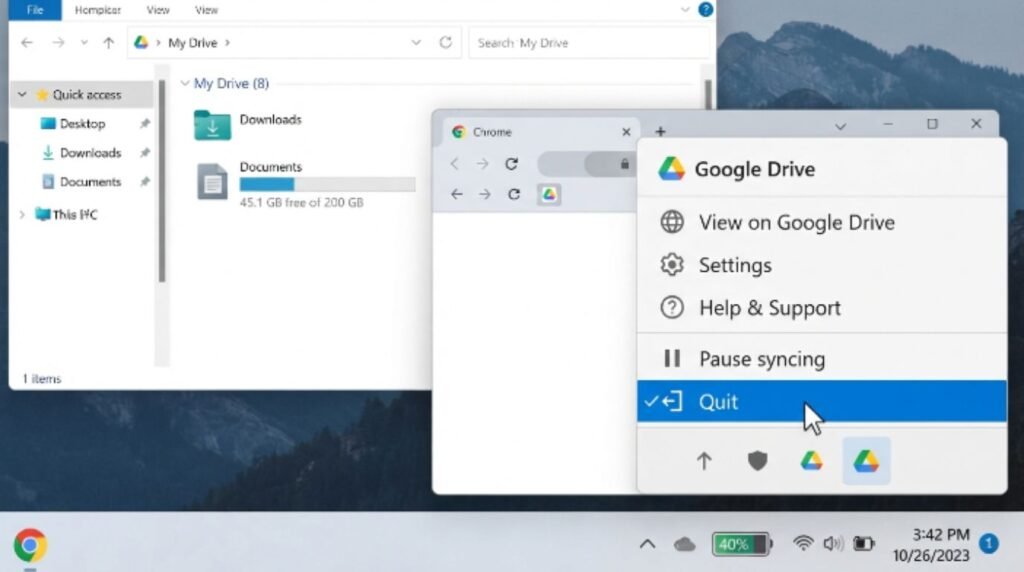
- Right-click the Drive icon in the system tray or menu bar
- Select “Quit” or “Exit”
- Reopen the app and check for updates under Settings > About
- Restart the sync process
[Internal Link: Google Drive Desktop App Not Syncing]
Step 5: Check File Name and Format
- Rename the file to remove special characters like # % & * { } \ : < > ? / + |
- Confirm the file type is supported
- Try uploading again
Step 6: Switch Networks or Use a Wired Connection
- Switch from Wi-Fi to a wired Ethernet connection if possible
- Or try a different Wi-Fi network or mobile hotspot
- Pause any other bandwidth-heavy downloads or streams during the upload
Step 7: Try a Different Browser
- If using Chrome, try Firefox, Edge, or Safari instead
- Sign in and attempt the upload again
- This helps determine if the issue is browser-specific
Fixing Google Drive Upload Failed on Mobile
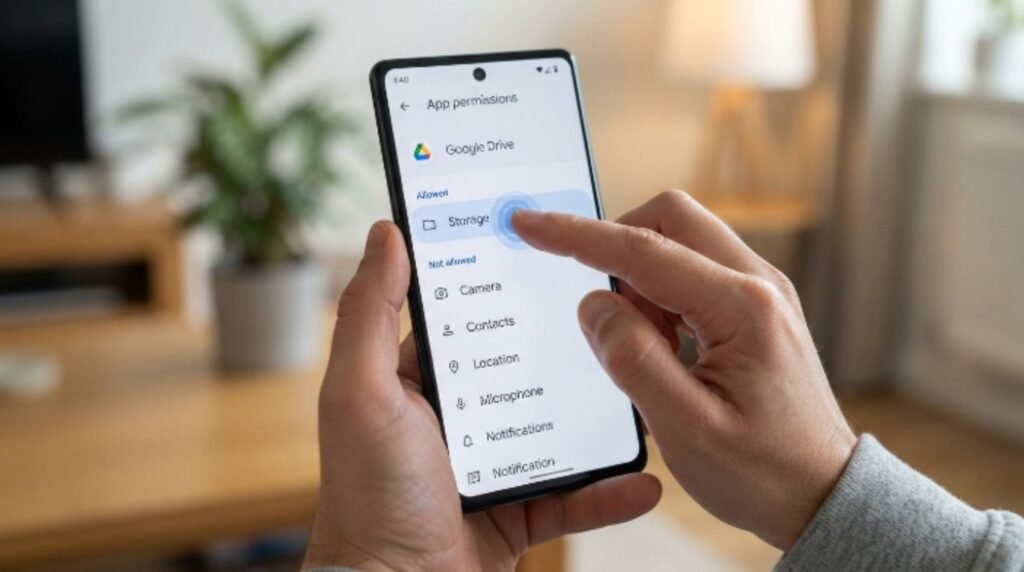
Mobile uploads fail for slightly different reasons, mostly tied to app permissions and connectivity.
- Check app permissions — Make sure the Google Drive app has permission to access photos, files, and storage in the phone’s settings
- Update the app — Open the App Store or Google Play Store and install the latest version
- Switch to Wi-Fi — Mobile data can be slower and less stable for large uploads
- Clear app cache (Android only) — Go to Settings > Apps > Google Drive > Storage > Clear Cache
- Restart the app — Force close and reopen it
- Reinstall the app — As a last resort, uninstall and reinstall the Drive app
[Internal Link: Google Drive App Keeps Crashing]
Google Drive Upload Failed vs. Other Cloud Storage Issues (Comparison Table)
| Issue | Google Drive | Dropbox | OneDrive |
|---|---|---|---|
| Free storage | 15GB (shared with Gmail/Photos) | 2GB | 5GB |
| Max file size | 5TB | 50GB (desktop app) | 250GB |
| Daily upload cap | 750GB | No strict daily cap | No strict daily cap |
| Common failure cause | Storage limit, cache issues | Sync conflicts | Account sync errors |
| Recovery time | Usually immediate after fix | Usually immediate after fix | Usually immediate after fix |
[Internal Link: OneDrive Sync Errors Explained] [Internal Link: Dropbox Not Uploading Files]
Pros and Cons of Using Google Drive for Large Uploads
| Pros | Cons |
|---|---|
| Generous 5TB per-file limit | Only 15GB free storage shared across services |
| Seamless integration with Gmail and Google Workspace | Daily 750GB upload cap can affect large batch uploads |
| Works across desktop, mobile, and web | Browser extensions frequently interfere with uploads |
| Real-time collaboration and version history | Sync app can be resource-heavy on older devices |
| Automatic backup for Docs, Sheets, and Slides | Occasional outages affect uploads platform-wide |
Common Mistakes to Avoid
- Ignoring the storage meter — Many users assume they have space simply because they haven’t checked in months
- Uploading during a poor connection — Starting a large upload on unstable Wi-Fi almost guarantees a failure partway through
- Not restarting the Drive app after an update — Updates sometimes need a full restart to take effect
- Uploading dozens of files at once — Bulk uploads are more likely to hit daily limits or trigger timeouts
- Assuming the file itself is the problem — Most users report the cause is actually connection or account-related, not file corruption
- Skipping browser updates — An outdated browser is a frequent, overlooked cause of failed uploads
[Internal Link: Fix Slow Google Drive Uploads]
Expert Tips
- Upload during off-peak hours if working with very large files, since network congestion can affect stability
- Split massive uploads into smaller batches rather than uploading an entire folder at once
- Use the Drive desktop app instead of the browser for very large files, since it handles interruptions and resumes uploads more reliably
- Keep the Drive app and browser updated on a regular schedule rather than waiting for problems to appear
- Check Google Workspace Status Dashboard during outages, since some upload failures are on Google’s end rather than the user’s device
- Google recommends reviewing storage regularly through Google One to avoid last-minute upload failures
[Internal Link: Best Practices for Google Workspace Storage]
Frequently Asked Questions
Why does Google Drive say “upload failed” even with a strong internet connection? This usually points to a browser cache issue, an outdated app version, or a storage limit rather than the connection itself. Clearing cache and checking storage typically resolves it.
Can a full Gmail inbox cause Google Drive uploads to fail? Yes. Since storage is shared across Gmail, Drive, and Photos, a full inbox can use up the entire quota and block new Drive uploads.
How long does it take for the daily upload limit to reset? The 750GB daily upload and copy limit refreshes within 24 hours of hitting the cap, according to Google Workspace documentation.
Does using the Google Drive desktop app reduce upload failures? Generally yes, since the desktop app can pause and resume interrupted uploads more reliably than a browser tab.
Is there a way to check if Google Drive is down right now? Yes, checking the official Google Workspace Status Dashboard shows real-time outage information across all Google services.
Why do large video files fail to upload more often than documents? Larger files take longer to transfer, which increases the chance of a dropped connection or a timeout before the upload finishes.
Will upgrading storage through Google One fix a stuck upload? If the failure is caused by a full storage quota, yes — upgrading immediately frees up space and allows the upload to complete.
[Internal Link: Google One Storage Plans Compared] [Internal Link: Google Drive Not Opening]
Conclusion
A Google Drive upload failed error is annoying, but it’s rarely a sign of a bigger problem. In most cases, it comes down to storage space, a shaky connection, a browser conflict, or an outdated app — all of which are fixable in a few minutes using the steps above. Start with the quick fixes, work through the desktop or mobile guide as needed, and keep storage and apps updated to avoid running into the same issue again. If uploads keep failing after trying every step here, reaching out to Google Support directly is the next best move.
[Internal Link: Contact Google Drive Support]