
Introduction
Google Lens Not Working. Pointing a phone camera at a plant, a math problem, or a strange bug and getting an instant answer feels almost magical. That’s the whole appeal of Google Lens. So when Google Lens is not working, it’s more than a minor annoyance — it breaks a habit millions of people rely on every day, from students scanning homework to travelers translating menus.
The good news is that most Lens problems come down to a short list of usual suspects: a shaky internet connection, an outdated app, blocked permissions, or a full cache. This guide walks through every practical fix, in the order most likely to solve the problem fastest, for both Android and iPhone. No jargon, no guesswork — just a clear path back to a working camera search tool.
Quick Answer
Featured Snippet Answer: Google Lens usually stops working because of a weak internet connection, an outdated app, blocked camera or storage permissions, or a full app cache. Restarting the phone, updating the Google app, checking permissions, and clearing cache fixes most cases within a few minutes.
Why Google Lens Stops Working
Before jumping into fixes, it helps to understand what’s actually going on behind the scenes. Google Lens isn’t a standalone piece of software sitting quietly on the phone — it leans on several moving parts working together at once.
Most Lens scans are processed using cloud-based image recognition, meaning the phone snaps a photo, sends it to Google’s servers, and waits for a match. That round trip depends on:
- A stable internet connection — Lens can’t reach Google’s servers over a weak or dropped connection.
- Camera and storage permissions — if these are switched off, Lens can’t see what the camera sees.
- An up-to-date app version — Google regularly patches bugs through updates to the Google app, Google Photos, and (on Android) Google Play services.
- Available storage and memory — a phone running low on space can cause background apps like Lens to crash or freeze.
- Server-side issues — occasionally, the problem isn’t the phone at all; Google’s own systems experience temporary outages.
Most users report that once they work through connectivity, permissions, and cache in that order, Lens starts behaving normally again.
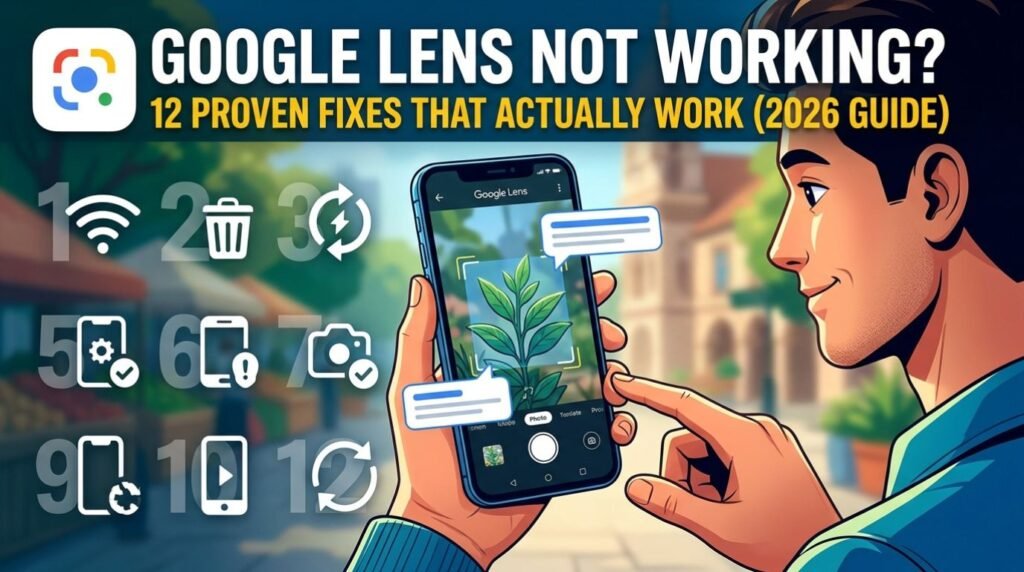
Step-by-Step: How to Fix Google Lens Not Working
This is the order worth following. Each step takes a minute or two, and skipping ahead is fine if the earlier steps clearly don’t apply.
Restart the phone. It sounds too simple, but a restart clears temporary glitches, closes stuck background processes, and refreshes the network connection — often solving the issue outright.
Check the internet connection. Switch between Wi-Fi and mobile data to see if one works better than the other. A quick speed test can confirm whether the connection itself is the bottleneck.
Update the Google app. Open the App Store (iPhone) or Play Store (Android), search for “Google,” and install any pending update.
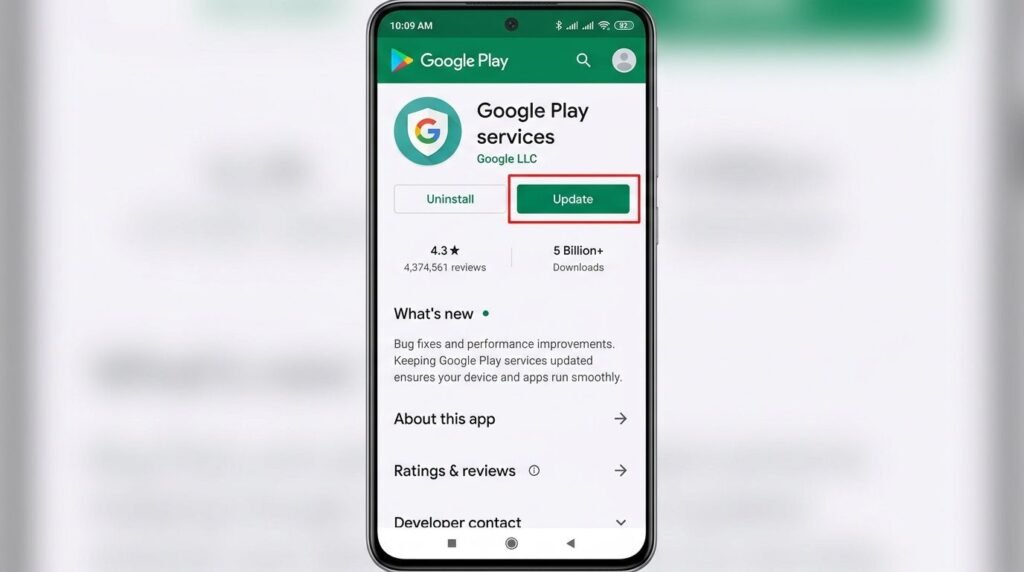
Update Google Play services (Android only). This background service powers many Google features, Lens included, and it needs to stay current.
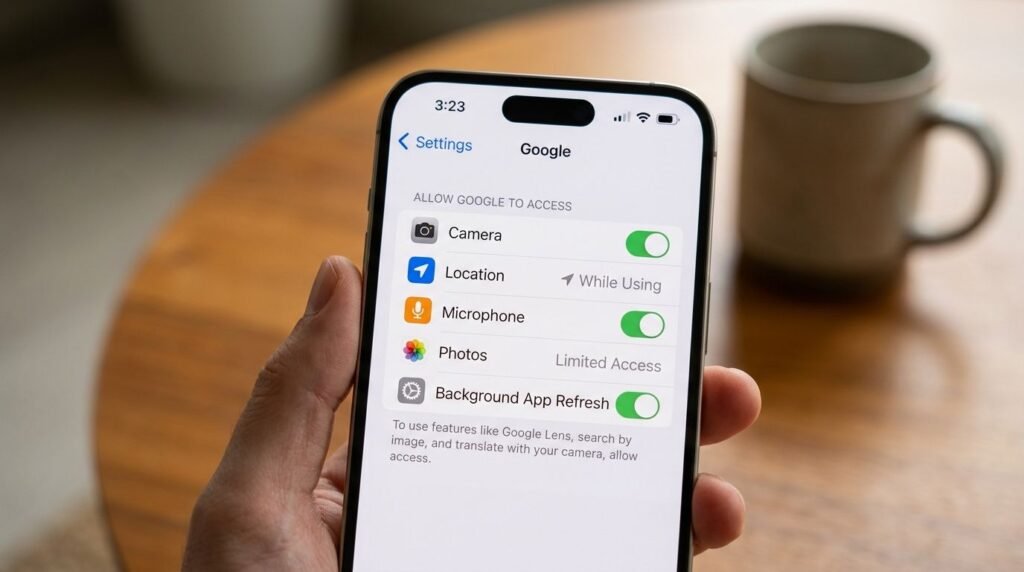
Check camera and storage permissions. Lens needs explicit permission to access the camera and, in some cases, photo storage.
Clear the app cache. A bloated cache can cause crashes or a frozen Lens screen.
Free up storage space. Delete unused apps, old photos, or large downloads if the phone is nearly full.
Check for a wider Google outage. Sometimes the problem sits with Google’s servers, not the device.
Reinstall the Google app. If nothing else works, a clean reinstall often resolves stubborn bugs.
Update the phone’s operating system. Outdated OS versions can create compatibility issues with newer app features.
Test with a different object or lighting. Poor lighting or a blurry, low-contrast subject can make Lens appear “broken” when it’s simply struggling to identify the image.
Sign out and back into the Google account. This refreshes account-level permissions tied to Lens.
Google Lens Not Working on Android
Android users get a bit more control over the process, since Android exposes cache and storage settings more directly than iOS does.
Fix Permissions on Android
Go to Settings → Apps → Google → Permissions, and confirm Camera, Storage, and Microphone (for voice search) are all set to Allow. If Lens lives inside the Google app rather than as a separate app, check permissions there instead.
Clear Cache and Data on Android
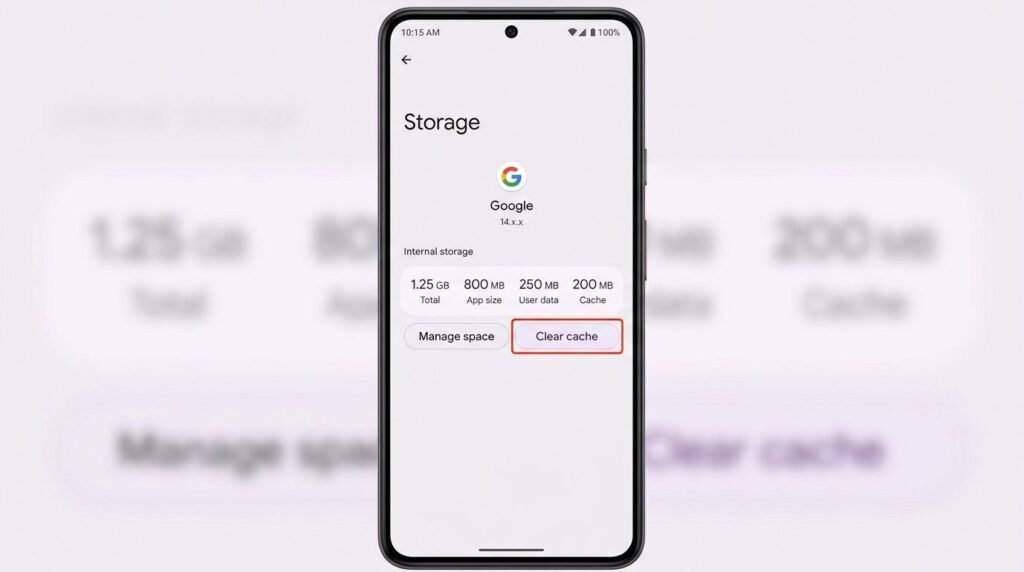
Navigate to Settings → Apps → Google (or Google Lens) → Storage, then tap Clear Cache. If the problem persists, tap Clear Data — this signs the user out and resets the app, but it does not delete personal photos or files.
[Internal Link: Android Settings Guide]
Update Google Play Services
Open the Play Store, search “Google Play services,” and tap Update if it’s available. This one gets overlooked constantly, yet it quietly powers a huge share of Google’s on-device features.
Check Play Store Cache
If updates keep failing, clear the Play Store’s own cache under Settings → Apps → Google Play Store → Storage → Clear Cache, then restart the phone and try updating again.
Google Lens Not Working on iPhone
iOS handles apps differently, so a few of the Android steps don’t apply directly. Here’s the iPhone-specific path.
Update Google and Google Photos
Open the App Store → Updates tab, and install any pending updates for Google and Google Photos. Apple’s sandboxing rules mean an outdated app can lose access to certain permissions after an iOS update.
Offload the App Instead of Clearing Cache
iPhone doesn’t have a simple “clear cache” button. Instead, go to Settings → General → iPhone Storage → Google (or Google Photos) → Offload App. This clears temporary data while keeping documents and account info intact, and reinstalling brings it right back.
Check Permissions
Go to Settings → Google (or Google Photos) → Camera, and make sure it’s toggled on. Apple’s privacy prompts sometimes reset after a major iOS update, silently switching this off.
Update iOS
Go to Settings → General → Software Update and install anything pending. Google regularly tests Lens against the newest iOS release, and running several versions behind can cause odd behavior.
[Internal Link: iPhone Storage Full Fix]
Comparison Table: Common Causes and Fixes
| Cause | Common Symptom | Fastest Fix |
|---|---|---|
| Weak internet connection | Lens spins and never loads results | Switch Wi-Fi/mobile data, restart router |
| Outdated app | Blank screen or crash on open | Update Google app via App Store/Play Store |
| Blocked permissions | Camera never opens inside Lens | Enable Camera/Storage permission in Settings |
| Full app cache | Lens freezes mid-scan | Clear cache (Android) or offload app (iOS) |
| Low device storage | Slow or crashing app overall | Delete unused files, free up space |
| Google server outage | Nothing works, even after every fix | Wait and check Google’s status page |
[chatgpt plus worth it]
Pros and Cons of Google Lens
| Pros | Cons |
|---|---|
| Free to use on Android and iOS | Needs internet for most scans |
| Handles translation, shopping, and homework help | Occasional accuracy issues in poor lighting |
| Deeply integrated with the Google app and Photos | Cache and permission issues can build up over time |
| Regularly updated with new AI features | Some features vary by region |
Common Mistakes to Avoid
- Reinstalling the app first, before checking permissions. This wastes time; a permissions toggle takes ten seconds to check.
- Ignoring the internet connection. A weak signal is the single most common cause, yet it’s the step people skip most often.
- Scanning blurry or poorly lit objects and assuming Lens is broken. Image quality matters more than most people expect.
- Forgetting to update Google Play services on Android. It’s a separate app from the Google app itself, and it’s easy to overlook.
- Never checking for a Google-side outage. Not every problem lives on the device.
[Internal Link: Google Photos Not Syncing]
Expert Tips
- Google recommends keeping the Google app, Google Photos, and Google Play services all updated together, since Lens features are often split across them.
- According to official documentation, Google Search Central notes that visual search tools like Lens depend on clear, well-lit images for the best recognition accuracy.
- For persistent problems tied to a specific phone model, checking the manufacturer’s own troubleshooting page — for example, Apple Support or the Android help pages — can reveal device-specific bugs that a generic fix won’t catch.
- Turning on Wi-Fi Assist (iPhone) or adaptive connectivity (Android) can prevent Lens from getting stuck when switching between networks.
FAQs
1. Why is Google Lens not working on my phone? The most common causes are a weak internet connection, an outdated app, blocked camera permissions, or a full cache. Working through these in order usually solves it.
2. Does Google Lens need internet to work? Yes, for almost all searches. Lens uploads the image to Google’s servers for recognition, so a stable connection is essential.
3. How do I clear the Google Lens cache? On Android, go to Settings → Apps → Google → Storage → Clear Cache. On iPhone, use Offload App under iPhone Storage instead, since there’s no direct cache button.
4. Why does Google Lens keep crashing? Crashes are often tied to low storage, an outdated app, or a corrupted cache. Freeing up space and updating the app resolves most crash reports.
5. Is Google Lens down right now? Occasionally, yes. Checking Google’s official status page or a service-status tracker can confirm whether it’s a wider outage rather than a device issue.
6. Why is Google Lens not recognizing objects correctly? Poor lighting, blurry photos, or unusual angles make it harder for Lens to match an image. Retaking the photo in better light often fixes this instantly.
7. Does Google Lens work the same on Android and iPhone? Mostly, yes, though iOS lacks a direct cache-clearing option and instead relies on offloading or reinstalling the app.
[Internal Link: Best AI Apps 2026]
Conclusion
A broken Google Lens is almost always fixable without any technical background — it just takes working through the right steps in the right order. Start with the basics: restart the phone, check the connection, and confirm the app is updated. From there, permissions and cache clearing solve the vast majority of remaining cases.
Try the steps above one at a time, starting from the top of the list, and Google Lens should be back to scanning, translating, and identifying within a few minutes. If the issue continues after trying every fix, it’s worth checking Google’s official support page for any known outages or device-specific advice.