
Introduction
Opening up Google Search Console and seeing a blank screen is one of the most frustrating moments for any website owner. A person spends hours writing content, hits publish, checks back a few days later, and the performance report is just… empty. If this sounds familiar, they’re not alone. Google Search Console no data is one of the most searched problems among bloggers, small business owners, and even seasoned marketers who manage brand-new domains.
The good news is that this issue is almost never permanent, and in most cases, it has a clear, fixable cause. Sometimes it’s simply a matter of waiting a little longer. Other times, it points to a verification problem, a crawling issue, or a setting that got missed during setup. This guide walks through every possible reason the data might be missing, and then breaks down exactly what to do about it, one step at a time.
By the end of this article, readers will understand not just how to fix the missing data, but also how to make sure it never becomes a mystery again.
Featured Snippet Answer
Google Search Console shows no data mainly because the site is new, was recently verified, has crawling errors, or uses the wrong property type. Data usually appears within 24 to 48 hours after verification, though it can take up to a few days for search performance reports to fully populate.
What Does “No Data” in Google Search Console Actually Mean?
Before jumping into fixes, it helps to understand what “no data” really looks like. It’s not always a totally blank dashboard. Sometimes it shows up as:
- Zero clicks and impressions on the Performance report
- A coverage report with no indexed pages listed
- Sitemap submissions stuck on “Couldn’t fetch”
- URL Inspection tool showing “URL is not on Google”
Each of these is a slightly different symptom with its own root cause, which is why a one-size-fits-all fix rarely works. According to official documentation from Google Search Central, performance data is processed in batches and isn’t real-time, so a short delay is completely normal for new or recently changed properties.
[Internal Link: How to Submit a Sitemap to Google]
Common Reasons Google Search Console Shows No Data
1. The Website Is Brand New
New websites simply haven’t been crawled enough yet. Google needs time to discover pages, crawl them, and then decide whether to index them. Most new sites see their first trickle of data within a week, though it can stretch longer depending on niche competition and site authority.
2. Verification Was Just Completed
Search Console only starts collecting data from the moment a property is verified. It doesn’t retroactively pull historical data for a domain that was verified today. So if verification happened yesterday, there’s simply nothing to show yet.
3. Wrong Property Type Was Used
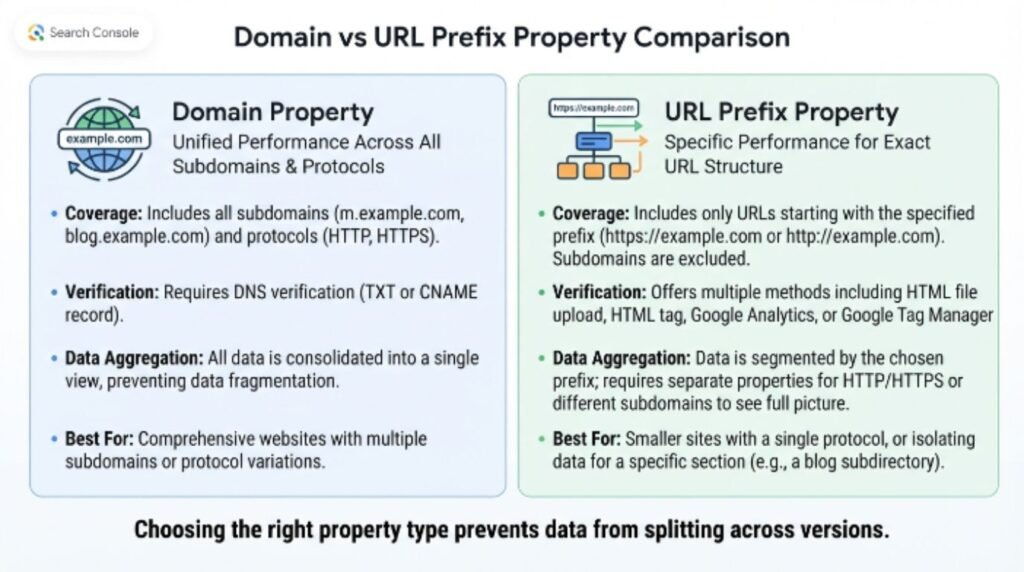
This is one of the sneakiest causes. Google Search Console offers two property types: Domain and URL prefix. A site verified as “https://www.example.com” won’t show data for “https://example.com” (without the www) unless both versions are verified separately, or a Domain property is used instead. This mismatch confuses a lot of beginners.
4. Robots.txt Is Blocking Crawlers
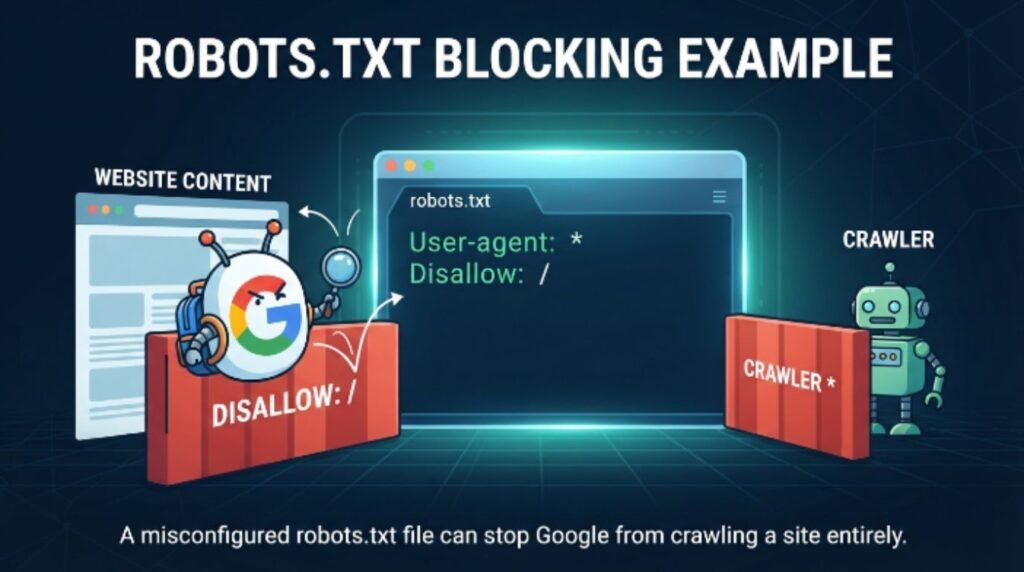
If a robots.txt file accidentally disallows all crawlers, Googlebot can’t access the site at all. This is a very common mistake right after a site migration or a fresh WordPress install, since some themes and plugins set restrictive defaults.
5. Noindex Tags Left On
Developers often add a noindex meta tag while building a site so it doesn’t get indexed prematurely. If that tag isn’t removed before launch, Google will crawl the site but refuse to index or report on it.
6. Sitemap Errors or Missing Sitemap
An outdated, broken, or unsubmitted XML sitemap can slow down discovery significantly. Google can still find pages without one, but a clean sitemap speeds things up considerably.
7. Low Traffic Volume
Sometimes there isn’t a technical issue at all. If a site gets very few searches, Search Console may show minimal or “no data” simply because there wasn’t enough activity to report during that time frame.
8. Filtered or Incorrect Date Range
This sounds simple, but it happens constantly. Search Console defaults to showing the last 3 months in some views, and if a filter was left on from a previous search, it can hide all the real data.
[Internal Link: WordPress SEO Setup Guide]
Search Console No Data vs Delayed Data: What’s the Difference?
It’s worth separating two very different situations that both look identical on the surface.
| Situation | What’s Happening | Typical Fix Time |
|---|---|---|
| Delayed Data | Site is new or recently verified; Google hasn’t finished processing | 3–7 days |
| No Data (Technical Issue) | Robots.txt, noindex tags, or crawl errors are blocking Google | Immediate once fixed, then 3–14 days for data to appear |
| No Data (Low Traffic) | Site has very few visitors or searches | Ongoing, depends on SEO growth |
| No Data (Wrong Property) | Verified the wrong domain version or property type | Immediate once corrected |
Most people assume the worst, but according to Google Search Central documentation, a large percentage of “no data” cases resolve on their own within the first two weeks of consistent crawling.
[Internal Link: How Long Does SEO Take to Show Results]
Step-by-Step Guide to Fix Google Search Console No Data
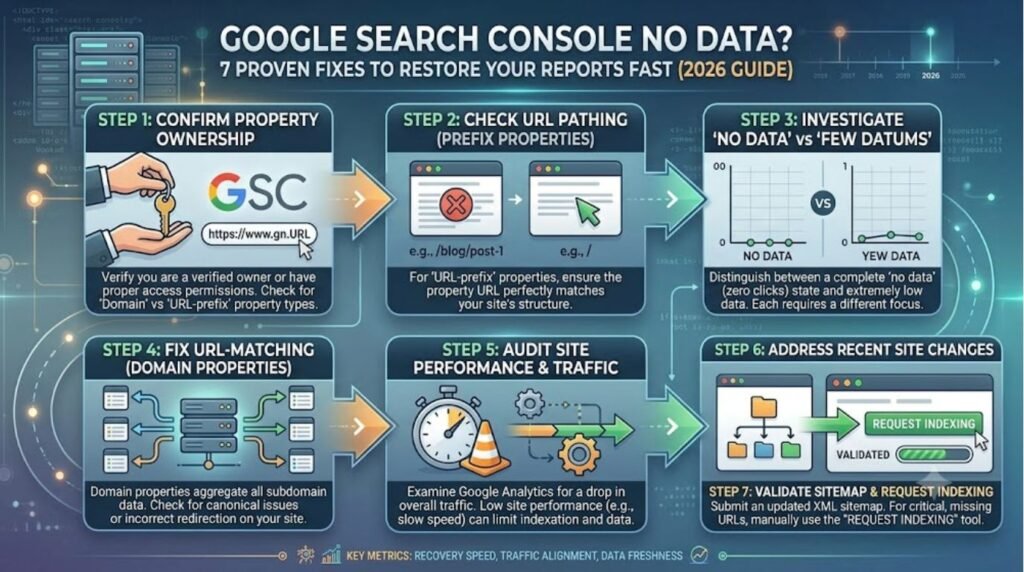
Step 1: Confirm the Right Property Is Verified
Log into Search Console and check the property selector dropdown in the top-left corner. Make sure the exact domain and protocol (http vs https, www vs non-www) match the live website.
Step 2: Switch to a Domain Property Instead of URL Prefix
A Domain property automatically covers all versions of the site (http, https, www, non-www), which removes a lot of the guesswork. Google recommends this property type for most users since it consolidates all data in one place.
Step 3: Check Robots.txt
Visit the site’s robots.txt file directly (example.com/robots.txt) and make sure it does not contain a blanket “Disallow: /” line. If it does, that line needs to be removed or adjusted immediately.
Step 4: Search for Noindex Tags
View the page source or use the URL Inspection tool inside Search Console to check for a noindex directive. If found, it needs to be removed from the site’s theme settings or SEO plugin.
Step 5: Submit or Resubmit the Sitemap
Go to the Sitemaps section in the left sidebar, remove any broken sitemap URLs, and submit a fresh one (usually /sitemap.xml or /sitemap_index.xml for WordPress sites).
Step 6: Use the URL Inspection Tool
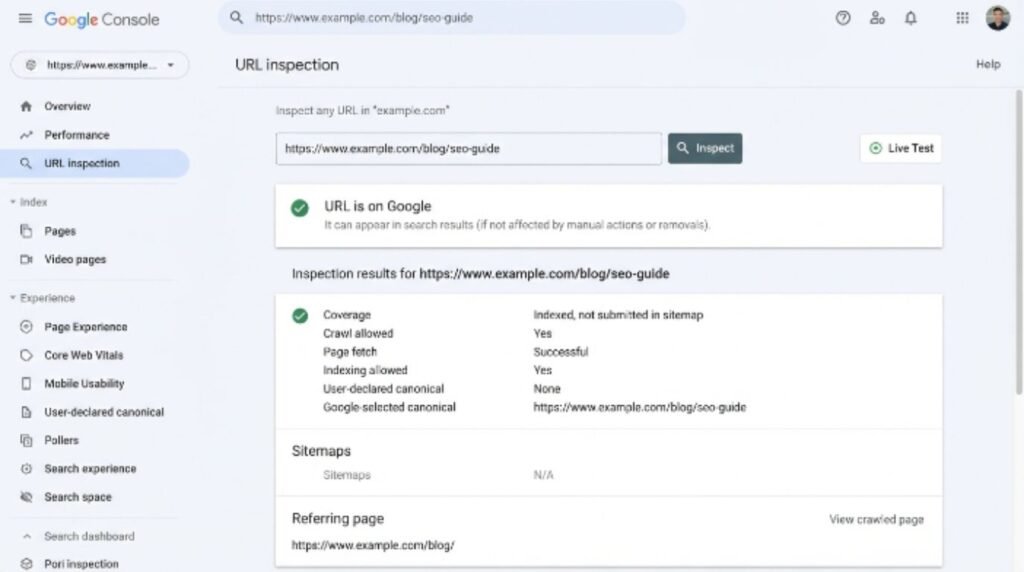
Paste a live page URL into the inspection bar at the top of Search Console. This shows exactly how Google sees that page and whether it’s indexed, blocked, or pending.
Step 7: Request Indexing Manually
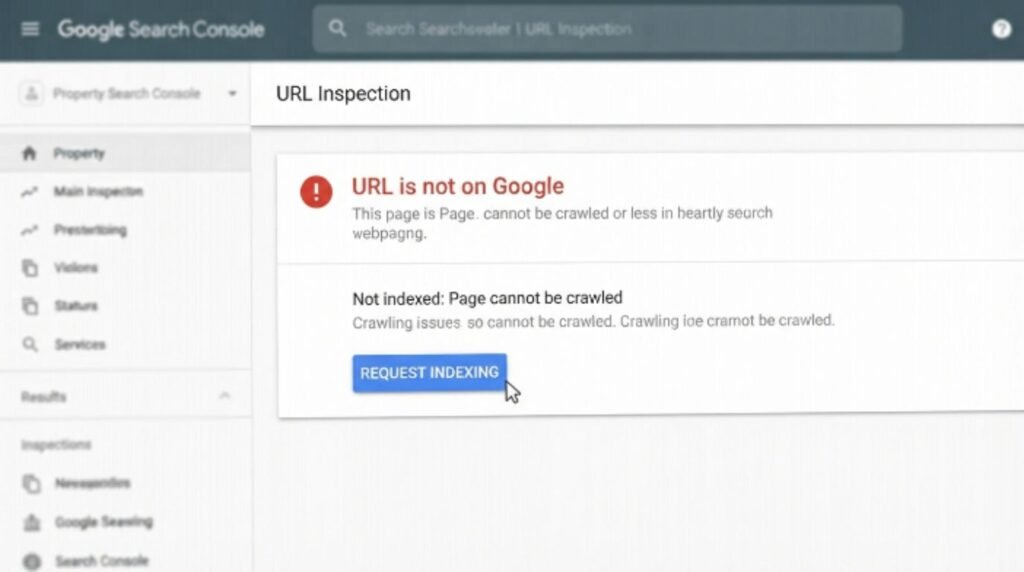
If a page is confirmed live and error-free, use the “Request Indexing” button inside the URL Inspection tool to nudge Google into crawling it sooner.
Step 8: Check the Date Range Filter
On the Performance report, click the date filter at the top and reset it to “Last 3 months” or “Last 28 days” to rule out a filtering issue.
Step 9: Be Patient and Monitor
Once every technical box is checked, the final step is simply waiting. Data typically starts flowing in within a few days to two weeks.
[Internal Link: How to Fix Crawled Currently Not Indexed]
Pros and Cons of Waiting It Out vs Taking Action
| Pros | Cons | |
|---|---|---|
| Waiting It Out | No technical work needed; often resolves naturally for brand-new sites | Wastes time if the real issue is a robots.txt or noindex block |
| Taking Action Immediately | Fixes root causes fast; can speed up indexing significantly | Requires some technical comfort with settings and files |
Most users report better peace of mind when they run through the technical checklist first, then wait, rather than waiting blindly and hoping the problem fixes itself.
[Internal Link: Best Free SEO Tools for Beginners]
Common Mistakes to Avoid
- Checking too early. Expecting data within hours of verifying a brand-new property almost always leads to unnecessary panic.
- Ignoring the property type mismatch. Verifying only the www version while the site actually redirects to non-www (or vice versa) is one of the top causes of confusion.
- Forgetting to remove staging-site noindex tags after moving a site from development to live.
- Submitting the wrong sitemap URL, such as a local or staging sitemap instead of the live one.
- Not checking robots.txt after a theme or plugin update, since some updates silently reset crawl settings.
- Assuming Search Console is broken when the real issue is a simple date filter left over from a previous session.
[Internal Link: Common WordPress SEO Mistakes]
Expert Tips
- Always verify a Domain property rather than a URL-prefix property whenever possible, since it captures all subdomains and protocol variations automatically.
- Set up an XML sitemap through an SEO plugin and resubmit it every time a major site structure change happens.
- Use the URL Inspection tool as a diagnostic first step before making any changes, since it shows Google’s exact view of a page.
- Pair Search Console with Google Analytics for a fuller picture, since the two tools measure slightly different things and can help confirm whether traffic is truly absent or just not yet reported.
- According to Google Search Central, consistently publishing fresh, crawlable content encourages Googlebot to visit more often, which naturally speeds up data collection over time.
[Internal Link: Google Analytics vs Search Console Explained]
[Internal Link: How to Speed Up Google Indexing]
FAQs
1. Why does Google Search Console show no data for a new website? New websites haven’t been crawled enough yet, and Search Console only starts recording data after verification. It typically takes several days to two weeks before results begin appearing.
2. How long does it take for Search Console to start showing data? Most sites see initial data within 3 to 7 days after verification, though search performance reports specifically can take up to 48 hours to update even after crawling begins.
3. Can a wrong property type cause missing data? Yes. Verifying a URL-prefix property for only one version of a domain (like www) while the site serves the non-www version can cause data to appear split or missing entirely.
4. Does robots.txt affect Search Console data? Absolutely. If robots.txt blocks Googlebot from crawling the site, Search Console won’t have any pages to report on until that block is removed.
5. Should someone submit a sitemap even if the site is already indexed? Yes, submitting a sitemap helps Google discover new and updated pages faster and keeps the crawling process organized, even for already-indexed sites.
6. Is it normal for Search Console to show zero clicks for a low-traffic site? Yes, very low search volume can naturally result in reports that look empty, especially for niche topics or brand-new content with little competition data yet.
7. What’s the fastest way to get a page indexed after fixing an issue? Using the “Request Indexing” feature inside the URL Inspection tool is the quickest way to prompt Google to recrawl a specific page after a fix.
Conclusion
Seeing Google Search Console no data can feel alarming at first, but in almost every case, it comes down to a handful of familiar culprits: a brand-new site, a fresh verification, a blocked robots.txt file, a leftover noindex tag, or simply a filtered date range. Working through the checklist above, from confirming the right property type to resubmitting a sitemap and requesting indexing, resolves the vast majority of cases within a couple of weeks.
The key takeaway is patience paired with action. Waiting alone won’t fix a technical block, and panicking won’t speed up Google’s crawling schedule. Anyone dealing with this issue should run through each step methodically, then give it time to play out. For ongoing SEO success, checking Search Console regularly, keeping sitemaps updated, and staying alert to robots.txt changes will prevent this problem from resurfacing down the road.
[Internal Link: Complete Beginner’s Guide to Google Search Console]