
Introduction
Few things are more annoying than opening Instagram and watching it freeze or shut down before the app even loads. Instagram app crashing is one of the most common complaints users search for, and it usually strikes at the worst possible moment, right when someone wants to check a message or post a story. The good news is that this problem is rarely permanent. Most crashes happen because of outdated software, a corrupted cache, or a temporary server hiccup on Meta’s side.
This guide walks through exactly why Instagram crashes and gives clear, tested steps to fix it on both Android and iPhone. Whether the app closes randomly, freezes on the loading screen, or won’t open at all, the solutions below cover nearly every scenario. No technical background is needed to follow along.
Featured Snippet Answer
Why is Instagram crashing? Instagram app crashing usually happens due to outdated app versions, corrupted cache files, low phone storage, poor internet connection, or temporary Instagram server outages. Clearing the app cache, updating Instagram, restarting the phone, and checking storage space fix the issue in most cases within minutes.
Why Does Instagram Keep Crashing?

Instagram app crashing rarely comes down to one single cause. It’s usually a mix of small issues stacking up until the app simply gives up. Here are the most common reasons behind it.
Outdated App Version
Instagram pushes frequent updates to fix bugs and improve performance. Running an old version often means the app is missing critical patches, which leads to freezing or sudden shutdowns.
Corrupted Cache Files
Every time someone scrolls through Reels or opens a chat, Instagram stores temporary data on the device. Over time, this cache can become corrupted or bloated, causing the app to behave unpredictably.
Low Storage Space
Phones running low on internal storage struggle to load apps properly. Instagram needs breathing room to process photos, videos, and cached data, and without it, crashes become far more frequent.
Weak or Unstable Internet Connection
A shaky Wi-Fi signal or spotty mobile data can interrupt Instagram’s connection to its servers mid-session, which sometimes forces the app to crash instead of just showing a loading spinner.
Operating System Issues
An outdated phone operating system can create compatibility problems. Apple and Android regularly update their systems, and apps like Instagram are built to work with the newest versions.
Server-Side Outages
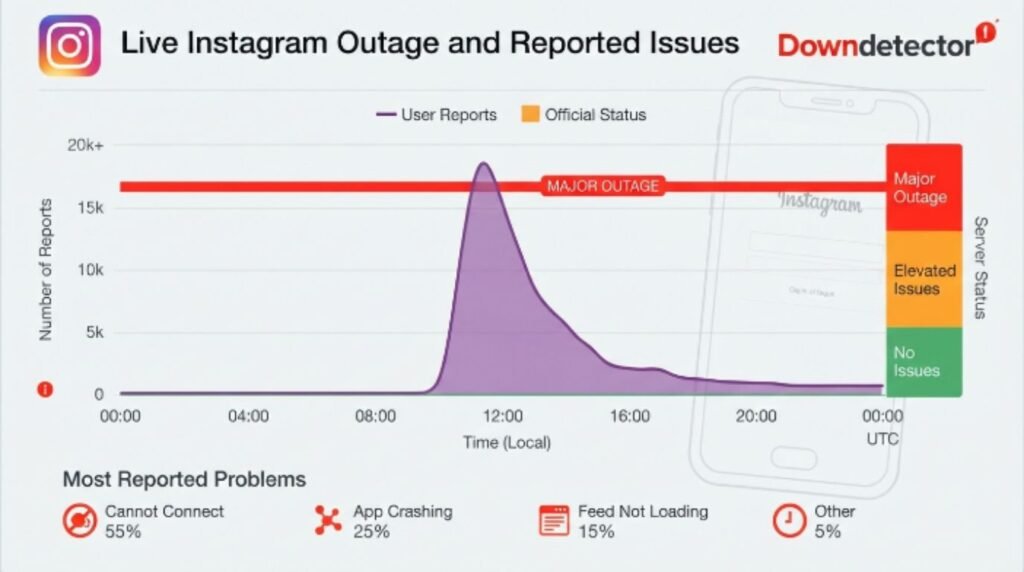
Sometimes the problem isn’t the phone at all. Meta’s servers occasionally experience outages or slowdowns, and during those windows, Instagram may crash for thousands of users at once regardless of device.
Too Many Background Apps
Running several apps at once eats up RAM. When memory runs low, the phone’s operating system may force-close Instagram to free up resources, which feels exactly like a random crash.
[Internal Link: Instagram Not Working Today]
Instagram App Crashing: Android vs iPhone
The root causes overlap, but the fixes differ slightly depending on the device. Here’s a side-by-side look.
| Feature | Android Fix | iPhone Fix |
|---|---|---|
| Clear Cache | Settings > Apps > Instagram > Clear Cache | Requires app reinstall (iOS doesn’t allow cache-only clearing) |
| Update App | Google Play Store | Apple App Store |
| Storage Check | Settings > Storage | Settings > General > iPhone Storage |
| OS Update | Settings > System > System Update | Settings > General > Software Update |
| Background App Limit | Settings > Battery > Background Usage | Settings > General > Background App Refresh |
| Reinstall Steps | Long-press icon > Uninstall > Reinstall from Play Store | Long-press icon > Delete App > Reinstall from App Store |
[Internal Link: Instagram Login Problem]
Step-by-Step Guide to Fix Instagram App Crashing
These steps work whether Instagram crashes on opening, mid-scroll, or while posting. Start from step one and move down the list until the problem goes away.
Restart the phone. This clears temporary memory issues and is often enough to solve the problem instantly.
Check Instagram’s server status. Before touching any settings, confirm the issue isn’t on Meta’s end using a site like Downdetector.
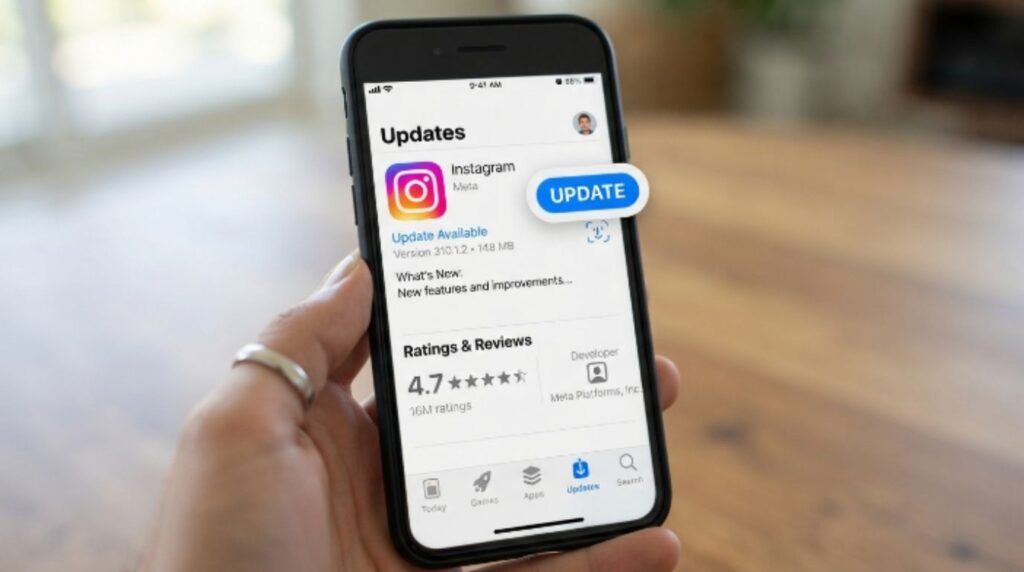
Update the Instagram app. Open the Play Store or App Store, search Instagram, and tap update if one is available.
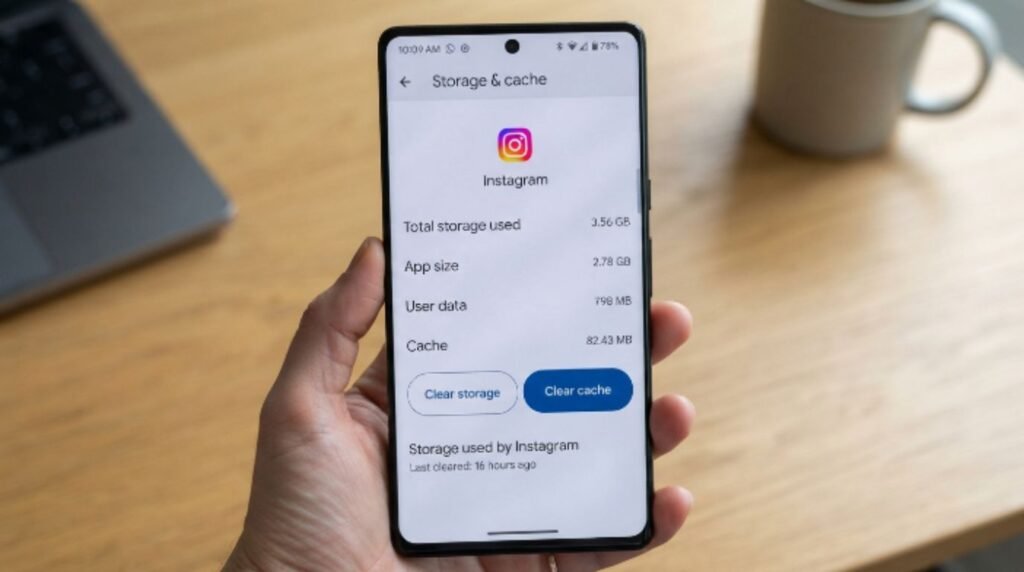
Clear the app cache (Android only). Go to Settings, then Apps, select Instagram, and tap Clear Cache.
Free up storage space. Delete unused apps, photos, or videos to give the phone more room to run smoothly.
Update the phone’s operating system. An outdated OS is a common, often overlooked cause of app crashes.
Check the internet connection. Switch between Wi-Fi and mobile data to see if the crash is connection-related.
Disable battery saver mode. Some battery-saving settings restrict background processes that Instagram needs to run properly.
Reinstall the app. Delete Instagram completely, restart the phone, then download it fresh from the official store.
Log out and log back in. This resets the session and clears any corrupted login data stored locally.
Check app permissions. Make sure Instagram has permission to access storage, camera, and network on the device.
Turn off VPN or proxy apps. These sometimes interfere with Instagram’s connection to Meta’s servers.
Check for third-party app conflicts. Apps that modify Instagram or run in the background (like unofficial followers trackers) often cause instability.
Reset app preferences (Android). Go to Settings > Apps > Reset App Preferences to clear conflicting settings.
Contact Instagram support if none of the above steps work after several attempts.
[Internal Link: How to Fix App Not Responding]
Pros and Cons of Each Fix
| Fix | Pros | Cons |
|---|---|---|
| Restart Phone | Quick, free, no data loss | Doesn’t fix deeper software bugs |
| Clear Cache | Fast, frees up space | Android only; iPhone needs reinstall |
| Update App | Fixes most known bugs | Requires stable internet to download |
| Reinstall App | Often solves persistent crashes | Login details need to be re-entered |
| Update OS | Improves overall compatibility | Update size can be large |
| Reduce Background Apps | Frees RAM instantly | Needs to be repeated often |
[Internal Link: Instagram Story Not Uploading]
Common Mistakes to Avoid
People trying to fix Instagram app crashing often make the process longer than it needs to be. Here are mistakes worth skipping.
- Reinstalling before restarting. A simple restart solves many crashes without the need to delete anything.
- Ignoring storage warnings. Low storage is one of the most overlooked reasons apps crash repeatedly.
- Using outdated phone software for months. Delaying OS updates often causes long-term compatibility issues.
- Installing Instagram from unofficial sources. Only the Google Play Store or Apple App Store should be used to avoid malware-laced copies.
- Assuming it’s always the phone’s fault. Server-side outages happen more often than most users realize.
- Clearing data instead of cache. Clearing data wipes saved logins and settings, while clearing cache just removes temporary files.
- Not checking app permissions after an OS update. Updates sometimes reset permissions Instagram needs to function.
[Internal Link: Instagram Video Not Playing]
Expert Tips to Prevent Future Crashes
According to Meta’s official Help Center, keeping the app updated and maintaining sufficient device storage are two of the simplest ways to avoid recurring crashes. A few more expert-backed habits go a long way toward keeping Instagram stable long term.
- Turn on automatic app updates so bug fixes install without manual effort.
- Restart the phone at least once a week to clear built-up background processes.
- Avoid running Instagram alongside heavy apps like video editors or games.
- Keep at least 10% of total storage free at all times for smooth app performance.
- Review installed apps monthly and remove ones no longer in use.
- Enable Wi-Fi calling or a stable network priority setting to avoid connection drops mid-session.
Google’s Android documentation also notes that background app restrictions, when too aggressive, can unintentionally force-close apps that are actively being used, so it’s worth reviewing those settings occasionally.
[Internal Link: Instagram Reels Not Working]
When to Contact Instagram Support
If Instagram app crashing continues after trying every fix above, it’s time to reach out directly. Meta provides an in-app reporting tool: open Instagram’s settings, tap Help, then Report a Problem. Including details like the phone model, OS version, and when the crash happens helps their team troubleshoot faster. For widespread outages, checking Meta’s official status channels is often quicker than waiting on a support ticket.
[Internal Link: Meta Business Suite Not Working]
[instagram account suspended recovery]
FAQs
1. Why does Instagram keep crashing on my iPhone? Instagram app crashing on iPhone usually happens due to an outdated iOS version, a buggy app update, or low storage space. Updating both iOS and Instagram through the official App Store solves most cases.
2. Why does Instagram keep crashing on Android? On Android, Instagram app crashing is often linked to a corrupted cache, background app restrictions, or low RAM. Clearing the cache and freeing up storage usually resolves it quickly.
3. Does clearing cache delete Instagram data? No, clearing cache only removes temporary files and does not delete photos, messages, or login information stored on Instagram’s servers.
4. Is Instagram crashing a server problem? Sometimes, yes. Meta occasionally experiences outages that cause crashes across many devices at once, unrelated to individual phone settings.
5. How do I stop Instagram from crashing every time I open it? Try restarting the phone, updating the app, and freeing up storage space first. If crashes continue right at launch, reinstalling Instagram usually fixes it.
6. Why does Instagram crash only when I post a story? This is often linked to poor internet connection or insufficient storage needed to process video files temporarily during upload.
7. Should I uninstall and reinstall Instagram to fix crashing? Reinstalling is a solid last-resort step after restarting, updating, and clearing cache have failed. It resets the app completely and often clears deeper software glitches.
Conclusion
Instagram app crashing is frustrating, but it’s almost always fixable without needing any technical expertise. Starting with a simple restart, checking for updates, and clearing out cache or storage solves the majority of cases within minutes. When those steps don’t help, reinstalling the app or checking Meta’s server status usually finishes the job. Most users report noticeable improvement after working through just the first few steps in this guide. Try the fixes above one at a time, and Instagram should be back to running smoothly in no time. If the app keeps crashing after everything here, reaching out to Instagram support directly is the next best move.