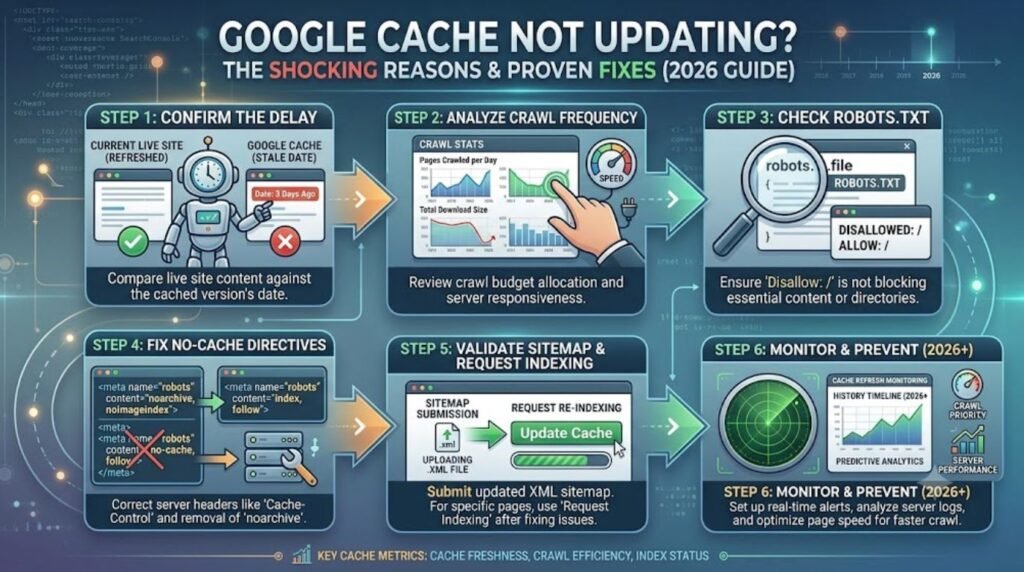

Introduction
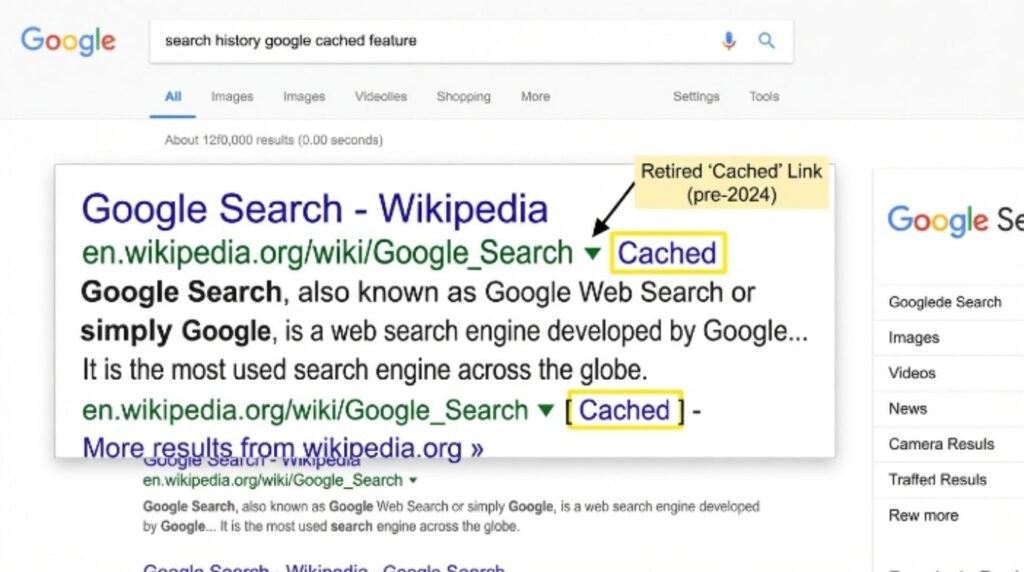
Anyone typing “google cache not updating” into a search bar is usually chasing one of two things: an old cached snapshot that won’t refresh, or a newer page version that refuses to show up. Here’s the part that surprises most people — Google’s cache feature isn’t just slow anymore. It’s gone. Google quietly retired the “Cached” link and the cache: search operator back in 2024, and neither one has come back. So if a cached page looks frozen in time, that’s not a glitch to fix. It’s a discontinued tool.
The good news is that Google still tracks the current version of every page it crawls, just through different channels. This guide walks through what actually happened, how to check what Google currently has stored for a page, and what to do when a site’s content isn’t reflecting recent changes in search results.
Featured Snippet Answer
Google cache stopped updating because Google retired the entire caching feature in February 2024. The cache: search operator and the “Cached” link no longer work for any website. To check a page’s current index status, use Google Search Console’s URL Inspection tool or search site:yourdomain.com instead of relying on cached snapshots.
What “Google Cache Not Updating” Actually Means Today
A few years ago, this problem had a simple fix: clear the cache, wait a few days, ask Google to recrawl, done. That playbook doesn’t apply anymore, because there’s no cache left to update.
[Internal Link: How Google Indexing Works in 2026]
Site owners searching for this today usually fall into one of three groups:
- People trying to open an old
webcache.googleusercontent.comlink that used to work - People typing
cache:example.cominto Google and getting nothing back - People whose site was recently updated, but the search results still show old titles, descriptions, or content
Only the third group has a real, fixable problem. The first two are simply running into a retired feature, not a bug on their end.
A Quick History of Google Cache (And Why It’s Gone)
Google Cache launched in the early 2000s, when the internet was far less reliable than it is now. Servers went down often, pages timed out, and hosting was shaky. Google’s cached copy acted as a backup plan — if the live page failed to load, searchers could still view a stored snapshot straight from Google’s own servers.
For almost two decades, that little “Cached” link sat quietly under every search result. Then, in February 2024, Google’s Search Liaison confirmed on social media that the feature had been intentionally retired. The reasoning: modern websites are far more stable, hosting has improved dramatically, and the cache had become redundant infrastructure that Google no longer needed to maintain.
By late 2024, even the manual cache: search operator stopped returning results entirely. At that point, Google Cache was fully gone — not degraded, not delayed, just discontinued.
[Internal Link: What Is Google Search Console and Why It Matters]
Most users report that this change happened gradually. The cache link disappeared from some search results months before others, which led to a lot of confusion about whether it was a temporary bug. It wasn’t. It was a rollout of a permanent removal.
Cache vs. Index: The Difference Most People Miss
This is the mix-up that trips up almost everyone searching this topic. Google Cache and the Google Index are not the same thing, even though they sound related.
- The Index is Google’s massive database of every page it has crawled and decided to store for search purposes. This is what actually powers search results. It’s still very much alive and constantly updating.
- The Cache was a public-facing snapshot tool that let anyone view a saved copy of a page as Google last saw it. This is the part that’s gone.
In other words, Google still knows what a page currently looks like. What disappeared is the searcher’s ability to peek at Google’s stored copy directly. So a page can be perfectly well-indexed and ranking normally, even though there’s no cache link to click anymore.
[Internal Link: Why Isn’t My Page Showing Up on Google]
How to Check If Google Has Your Latest Page Version
Since the cache tool is retired, checking whether Google has picked up recent changes requires a different approach.
Method 1: Use the site: Search Operator
Typing site:example.com/page-url into Google shows how that page currently appears in search results, including its title and description. If the snippet still shows outdated information, that’s a signal Google hasn’t recrawled the page recently.
Method 2: Google Search Console’s URL Inspection Tool
This is the most reliable option available today. It’s a free tool from Google Search Central that shows exactly when a URL was last crawled, whether it’s indexed, and whether the live version differs from what Google has stored.
[Internal Link: Google Search Console Setup Guide for Beginners]
Method 3: The Wayback Machine
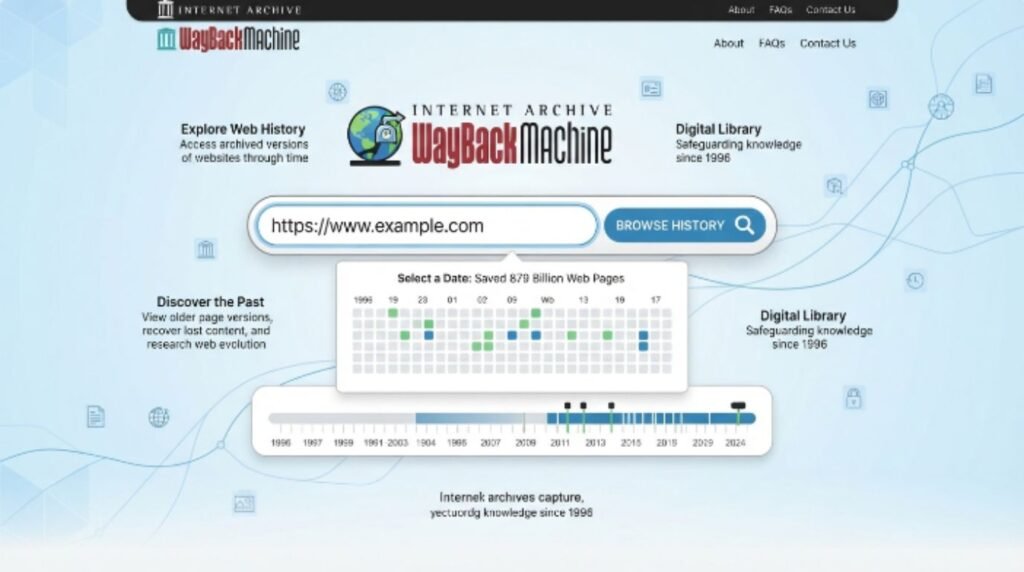
The Internet Archive’s Wayback Machine has become the unofficial replacement for cache browsing. It stores historical snapshots of billions of pages and, according to Google’s own Search Liaison, was suggested as a natural alternative once cache links disappeared.
Step-by-Step: Getting Google to See Your Updated Content
Confirm the live page is actually updated. Clear the browser cache and reload the page in an incognito window to rule out a local caching issue.
Open Google Search Console and select the property for the affected site.
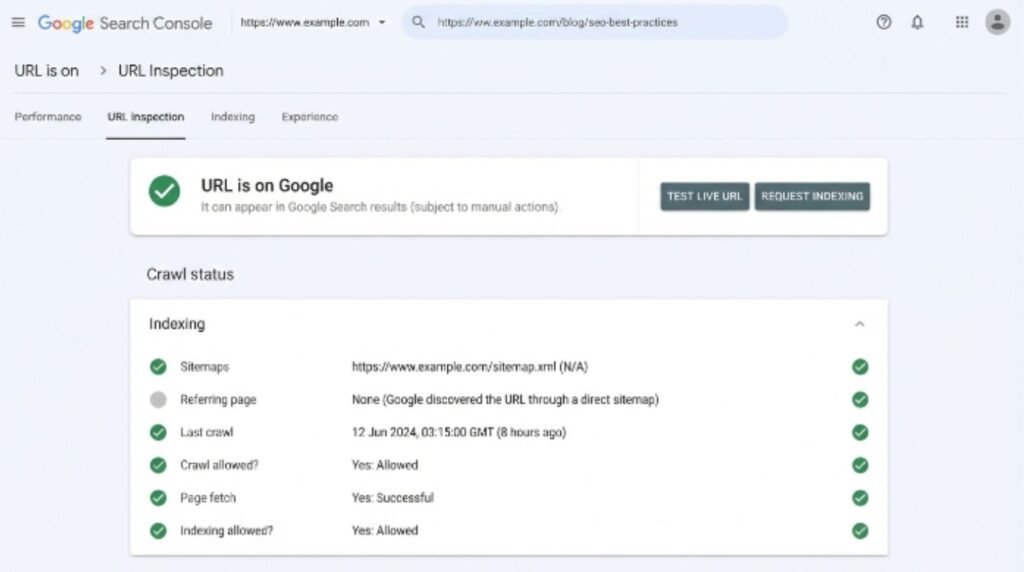
Paste the exact URL into the URL Inspection tool at the top of the dashboard.
Check the “Coverage” and “Last Crawled” details. This shows the last time Googlebot visited that specific page.
Click “Request Indexing” if the last crawl date is older than expected.
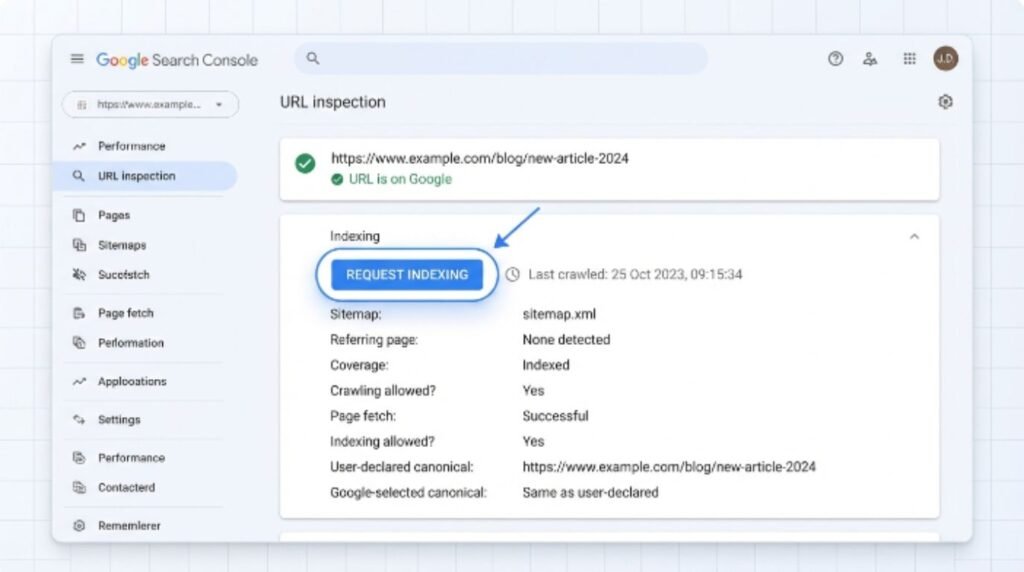
Wait 24–72 hours. Google recommends patience here, since recrawling isn’t instant even after a manual request.
Re-run the URL Inspection to confirm the new crawl date and check whether the indexed version now matches the live page.
Update internal links and sitemaps if the page still isn’t picked up after a week, since broken internal linking can slow discovery.
[Internal Link: How to Submit a Sitemap to Google]
Comparison Table: Old Cache Tools vs. Today’s Alternatives
| Feature | Google Cache (Retired) | Search Console URL Inspection | Wayback Machine |
|---|---|---|---|
| Still active | No | Yes | Yes |
| Shows current index status | No | Yes | No |
| Shows historical snapshots | Yes (before 2024) | No | Yes |
| Requires site ownership | No | Yes | No |
| Can trigger a recrawl | No | Yes | No |
| Cost | Free | Free | Free |
[Internal Link: Best Free SEO Tools for Small Websites]
Pros and Cons of Losing Google Cache
| Pros | Cons |
|---|---|
| Encourages site owners to use more accurate tools like Search Console | No more quick backup view when a site goes down |
| Reduces the chance of outdated or embarrassing content resurfacing | Journalists and researchers lost an easy way to verify site changes |
| Frees up significant server resources for Google | Some smaller sites relied on cache for uptime protection |
| Pushes more traffic toward the Wayback Machine’s archiving mission | No official replacement built directly into search results yet |
Common Mistakes to Avoid
- Assuming a cache problem is a personal issue. If
cache:example.comshows nothing, that’s expected behavior now, not a site-specific error. - Waiting for cache to “catch up.” There’s nothing to catch up on since the feature no longer runs.
- Confusing browser cache with Google Cache. Clearing a browser’s local cache won’t affect anything on Google’s end.
- Skipping Search Console verification. Many site owners never set up Search Console, which is now the only direct way to see Google’s crawl data for a page.
- Requesting indexing repeatedly in a short window. Google Search Central notes that spamming the “Request Indexing” button doesn’t speed things up and can look like unusual activity.
[Internal Link: SEO Mistakes That Hurt Rankings]
Expert Tips
- According to Google Search Central’s official documentation, the fastest way to confirm indexing status is always the URL Inspection tool, not third-party checkers.
- Google recommends submitting an updated XML sitemap whenever a large batch of pages changes, rather than requesting indexing one URL at a time.
- Most users report faster recrawl times on sites with strong internal linking, since Googlebot follows links to discover fresh content.
- For time-sensitive content, publishing through Google’s Indexing API (originally built for job postings and livestreams but usable more broadly by some site types) can speed up discovery further.
[Internal Link: How Long Does It Take Google to Index a New Page]
FAQs
1. Why did Google cache stop working? Google intentionally retired the caching feature in February 2024. It wasn’t a bug or an outage — Google’s Search Liaison confirmed it was a deliberate decision based on improved site reliability across the web.
2. Can I still use cache:example.com to view a page? No. That search operator stopped returning results for any site by late 2024. There’s currently no way to bring it back.
3. Is there an official replacement for Google Cache? Not built directly into search results yet. Google has pointed users toward the Wayback Machine as the closest available alternative for viewing historical page snapshots.
4. Does losing Google Cache affect my SEO rankings? No. Ranking depends on Google’s index, not the old cache feature. A page can rank perfectly well with zero cache history.
5. How do I know if Google has crawled my recent changes? Use the URL Inspection tool inside Google Search Console. It shows the exact last crawl date and whether the indexed version matches the live page.
6. Why does my old content still show up in search results? This usually means Google hasn’t recrawled the page since the update. Requesting indexing through Search Console is the most direct fix.
7. Will Google bring cache back in the future? There’s no indication of that so far. Google has treated the removal as permanent since 2024, with no announced plans to reintroduce it.
Conclusion
The short version: if Google cache seems stuck or “not updating,” it’s because the feature was permanently retired back in 2024, not because of anything wrong with a specific site. The real fix isn’t waiting around for a cache refresh — it’s checking a page’s actual index status through Google Search Console, confirming crawl dates, and requesting indexing when needed. Anyone managing a website should get comfortable with Search Console’s URL Inspection tool, since it’s now the closest thing to the old cache feature, minus the public snapshot view. Start there, keep sitemaps current, and outdated search results usually sort themselves out within a few days.
[Internal Link: Google Search Console Complete Guide] [Internal Link: How to Fix Pages Not Indexed by Google]