
Introduction
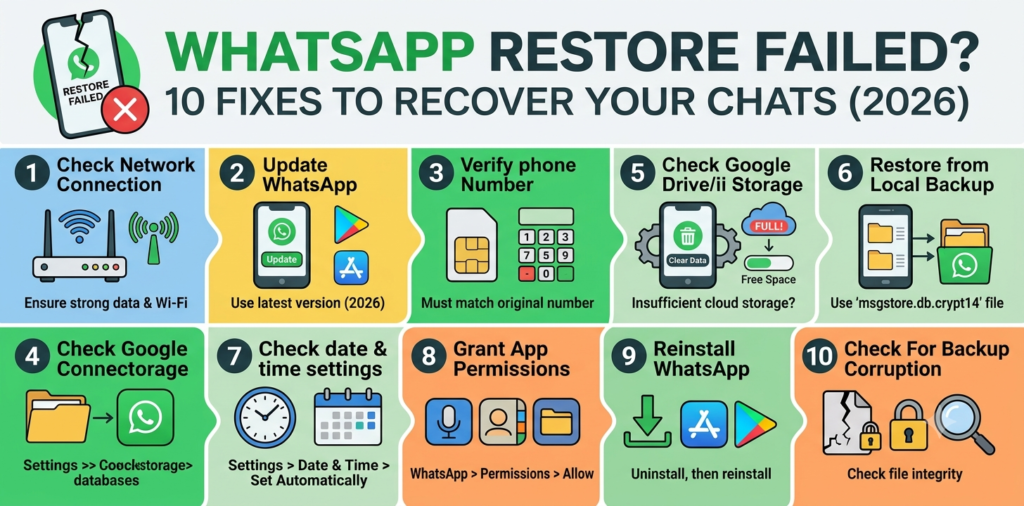
Setting up WhatsApp on a new phone should be quick, but a WhatsApp restore failed message right at the finish line turns an easy setup into a stressful moment. This error shows up when the app can’t pull chat history from Google Drive, iCloud, or a local backup file, and it can happen for reasons as simple as a weak connection or as specific as a mismatched account. The message itself doesn’t mean the chats are gone; it usually means something in the restore process needs a small adjustment before it can finish. whatsapp restore failed This guide explains the most common reasons behind the error and walks through clear fixes for both Android and iPhone, so chat history, photos, and voice notes can make it safely onto the new device.
Featured Snippet Answer
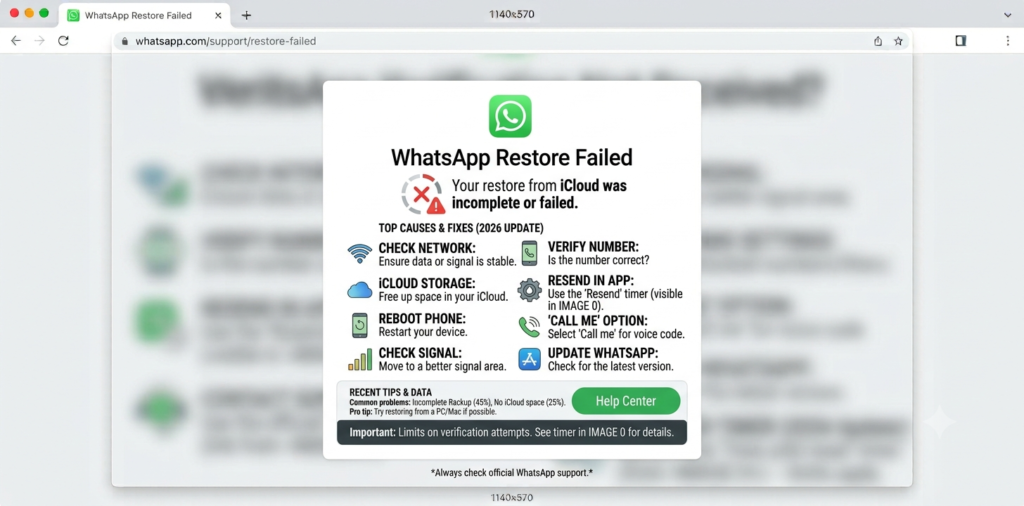
A WhatsApp restore failed error usually happens due to a weak internet connection, a mismatched Google or Apple account, or low phone storage. whatsapp restore failed Confirm the same phone number and cloud account used for the backup, connect to strong Wi-Fi, free up storage space, and try the restore again before setting up a fresh account.
Why a WhatsApp Restore Fails
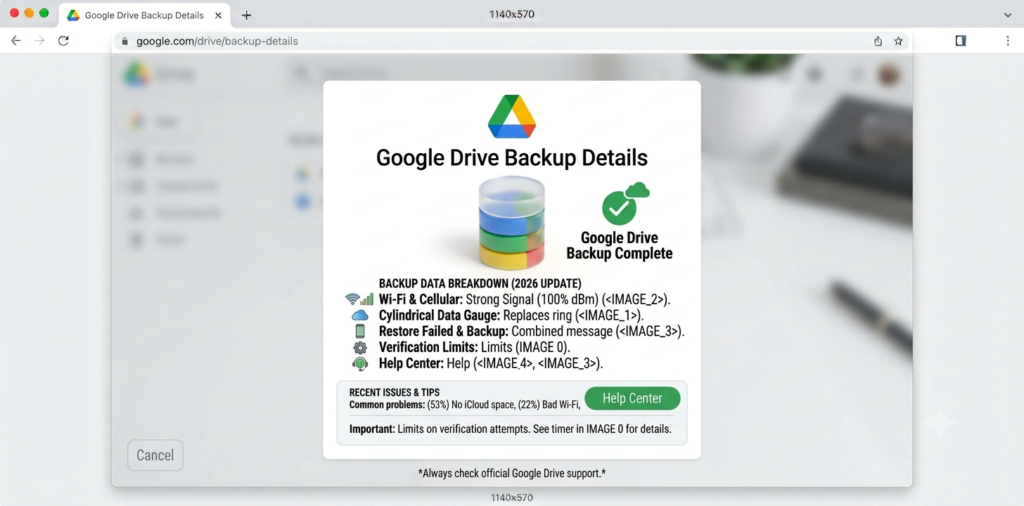
According to official documentation from WhatsApp, the restore process checks for a backup file tied to the exact phone number and cloud account being used, and any mismatch there stops the process before it can even start.
Common causes include:
- Using a different Google account or Apple ID than the one the backup was saved to.
- Weak or dropped Wi-Fi connection during the download.
- Not enough free storage on the new phone to unpack the backup.
- An outdated WhatsApp version that can’t read a newer backup format.
- A corrupted or incomplete backup file from a previous stuck backup.
- Entering the wrong phone number during verification, which points to the wrong backup entirely.
- Restoring across very different phone models, especially between Android and iPhone, which uses a different transfer method altogether.
[WhatsApp Backup Stuck]
Most users report that double-checking the account and phone number clears up the issue faster than any other single fix.
Google Drive Restore vs Local Restore: What’s the Difference?
| Feature | Google Drive / iCloud Restore | Local Restore (Android only) |
|---|---|---|
| Where the backup lives | Cloud storage | Phone’s internal storage |
| Needs internet | Yes | No |
| Common failure point | Account mismatch, weak signal | Missing or moved backup file |
| Speed | Depends on connection | Usually faster |
| Best for | Switching to a brand-new phone | Reinstalling WhatsApp on the same phone |
[WhatsApp Verification Code Not Received]
Step-by-Step: How to Fix a WhatsApp Restore Failed Error
- Confirm the correct phone number is entered during setup, since the restore is tied to that number.
- Check the Google account or Apple ID signed in on the phone matches the one used for the original backup.
- Connect to strong Wi-Fi rather than mobile data, since large backups can time out on weaker connections.
- Free up phone storage if the device is close to full, since the restore needs room to unpack files.
- Update WhatsApp to the latest version before starting setup, if possible.
- Restart the phone to clear any temporary network or storage glitches.
- Retry the restore by reinstalling WhatsApp and going through verification again.
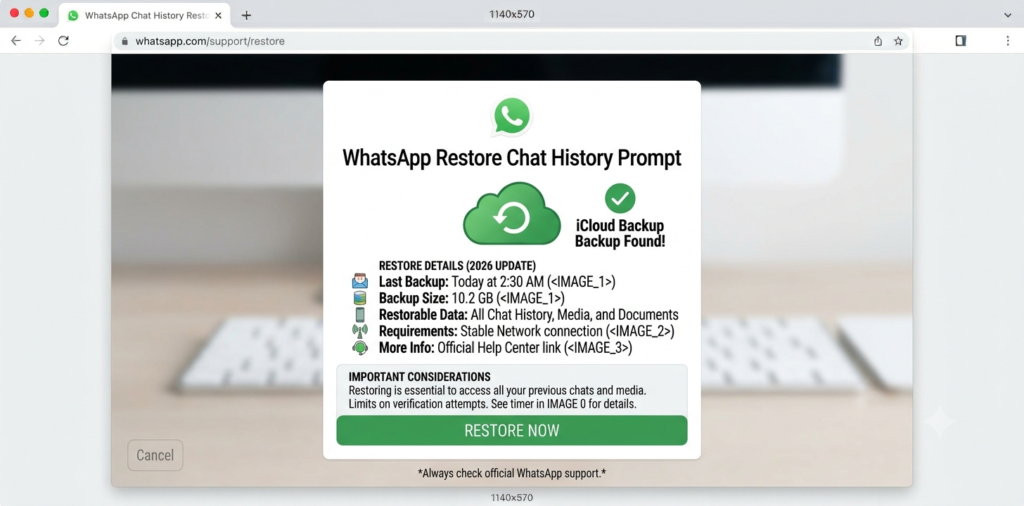
- Check the backup date and size in Google Drive or iCloud settings to confirm a valid file actually exists.
- Avoid skipping the restore prompt too quickly, since tapping past it accidentally starts a fresh account with no history.
- Reach out to support if the backup file appears to exist but still won’t restore.
[WhatsApp Not Working]
Fixing It on Android
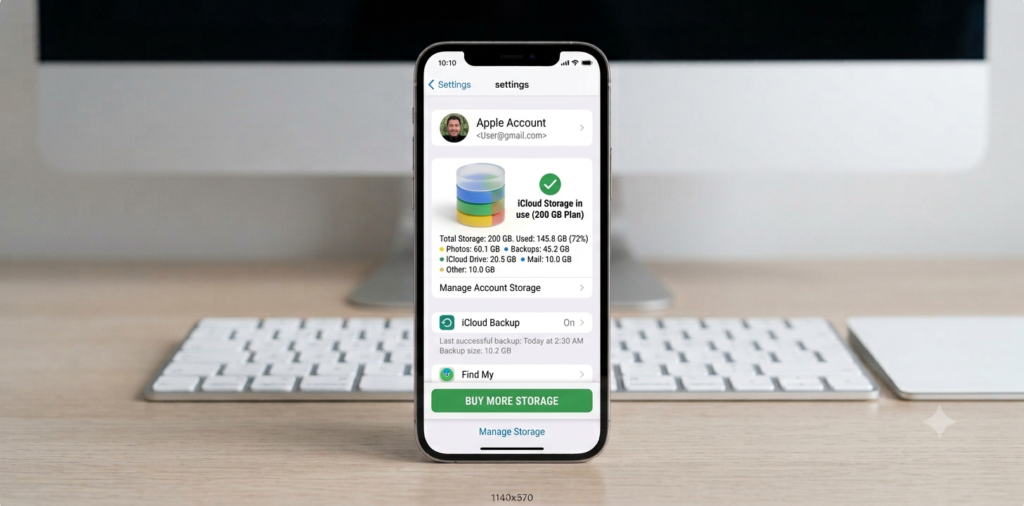
Android restores pull from Google Drive, so the account connection matters most here:
- Open Settings > Google > Manage Google Account to confirm the correct account is signed in.
- Check Google Drive app > Settings > Backups to see if a WhatsApp backup file is actually listed.
- Make sure mobile data restore permission is turned on if Wi-Fi isn’t available, under WhatsApp’s own storage settings.
- Clear the cache for the Google Drive app if the restore keeps failing at the same stage.
- Confirm the new phone has enough free internal storage, since Android needs space to write the restored files.
[ WhatsApp Not Sending Messages]
Fixing It on iPhone
iPhone restores rely on iCloud, and Apple’s own support documentation highlights a few key checks:
- Go to Settings > [Your Name] > iCloud and confirm the same Apple ID used for the backup is signed in.
- Check that iCloud Backup shows an existing WhatsApp entry with a recent date under Settings > Apps > WhatsApp.
- Keep the iPhone connected to Wi-Fi and a charger throughout the restore, since iOS can pause on low battery.
- Make sure enough iCloud storage is available, since a full account can block the download from completing.
- Avoid switching apps or locking the phone while “Restoring” is shown on screen.
[ iPhone Not Receiving Texts]
What to Do If the Backup File Seems Missing
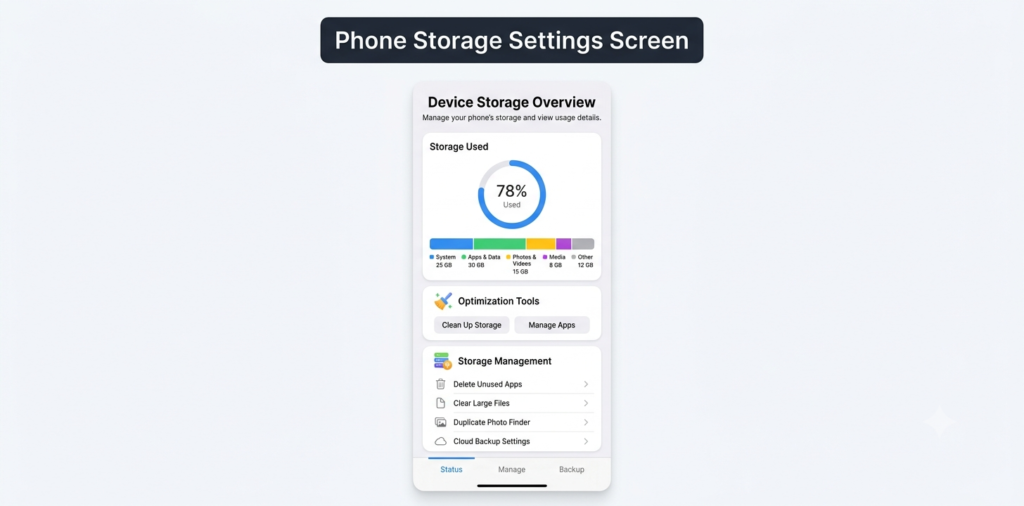
Sometimes the restore fails simply because there’s no valid backup to pull from. whatsapp restore failed Google’s own guidance on cloud backups notes that files can occasionally be removed if an account runs out of storage or if the backup was never fully completed in the first place.
In that situation:
- Check the backup date in Google Drive or iCloud settings to see when it was last saved.
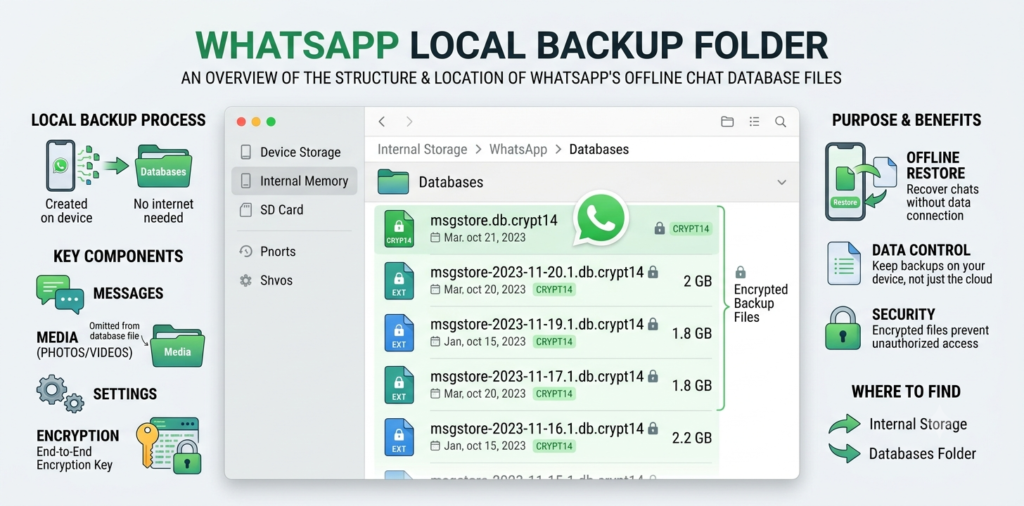
- Look for a local backup file on Android under the WhatsApp/Databases folder, which can sometimes be used instead.
- Avoid creating a new account before confirming the backup truly doesn’t exist, since starting fresh removes the option to try again later.
- Consider reaching out to WhatsApp support before giving up on the restore entirely.
[ WhatsApp Account Suspended]
Pros & Cons of Each Fix
| Fix | Pros | Cons |
|---|---|---|
| Confirming account match | Solves the most common cause | Requires remembering old login details |
| Switching to Wi-Fi | Fast and reliable for large files | Not always available immediately |
| Freeing up storage | Fixes space-related failures for good | Takes time to sort through files |
| Reinstalling WhatsApp | Gives the restore a clean second attempt | Requires redoing the verification step |
| Using a local backup | Works without internet | Only available on Android |
Common Mistakes to Avoid
- Skipping the restore prompt by accident. whatsapp restore failed Tapping “Skip” instead of “Restore” starts a brand-new account with no history.
- Using the wrong cloud account. whatsapp restore failed A backup tied to one Google or Apple account won’t show up under a different one.
- Restoring on low storage. whatsapp restore failed The phone needs free space to actually unpack the backup file.
- Interrupting the process. whatsapp restore failed Locking the phone or switching apps mid-restore can cause it to fail partway through.
- Assuming the backup is corrupted too soon. whatsapp restore failed Most restore failures come from connection or account issues, not a damaged file.
[ WhatsApp Web Not Working]
Expert Tips
- Google recommends restoring over Wi-Fi whenever possible, since large media libraries can time out on mobile data.
- Keep a recent backup date in mind before switching phones, since restoring an old backup means losing anything sent after that date.
- [Internal Link: WhatsApp Two-Step Verification] should be set up again after a successful restore to keep the account secure.
- Avoid uninstalling WhatsApp right after a failed restore, since the local chat database may still be recoverable.
- Check available cloud storage a day or two before switching phones, so there’s no last-minute scramble to free up space.
When to Contact Support
If the restore keeps failing after trying every fix above, it’s time to contact WhatsApp directly. whatsapp restore failed The in-app support option under Settings > Help > Contact Us allows for a detailed description of the issue. whatsapp restore failed Meta’s help center notes that mentioning the phone model, backup date, and exact error message helps the support team narrow down the cause faster.
[ WhatsApp Customer Support] [ WhatsApp Number Change] [ WhatsApp Ban Appeal]
For account-specific storage checks, Google’s Drive help center and Apple’s iCloud support pages remain the safest resources, since third-party “chat recovery” tools found online often ask for account credentials and can put personal data at risk.
FAQs
1. Why does WhatsApp say restore failed on my new phone?
This usually happens due to a mismatched cloud account, weak internet connection, or low phone storage. Confirming the correct account and connection often resolves it right away.
2. Can I restore WhatsApp chats without Wi-Fi?
Yes, on Android it’s possible to allow mobile data for restore in WhatsApp’s settings, though Wi-Fi is generally faster and more reliable for large backups. whatsapp restore failed
3. What happens if I skip the restore by mistake?
Skipping starts a fresh WhatsApp account with no chat history, so the backup would need to be restored later through a full reinstall.
4. Does a failed restore mean the backup is lost forever?
Not usually. Most failed restores are caused by connection or account issues rather than a damaged or deleted backup file.
5. Can I restore an Android backup on an iPhone?
Not directly through the cloud, since Android and iPhone use separate backup systems, though WhatsApp does offer an official move tool for switching between the two.
6. How old can a WhatsApp backup be and still restore?
There’s no strict age limit, but very old backups may be missing recent messages sent after the last successful backup date.
7. Is it safe to use third-party apps to restore WhatsApp chats?
No, official guidance from Meta and Google both discourage using unofficial recovery tools, since these can request unnecessary account access and compromise personal data.
Conclusion
A WhatsApp restore failed message is stressful in the moment, especially when years of chats and photos feel like they’re on the line, but the fix is usually simpler than it looks. whatsapp restore failed Confirming the right cloud account, switching to a strong Wi-Fi connection, and making sure the new phone has enough free storage solves this for most people. whatsapp restore failed Work through the steps above one at a time, and the restore should complete without much trouble. Anyone still stuck after trying everything here should reach out to WhatsApp’s official support team for help specific to their account.