
Introduction
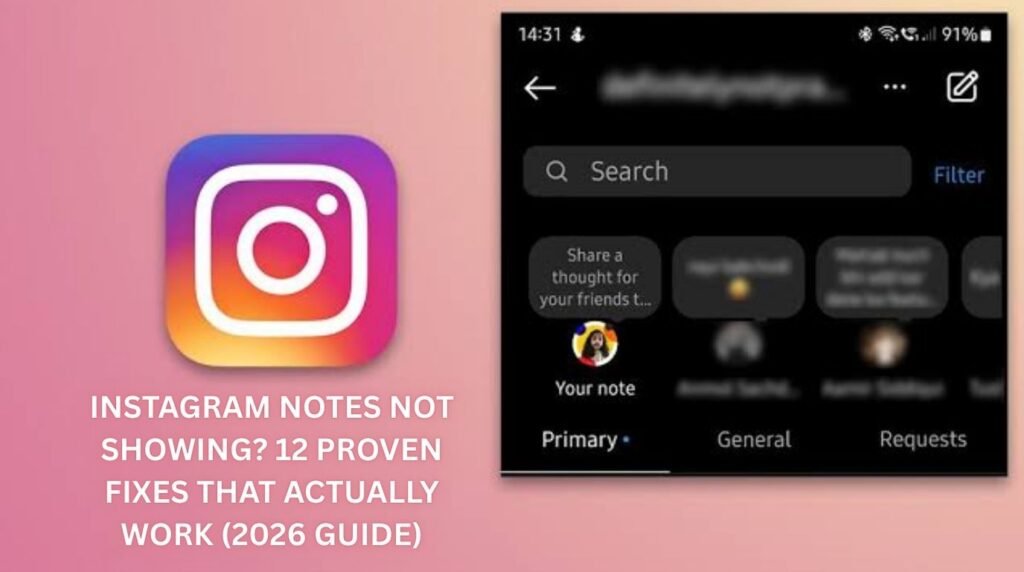
Instagram notes not showing up can be a genuinely annoying problem, especially when a friend keeps mentioning a note and there’s nothing on the screen. One minute the little bubble sits above the inbox, the next it’s simply gone, and nobody enjoys hunting through settings menus to figure out why. The good news is that this is one of the more fixable hiccups on Instagram, and most people get their Notes back within a few minutes.
This guide walks through every realistic reason Instagram notes stop showing, then breaks down the exact steps to bring them back, whether the culprit is an outdated app, a privacy setting, or a regional rollout limit. By the end, there should be a clear answer for what’s going on and, more importantly, how to fix it.
Featured Snippet Answer
Instagram notes usually stop showing because of an outdated app, a disabled activity status, an account that isn’t eligible yet, or a temporary Instagram bug. Update the app, turn on activity status, confirm the note hasn’t expired, and restart the app to restore the Notes bar above the inbox.
What Are Instagram Notes, Exactly?
Instagram Notes launched in December 2022 as a lightweight way to share a quick thought without posting a full Story or feed update. A note is a short text message, capped at 60 characters, and it sits in a little bubble at the top of the direct messages inbox rather than in the main feed. Notes disappear automatically after 24 hours, much like Stories, so there’s no pressure to keep them polished or permanent.
Only people who follow each other back, or members of the same Close Friends or group profile, can see a note. That built-in privacy is part of the appeal — it feels more like a whisper to a small circle than a broadcast to the world.
[Internal Link: Instagram Not Working]
Why Are Instagram Notes Not Showing? (Top Reasons)
Before diving into fixes, it helps to understand what actually causes Instagram notes not showing in the first place. Most users report one of these five issues.
1. The App Is Out of Date
Instagram rolls out feature tweaks constantly, and Notes has been adjusted more than once since launch. Running an older app version is one of the most common reasons the Notes bar disappears entirely.
2. Activity Status Is Turned Off
Notes rely partly on the same messaging infrastructure as activity status. If that toggle is off, the Notes row can vanish along with it for some accounts.
3. The Note Already Expired
A note only lasts 24 hours. If a friend posted one yesterday and it’s gone today, that’s expected behavior, not a bug.
4. Regional or Account-Level Rollout Limits
[Internal Link: Instagram Features Not Available] Meta doesn’t always release features to every account at the same time. Notes rolled out first in the US, UK, parts of Europe, and Japan, and some accounts in supported regions still get access on a staggered schedule.
5. A Temporary App or Server Glitch
Sometimes it really is just Instagram. A caching issue, a half-loaded inbox, or a short server hiccup on Meta’s side can hide Notes until the app refreshes properly.
[Internal Link: Instagram Server Error]
Instagram Notes Not Showing: Quick Comparison of Causes
| Cause | How Common | Fix Difficulty | Typical Fix Time |
|---|---|---|---|
| Outdated app | Very common | Easy | 2–5 minutes |
| Activity status off | Common | Easy | 1 minute |
| Note expired | Very common | None needed | Instant |
| Regional/account rollout | Occasional | Wait or contact support | Hours to days |
| Server/app glitch | Occasional | Easy | 5–10 minutes |
Step-by-Step: How to Fix Instagram Notes Not Showing
Step 1: Update Instagram to the Latest Version
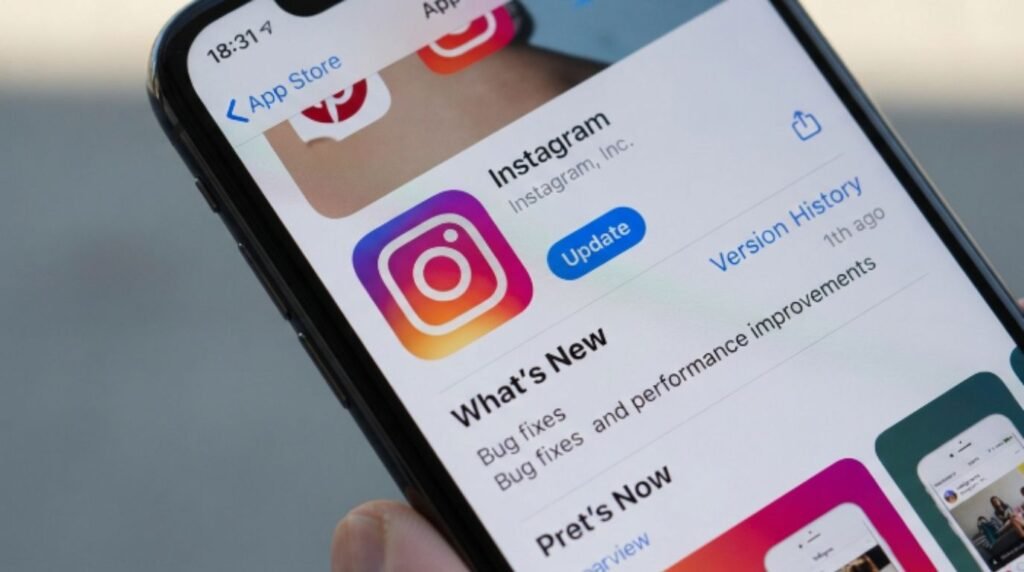
Open the App Store on iPhone or the Google Play Store on Android, search for Instagram, and tap Update if one is available. An outdated build is often the single biggest reason Instagram notes not showing happens in the first place.
[Internal Link: How to Update Instagram App]
Step 2: Force-Close and Reopen the App
After updating, fully close Instagram (not just minimize it) and relaunch it. This clears out any stuck session data that might be blocking the Notes bar from loading.
Step 3: Turn On Activity Status
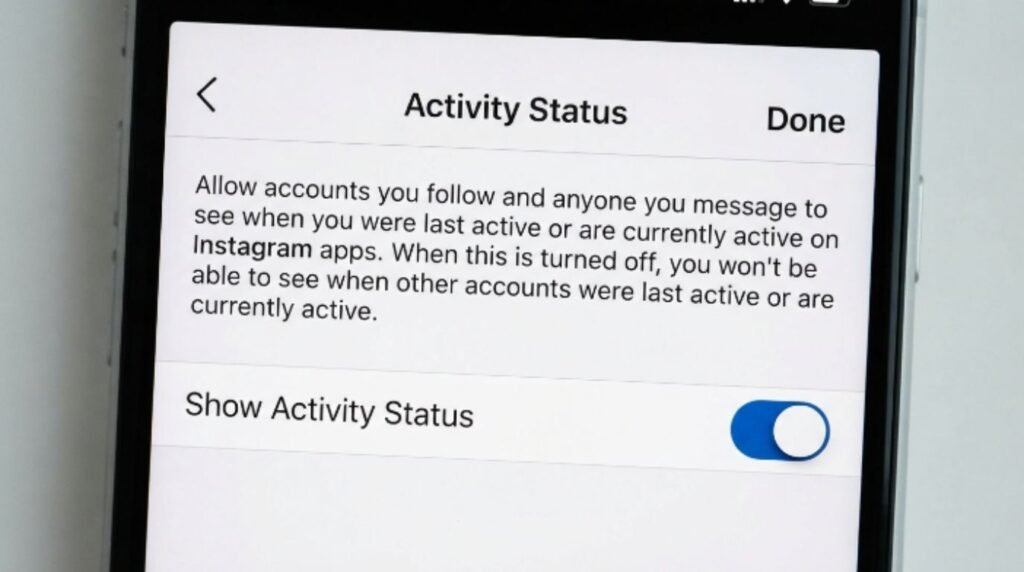
- Tap the profile icon, then the three-line menu in the top right.
- Choose Settings and privacy.
- Tap Messages and story replies.
- Enable Show activity status.
[Internal Link: Instagram Activity Status Explained]
Step 4: Clear the Instagram App Cache (Android)
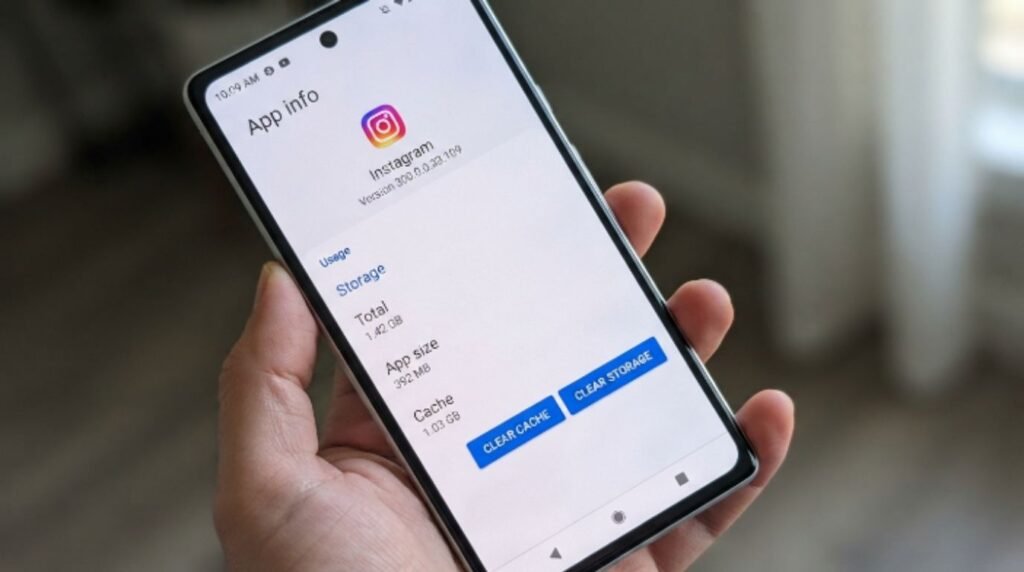
- Open the phone’s Settings app.
- Go to Apps, then select Instagram.
- Tap Storage, then Clear Cache.
- Reopen Instagram and check the inbox again.
iPhone users don’t have a direct cache-clearing option, so offloading and reinstalling the app achieves a similar result.
[Internal Link: Instagram Cache Clearing Guide]
Step 5: Check Who the Note Was Shared With
Notes can be limited to Followers You Follow Back, Close Friends, or a specific group profile. If the account posting the note picked the wrong audience, it simply won’t appear for everyone.
Step 6: Confirm the Note Hasn’t Expired
Since notes disappear after 24 hours, double-check the timing before assuming something is broken.
Step 7: Log Out and Log Back In
Signing out, waiting about 30 seconds, and signing back in refreshes the account session and often resolves stubborn syncing issues.
[Internal Link: Instagram Login Problems]
Step 8: Restart the Phone
It sounds basic, but a full device restart clears background processes that can interfere with how Instagram loads the inbox.
Step 9: Check for a Wider Instagram Outage
[Internal Link: Instagram Down Detector] If Notes and other features are missing across the board, the issue may not be account-specific at all — it could be a broader outage.
Step 10: Reinstall the App
As a last resort, delete Instagram and reinstall it fresh from the App Store or Play Store. This resets nearly everything short of the account itself.
Step 11: Test on a Different Account
[Internal Link: Instagram Account Issues] Trying Notes on a second account (or asking a friend) helps determine whether the problem is Instagram-wide or tied to one specific account.
Step 12: Report the Problem to Instagram
If nothing above works, go to Settings > Help > Report a Problem inside the app and describe the issue. This won’t guarantee an instant fix, but it feeds into Meta’s bug-tracking process.
[Internal Link: Contact Instagram Support]
Instagram Notes Availability by Region
Meta has expanded Notes gradually since 2022. According to Meta’s own product updates, the feature reached the US, UK, several European countries, and Japan first, with other regions added over time. If Notes have never appeared at all, it’s worth double-checking whether the feature has officially reached that country yet before assuming something is broken.
[Internal Link: Instagram Features By Country]
Pros and Cons of Instagram Notes
| Pros | Cons |
|---|---|
| Quick and low-pressure way to share a thought | Limited to 60 characters |
| More private than a public Story | Disappears after 24 hours, so timing matters |
| Encourages direct replies and conversation | Only visible to mutual followers or close friends |
| No pressure to add photos or polish | Can be affected by app bugs or rollout delays |
Common Mistakes to Avoid
- Assuming it’s a personal account issue right away. Sometimes it’s a wider Instagram bug, not something wrong with one specific profile.
- Forgetting the 24-hour expiration. A missing note might just mean time ran out, not that something broke.
- Skipping the app update. Many people troubleshoot everything except the simplest fix — updating the app.
- Not checking the audience setting. A note shared only with Close Friends won’t show up for regular followers, and that’s expected.
- Reinstalling the app too early. This should be a later step, not the first move, since it wipes local cache and settings.
Expert Tips
- Keep auto-update turned on for Instagram in the App Store or Play Store so feature bugs get patched automatically.
- Check activity status settings periodically, since Instagram occasionally resets privacy toggles after major app updates.
- If Notes disappear right after an update, wait 24 hours before troubleshooting further — Meta often needs a short window to finish rolling out server-side changes.
- Use the in-app “Report a Problem” tool instead of general feedback forms; it routes issues more directly to the right team.
- If testing with a friend, make sure both accounts follow each other back, since Notes only work between mutual connections.
[Internal Link: Instagram Tips and Tricks]
FAQs
Why did Instagram Notes suddenly disappear from my inbox? It’s usually one of a few things: an outdated app, activity status turned off, or a temporary glitch. Updating the app and restarting it fixes most cases within minutes.
Do Instagram Notes expire, and is that why I can’t see one anymore? Yes. Every note disappears automatically 24 hours after it’s posted, so a missing note may simply mean time ran out.
Can I see Instagram Notes from someone who doesn’t follow me back? No. Notes only appear between accounts that follow each other back, or within a Close Friends list or shared group profile.
Is Instagram Notes available in every country? Not yet. The feature rolled out first to the US, UK, parts of Europe, and Japan, with other regions added gradually afterward.
Will clearing my cache delete my Instagram account data? No. Clearing the app cache only removes temporary stored files; it doesn’t touch the account itself, followers, or messages.
Does turning off activity status affect Instagram Notes? It can. Since both features share related messaging infrastructure, disabling activity status sometimes causes the Notes bar to disappear too.
What should I do if none of the fixes bring Instagram Notes back? Report the issue directly through Settings > Help > Report a Problem inside the app, since some cases require a fix from Instagram’s side.
Conclusion
Instagram notes not showing is frustrating in the moment, but it’s rarely permanent and almost never something dramatic. In most cases, an outdated app, a disabled activity status toggle, or a note that simply expired explains the whole thing. Working through the steps above in order — starting with an app update and ending with reporting the problem if needed — resolves the issue for the vast majority of users. Anyone still stuck after trying everything here should reach out through Instagram’s official Help Center for account-specific support, since some rollout limits genuinely take a bit of time to resolve.
[Internal Link: Instagram Troubleshooting Hub]